If you don't sync Line Managers from an HR system, you can set them for many employees at once by importing an Excel file. The employees and their Line Managers must already be in Payhawk, even if they haven't been invited yet. Each employee can have one Line Manager, and a reporting line can't loop back on itself.
Line Managers are available in Payhawk Labs as part of the new HR system connection.
Importing Line Managers
To import Line Managers:
In the Payhawk Web Portal, go to Employees and select Import from the menu.
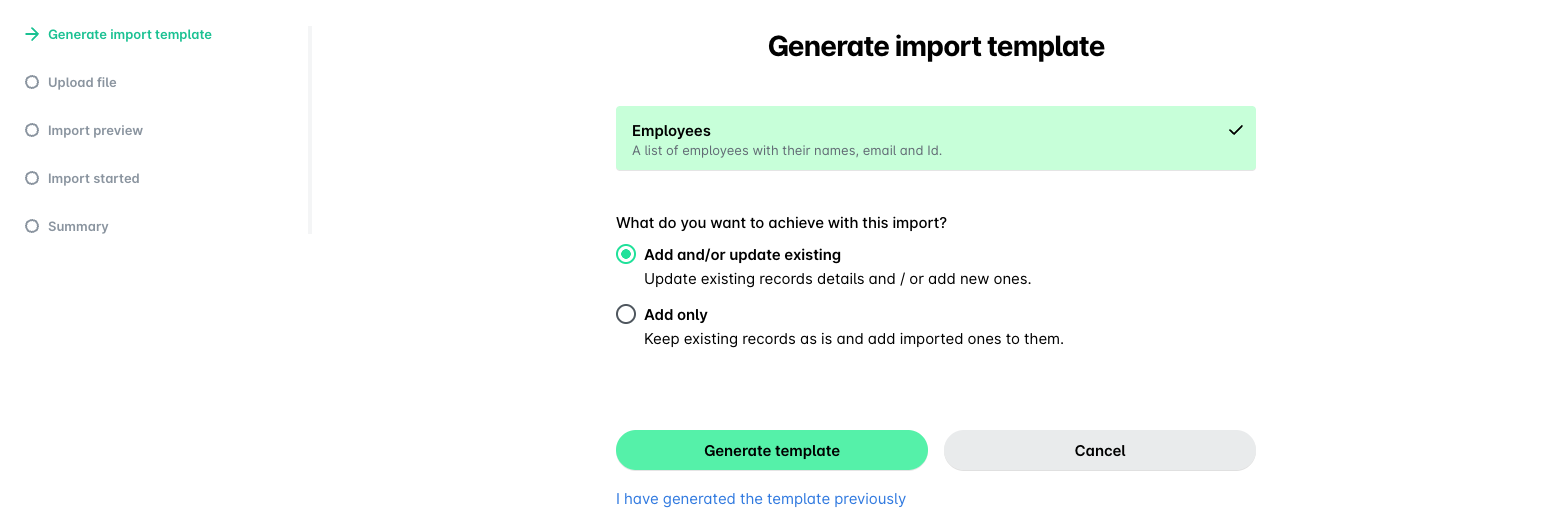
In Generate import template, choose what the import does:
Add and/or update existing adds new employees and updates the ones already in Payhawk. Choose this option to set Line Managers for existing employees.
Add only only adds new employees.
Click on Generate template. As a result, the template downloads automatically. If you already have a template, click I have generated the template previously instead.
For each employee, fill in their Line Manager.
In Upload file, drag and drop the file or click to upload it, then click Upload.
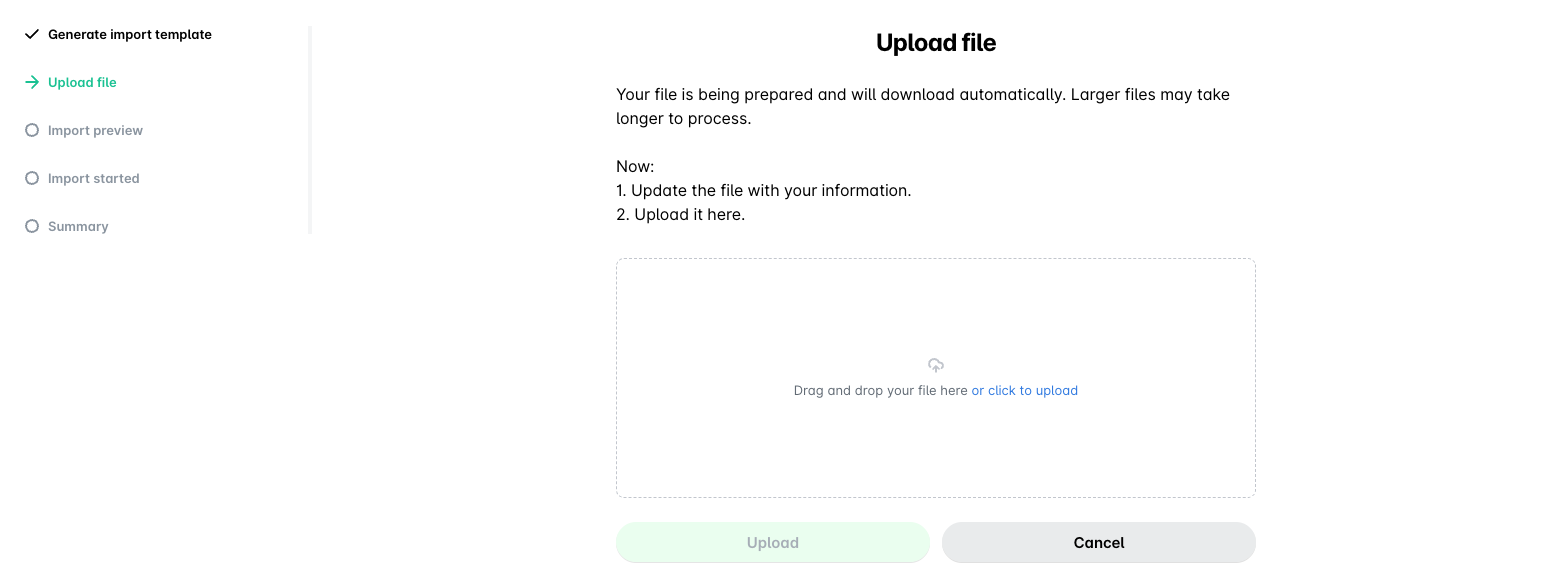
As a result, the wizard will show an Import preview and you can check the data before it's imported, followed by Import started and a Summary. Depending on the size of the file, the import can take a while.
Checking the import
If some rows can't be imported, the Summary step will show what went wrong. Fix the file and upload it again.
To check the new reporting lines, go to Employees > Org chart. For more information, see the article on using the Org chart.