If your Payhawk account is set up as a group, Teams will show your teams as a chart. You can see how teams and sub-teams are organized across the group and build the structure directly in the chart.
The Teams chart is available in Payhawk Labs as part of the new HR system connection at the group level.
Accessing the Teams chart
To access the Teams chart in a group Payhawk account:
In the Payhawk Web Portal, go to Employees > Teams. The Edit group teams page will open with the group at the top of the chart and the teams below it.
For a quick walkthrough, click Show me how in the Configure group team structure banner.
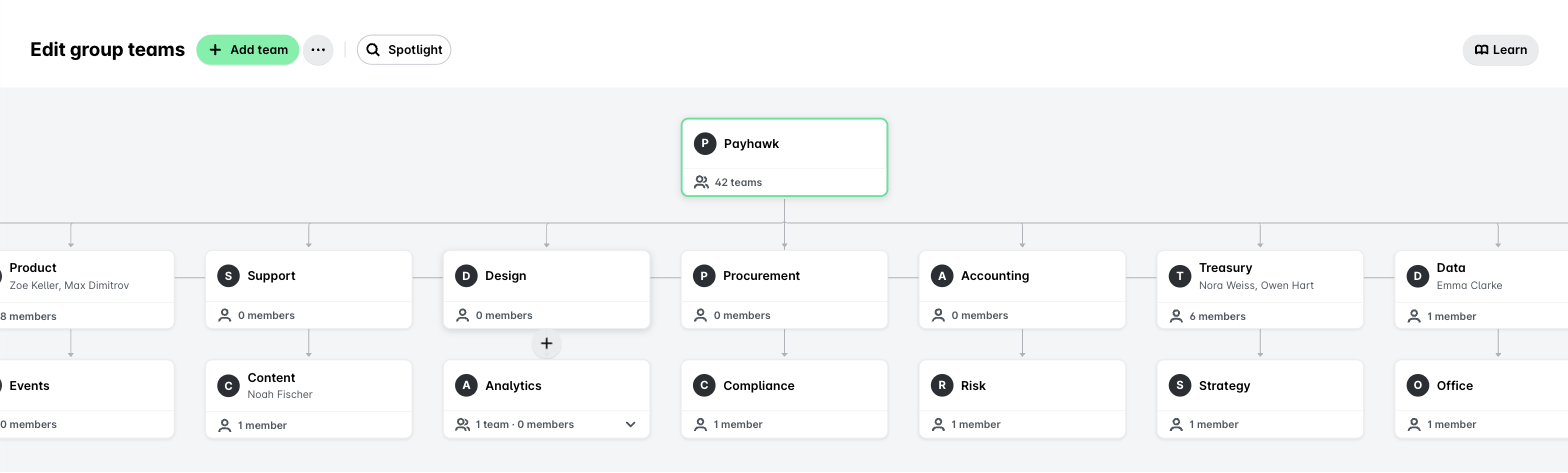
Each team card shows the team name and how many sub-teams and members it has, for example 2 teams · 14 members.
To expand or collapse the team, click the counts at the bottom of a card.
To open the team's details, click the card.
To highlight one team and its part of the chart, use Spotlight.
Building your team structure
If there are no teams yet, the page will show No teams yet.
To build or change the structure, you can:
Click Add team to create a top-level team.
Hover over a team card and click + to create a sub-team directly under that team.
In a team's details, click Add sub-team to add a team under it, or Move to put the team under a different parent team.
To create many teams at once, click ⋯ next to Add team and select Import.
Teams, Line Managers, and the Org chart
Teams and Line Managers are two separate structures and you can use both in the same approval workflow:
Teams group people for spend, approvals, and reporting, and each team has a Team Manager.
Line Managers set out who reports to whom and appear in the Org chart.