In Payhawk, you can manage the fields for each individual spend type used at your company.
These capabilities allow you to better configure expenses according to the needs of your organization, gather the relevant information you need based on the spend use-case, and streamline the expense reporting process at your organization.
Settings defined in the Fields library apply across all spend types.
Creating fields in spend types
To add new fields:
In the Payhawk Web Portal, open the app switcher in the top-left corner and go to Settings > Spend types.
Select the desired spend type by clicking on it, for example, Bill.
In the Fields tab, click on + Add.
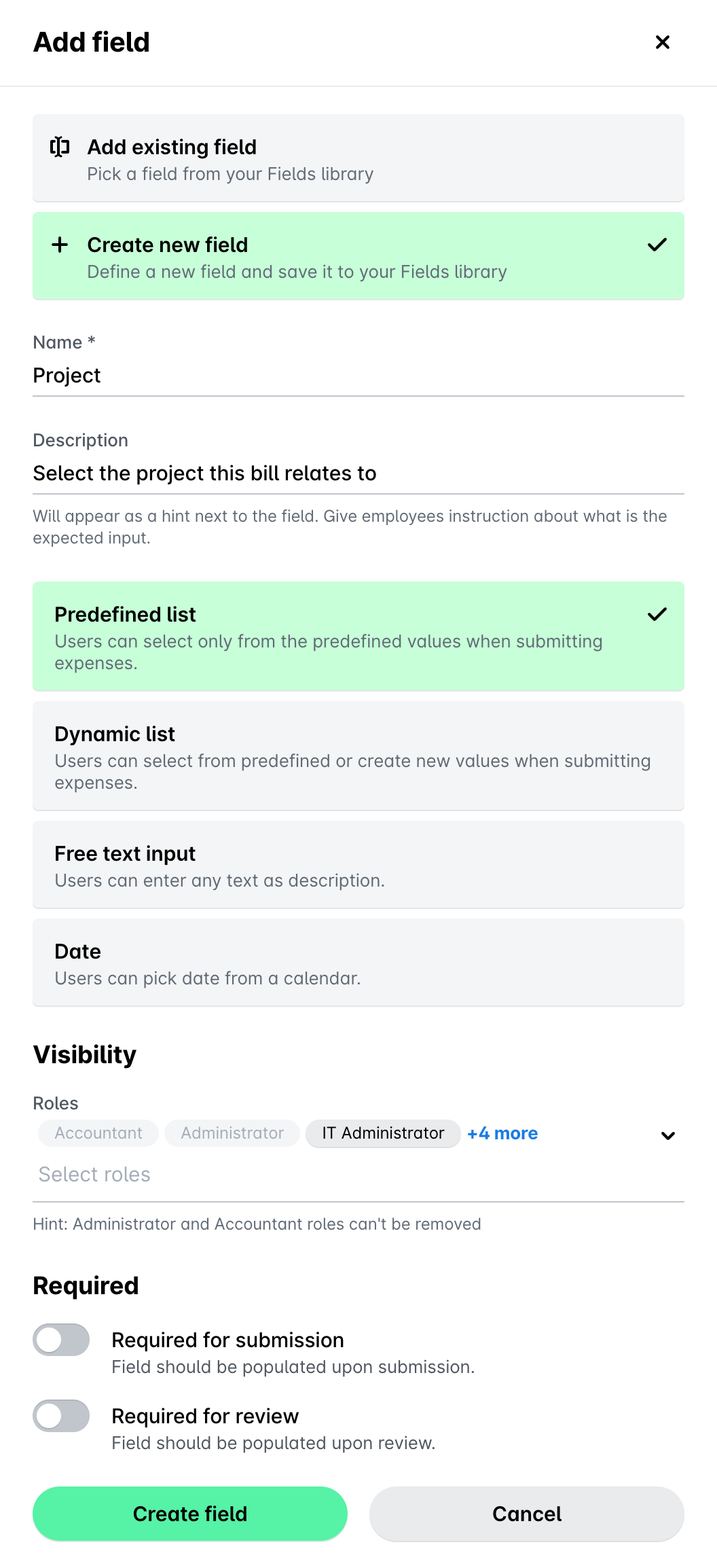
In the panel that opens:
Click on Add existing field to include an existing field from Fields library in the selected spend type, by choosing from the drop-down list, for example Location. Note that the chosen field will already have settings defined in the Fields library.
Click on Create new field to create a new field in the Fields library and include it in the selected spend type.
Enter a name for the field.
Enter a short description for the field.
Select a type for the field by clicking on one of the available options: Predefined list, Dynamic list, Free text input or Date.
Under Visibility, select from the drop-down lists the entities and the roles which will use this field.
Under Required:
Switch on the Required for submission toggle button for submitters to be obliged to provide a value for the field.
Switch on the Required for review toggle button for reviewers to be obliged to provide a value for the field.
Click on Create field.
The field created from the spend type will be added to the Fields library with enabled availability for expenses and will be added for the specific spend type only. You can add this field to other spend types later, if needed.
Setting workflows for spend types
You can set approval workflows for spend types from the Workflow tab of the respective spend type. For example, to configure the workflow for the Bill spend type, open the app switcher in the top-left corner and go to Settings > Spend types > Bill > Workflow > Edit workflow.
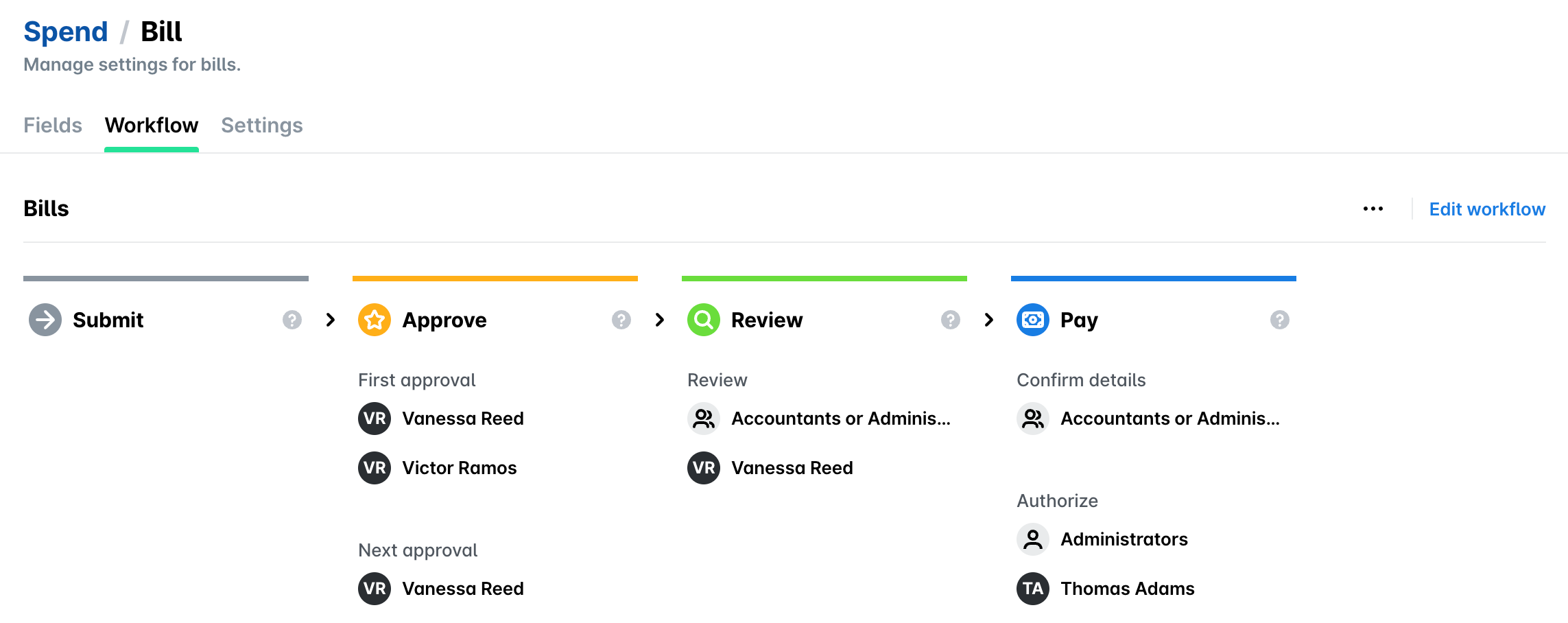
Alternatively, you can set approval workflows for spend types from the Workflows tab in Settings. For example, to configure the workflow for the Bill spend type, open the app switcher in the top-left corner and go to Settings > Workflows > Spend types > Bill > Edit workflow.