Payhawk supports direct integration to SAP S/4HANA®, providing you with the flexibility to effortlessly export and sync your expenses between the two systems.
For more information, go to the article about exported data between SAP S/4HANA and Payhawk.
Before you begin
An SAP S/4HANA Private Cloud tenant.
A technical user with certain roles.
Connecting to SAP S/4HANA Cloud, Private Edition
To start connecting your Payhawk account to SAP S/4HANA Cloud, Private Edition, follow the steps:
In the Payhawk Web Portal, go to Settings > Integrations > SAP S/4HANA.
Click on Connect.
On the next screen, from the drop-down list, select Private Cloud, select the checkbox to confirm that you’re connecting through BTP, and enter the URL of your SAP S/4HANA instance. Click on Continue.
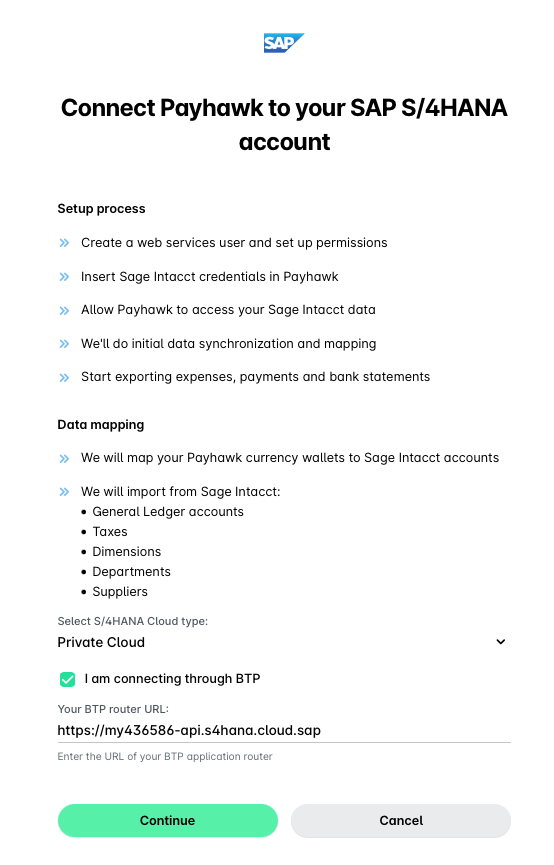
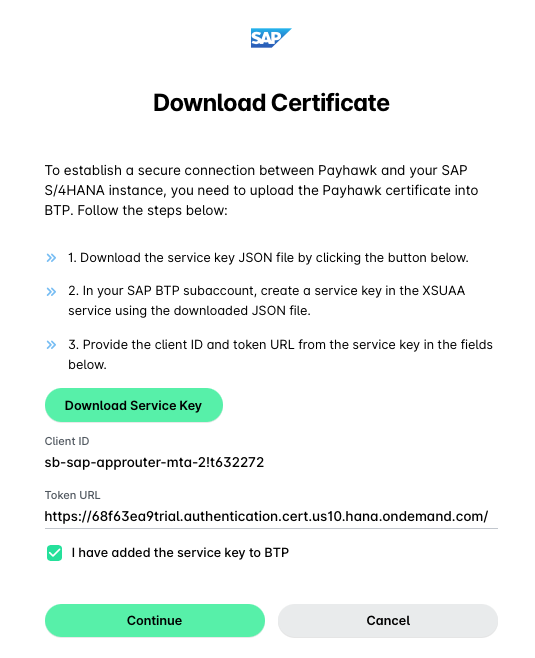
On the Download certificate screen:
Click on the Download service key button. In your SAP BTP subaccount, create a service key in the XSUAA service using the downloaded JSON file.
Provide the client ID from the service key in the provided field.
Provide the token URL from the service key in the provided field.
Select the checkbox to confirm that you’ve added the service key to BTP and click on Continue.
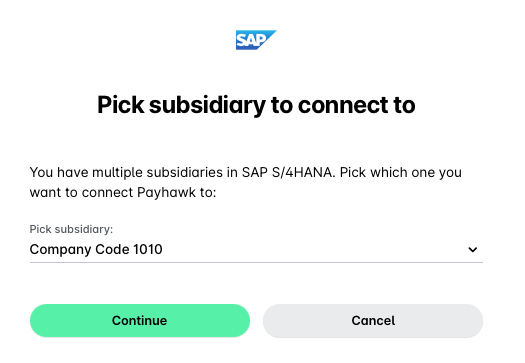
On the next screen, from the drop-down list, select which one of your subsidiaries you want to connect Payhawk to. Click on Continue.
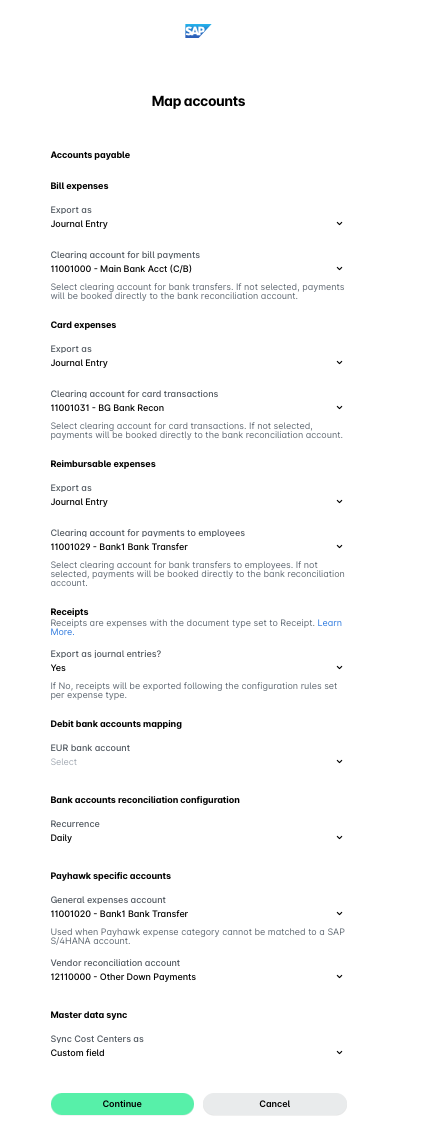
In the Map accounts dialog, choose which parameters to map when exporting expense data. Note the you can adjust these at any time.
The Payhawk system will automatically fetch the SAP S/4HANA data. After the data process has finished, click on Finish.