Payhawk Administrators at your company can connect your Payhawk account to MS Teams (MS Teams), enabling the Financial Controller AI Agent as a communication channel that employees can use to interact with the AI Agent directly within MS Teams.
Before you start
You must be a Payhawk Administrator and an administrator in your MS Teams workspace. This ensures you have the proper permissions to authorize the integration, manage notifications, and control communication settings.
Once MS Teams is connected, the Financial Controller AI Agent will start sending smart reminders and follow‑ups to employees in the linked Payhawk entity who have logged in to the AI Agent in MS Teams.
Employees receive reminders only after they open the Financial Controller AI Agent in MS Teams and log in with their Payhawk account, even if they use the same email address in MS Teams and Payhawk.
Connecting the AI Agent to MS Teams
You can connect Payhawk to MS Teams to manage employee card payments through the Financial Controller AI Agent in the following way:
Log into MS Teams using your Administrator account.
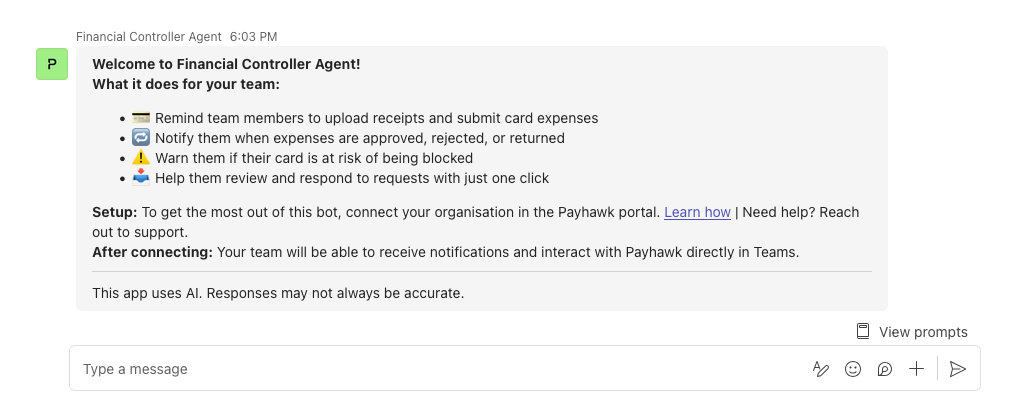
Install the Financial Controller Agent app. After installation, you’ll receive a welcome message in MS Teams.
In the Payhawk Web Portal, go to Settings > AI Office.
Go to Financial Controller Agent and click on its three‑dot menu.

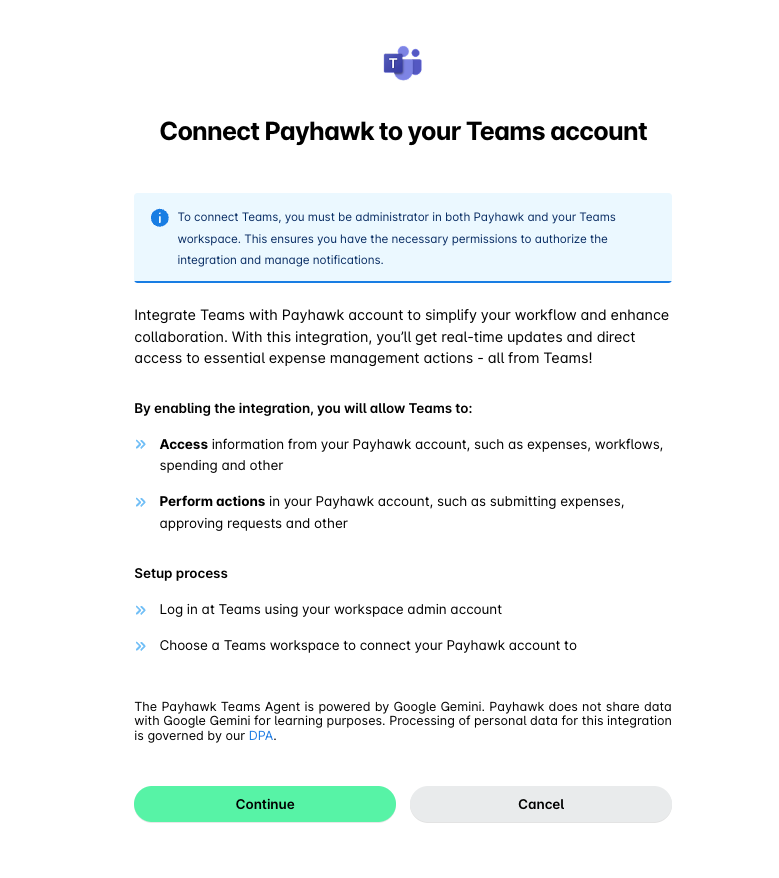
Select Connect Microsoft Teams and grant permissions to share data between Payhawk and MS Teams by clicking on Continue. As a result, you will be redirected to the Microsoft Permissions requested screen.
Review the requested permissions and click on Accept. As a result, you’ll be redirected back to Payhawk.
On the success screen, click on Done.
After the connection with MS Teams is established, employees will need to log in and authenticate the first time they use the Payhawk AI Agent in MS Teams. The Payhawk Administrator who set up the connection, however, is authenticated automatically and doesn’t need to log in again.
Disconnecting from MS Teams
To disconnect the Financial Controller AI Agent from MS Teams:
In the Payhawk Web Portal, go to Settings > AI Office and click on Manage next to Financial Controller Agent. Open the External chat platforms tab.
Click on the three‑dot menu and select Disconnect.
Disconnecting from MS Teams stops all automated follow-ups for users in that Payhawk entity.
The Payhawk app will remain visible in MS Teams until manually removed from the MS Teams workspace settings.
Users will no longer be able to take actions for that entity in MS Teams after disconnection.
Disclaimer
This application integrates large language models (LLMs) to deliver AI-powered functionality, including conversations and automated suggestions. Due to the nature of machine learning, responses may sometimes be inaccurate or incomplete. Payhawk does not use your data to train any public or third-party models.
For more information about how Payhawk processes personal data for the Financial Controller AI Agent feature, see the Global Privacy Policy, which covers personal data for which Payhawk acts as a Controller.
Useful resources