Payhawk Administrators can enable smart note suggestions to build a smart note template to reduce manual data entry and standardize the Note field across expenses.
The Smart note suggestion & template option enables you to build a custom note template using expense data, AI-generated content, or both. For example, you can configure the Note field to display the Expense or Payment ID, Amount, or PO number. You can combine multiple expense data options, add AI-generated text, or append AI-generated content to an existing template for extra context.
The template applies at expense creation. If an employee edits the generated value before submitting, their input takes precedence over the template.
Enabling smart note suggestions
To enable smart note suggestions and define the Note field template:
In the Payhawk Web Portal, go to Settings > Fields library.
Click on Note.
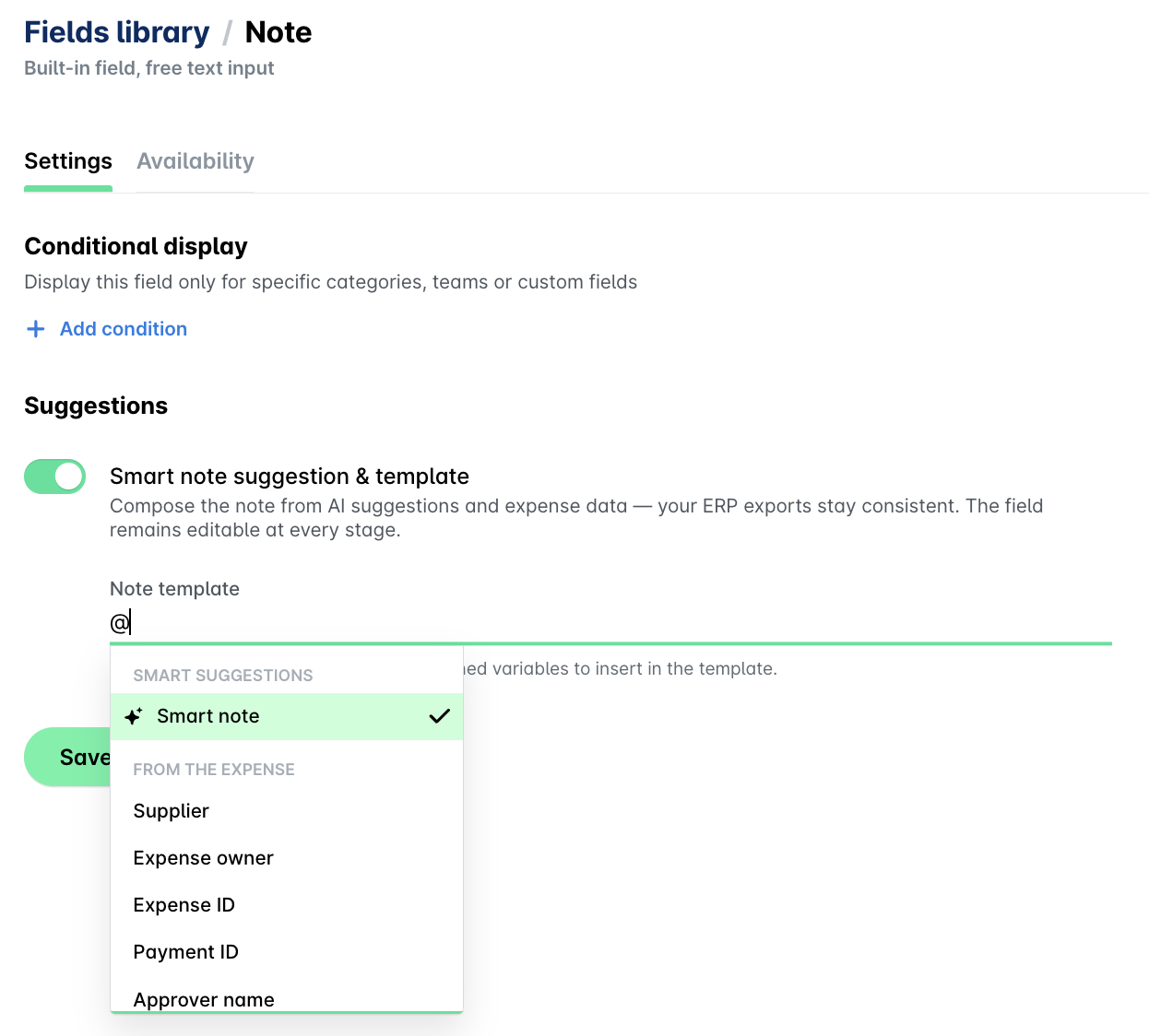
Under the Settings tab, turn on the Smart note suggestion & template toggle.
In the Note template field, type @ to select from the available options. Add as many options as needed.
Click on Save changes.
Disabling the smart note
To disable smart note suggestions and Note field template:
In the Payhawk Web Portal, go to Settings > Fields library.
Click on Note.
Under the Settings tab, switch off the Smart note suggestion & template toggle.
Click on Save changes.
How the AI-generated smart note works
The smart note feature automatically generates the Note field by analyzing the details from the uploaded expense document and historical information from the employee’s past expenses for this supplier.
As a result, when an employee creates an expense, Payhawk AI analyzes the expense document and references previous expenses to auto-populate the Note field. The automation adapts its tone, language, and key details based on past reviewed expenses.
Like other automated fields in the Payhawk system, a star indicator marks the AI-generated notes.
For traceability, you can also view the action in the Activity section of the expense.