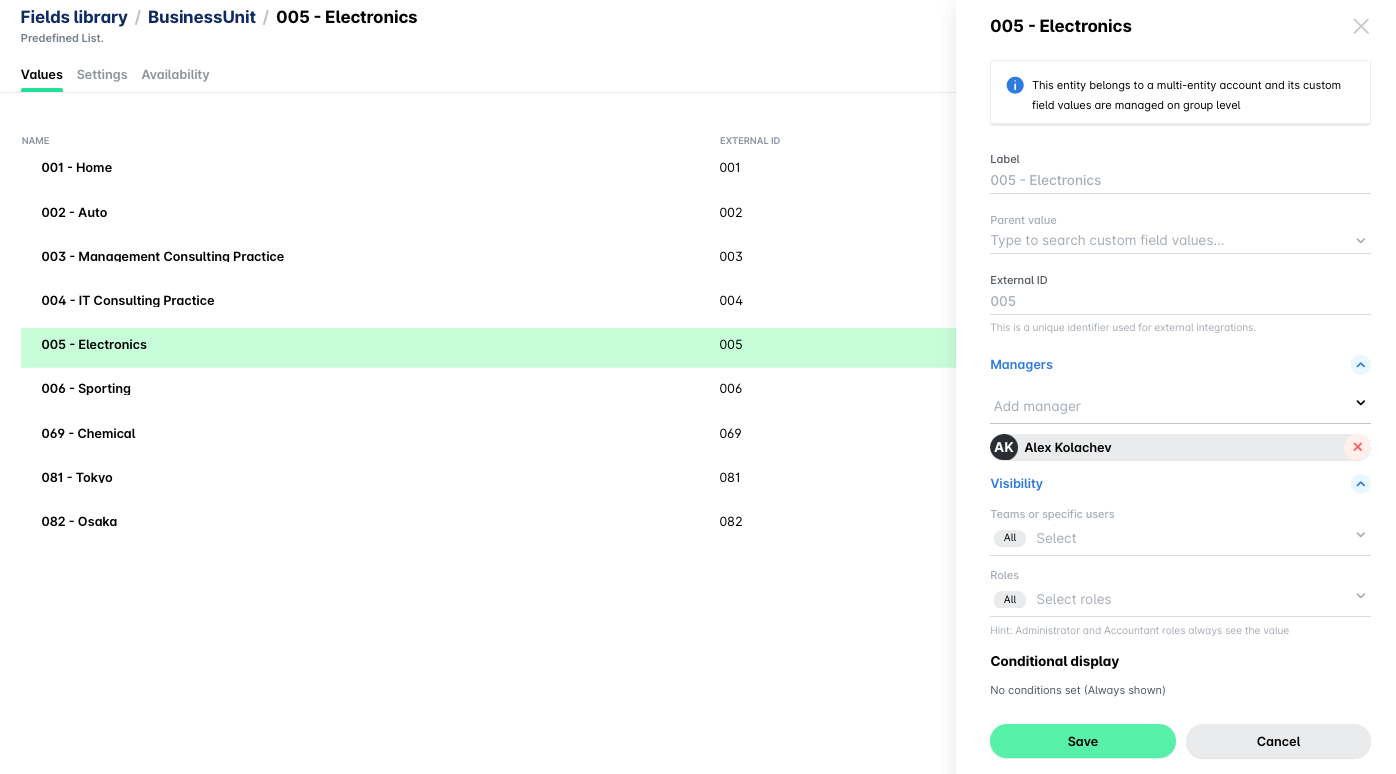
After you have defined your fields, such as projects, cost centers, or other characteristics of your expenses, you can define specific managers for each field value.
The manager you will define is important if you need expense approval based on these fields, for example, if expenses for different projects have to be approved by different project managers.
Adding managers to values
To assign managers to values in Payhawk:
In the Payhawk Web Portal, go to Settings > Fields library.
Select the desired field by clicking on it, for example, Cost center. The user interaction is identical for all values to which you may need to assign managers.
Under the Values tab, select the value you want to configure managers for, for example, Production.
In the dialog that opens, under Managers, select the names of the specific managers from the drop-down list.
Click on Save.
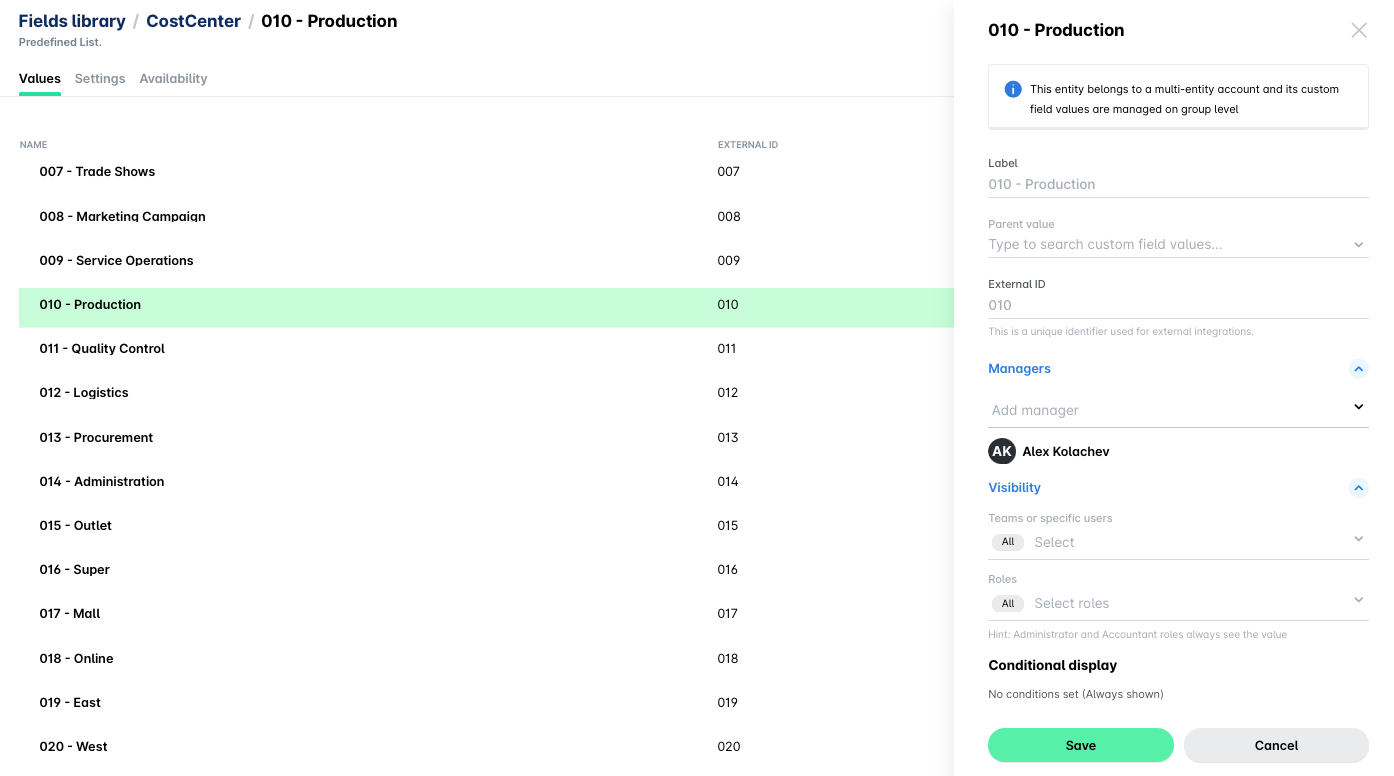
When you open a field from an expense type, you can view the managers assigned to each value, but you can only edit these managers from the Fields library.
Removing managers from values
To remove managers from values in Payhawk:
In the Payhawk Web Portal, go to Settings > Fields library.
Select the desired field by clicking on it, for example, Business unit. The user interaction is identical for all values to which you may need to assign managers.
Under the Values tab, select the desired value, for example, Electronics.
In the dialog that opens, hover over the name you want to remove and click on x.
Click on Save.