You can copy the setup of a field from one spend type to another spend type, including the settings, values, and dependencies of the field to save time and effort.
Copying fields setup to other spend types
To copy setup of fields:
In the Payhawk Web Portal, open the app switcher in the top-left corner and go to Settings > Spend types.
Select the desired spend type by clicking on it, for example, Bill.
Navigate to its Fields tab.
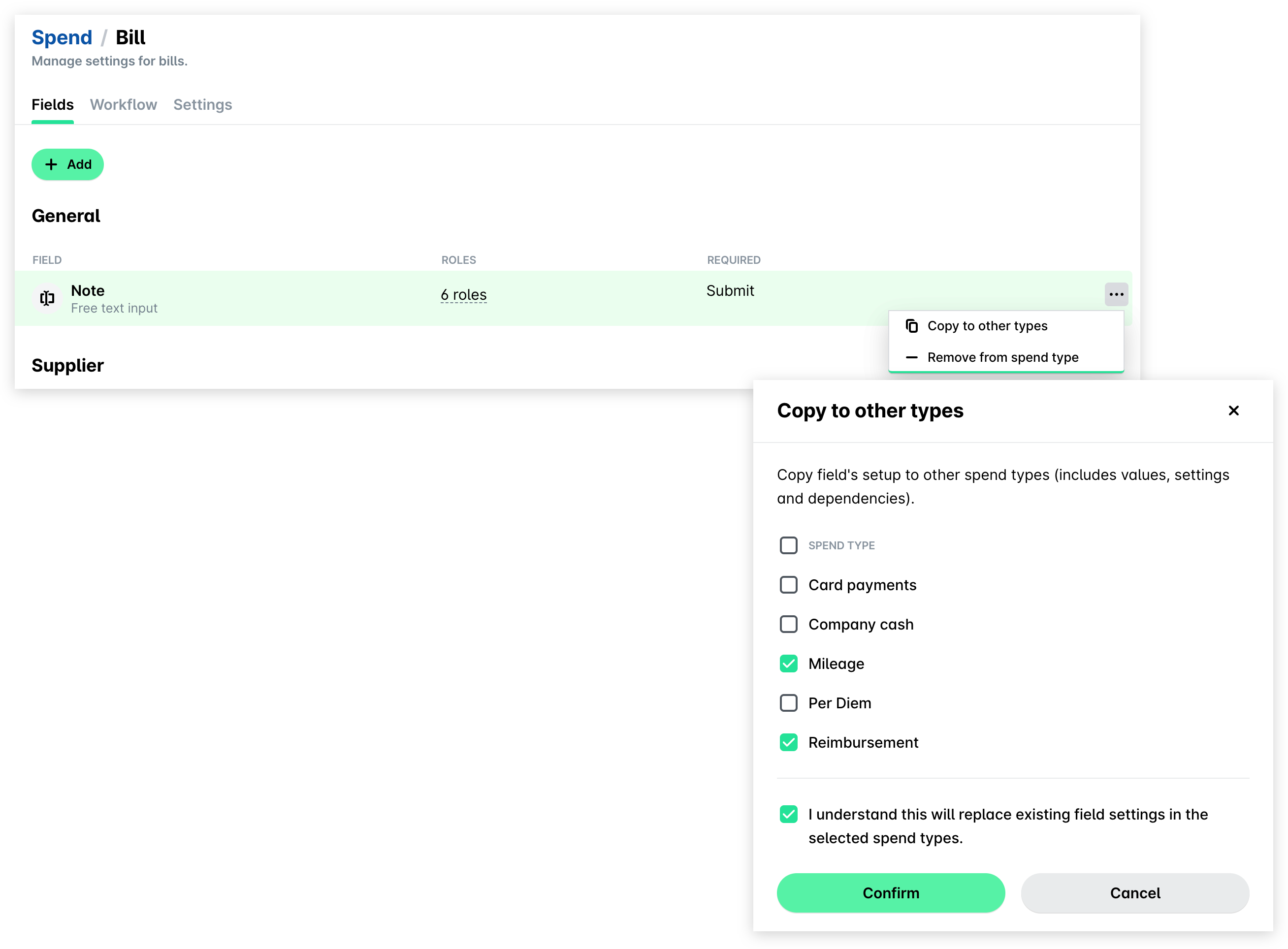
Click on the three-dot menu next to the field whose setup you want to copy and select Copy to other types.
In the panel that opens, select the checkboxes next to the desired spend types, for example, Mileage and Reimbursement.
Select the checkbox to confirm that you understand that this action will replace the existing configuration in the specified types.
Click on Confirm.
Reordering categorization fields
To reorder categorization fields:
Open the app switcher in the top-left corner and go to Settings > Spend types.
Select the desired spend type by clicking on it, for example, Bill.
Navigate to its Fields tab.
Under Categorization, drag and drop fields to reorganize them in a way that they must appear in Spend.