The Payhawk integration with SAP S/4HANA® is designed to work effortlessly and help you keep your data between the two systems in sync at all times.
Notes on exporting to SAP S/4HANA
It's recommended that you sync your Payhawk-SAP S/4HANA accounts every time you make changes in SAP S/4HANA.
An expense will be automatically exported to SAP S/4HANA once that expense is marked as reviewed. As a result, all your expense data, images, and payments will be imported to SAP S/4HANA.
The payment data for an expense will be exported only after the transaction has been settled.
Prerequisites
To start exporting expenses and payments, make sure you have connected the Payhawk and SAP systems.
Exporting expense and payment data from Payhawk to SAP S/4HANA
To export your Payhawk expenses to SAP S/4HANA:
In the Payhawk web portal, go to Expenses > Review.
Select an expense.
Check if all the data is correctly stored in the expense.
Click on Review.
If an error occurs while exporting your data from Payhawk to SAP S/4HANA, Payhawk will display an error message suggesting what is wrong with the data.
Viewing exported expenses in the ERP from Payhawk
To directly view your exported expenses to SAP S/4HANA from Payhawk:
Log in to your Payhawk account.
Go to Expenses.
Select the desired expense.
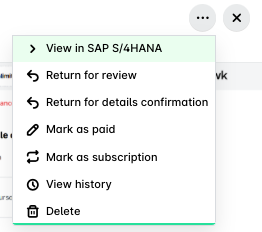
Click on the three dots menu and click on View in SAP S/4HANA.
Viewing export data and using export filters for expenses and payments in Payhawk
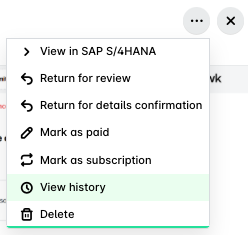
The export events between the two systems can be viewed when you click on the three-dot menu of the selected expense and select the View history option.
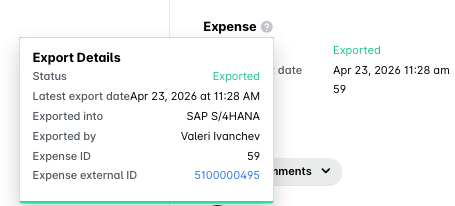
The detailed export data of an expense or payment can be viewed from the Expenses app in the Export section of that expense.
 You can also filter out expenses and payments based on various filters relevant to SAP S/4HANA such as Export status, Exported by, Export date, External ID, and others.