Error message
Invalid Project selection in expense.Affected ERP integrations
Exact Online
Cause
This error occurs for one of two reasons:
A project was synced to Payhawk as a custom field option but has since been deleted from Exact Online. When Payhawk attempts to attach the deleted project reference to the expense during export, Exact Online cannot find it and rejects the transaction.
The project selected for an expense in Payhawk has an Active from / Active to date range configured in Exact Online, and the current date, or the expense's service date, falls outside of that range, making the project inactive.
Solution
You can resolve this issue in one of the following ways:
Re-sync custom fields and select an existing project.
In the Payhawk Web Portal, go to Settings > Integrations > Exact Online.
Click on its three-dot menu and select Manually sync.
Open the expense that failed to export.
Update the project selection to an existing, active project from the refreshed list.
Save the expense and attempt to export it again.
Update the project's active date range in Exact Online.
Log in to your Exact Online account.
Navigate to Master Data > Projects > Projects.
Locate and click on the project that is selected in your Payhawk expense.
Review the Active from and Active to fields.
Adjust the date range so that both the current date and the expense's service date fall within the active period:
Update the Active from date if the project's start date is set to a future date.
Update the Active to date if the project's end date has already passed.
If the project must remain active indefinitely, consider removing the Active to date entirely.
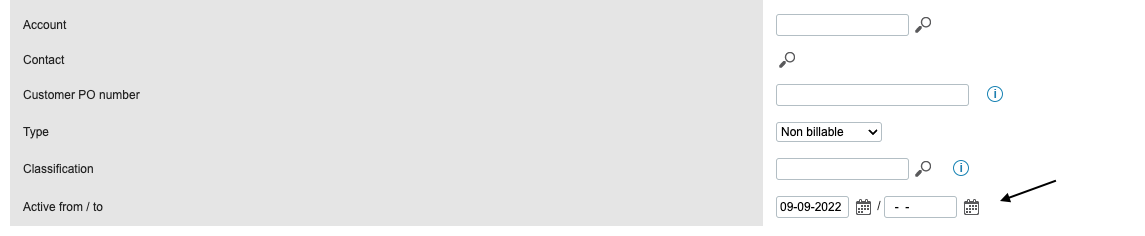
Click Save.
Return to Payhawk and attempt to export the expense again. The export must now be successful.
Ensure that the service date of the expense in Payhawk also falls within the project's active period in Exact Online, as this is a separate validation that Exact Online performs.