Error message
Failed to export into MS Business Central. The VAT Posting Setup does not exist.Affected ERP integrations
MS Business Central
Cause
This error occurs when the combination of VAT Business Posting Group, from the vendor, and VAT Product Posting Group, from the G/L account, used in the expense does not exist in the VAT Posting Setup table in MS Business Central.
The system attempts to use:
VAT Business Posting Group - retrieved from the vendor record associated with the expense.
VAT Product Posting Group - retrieved from the G/L account mapped to the expense category.
If this specific combination is not configured in MS Business Central's VAT Posting Setup, the export will fail.
This logic applies to both Purchase Invoices and Journal Lines. For Journal Lines, the journal or batch must have the Copy VAT Setup to Journal Lines setting enabled for VAT posting groups to be applied correctly.

Solution
To resolve this issue:
Identify the VAT Posting Groups used:
Log in to your MS Business Central account.
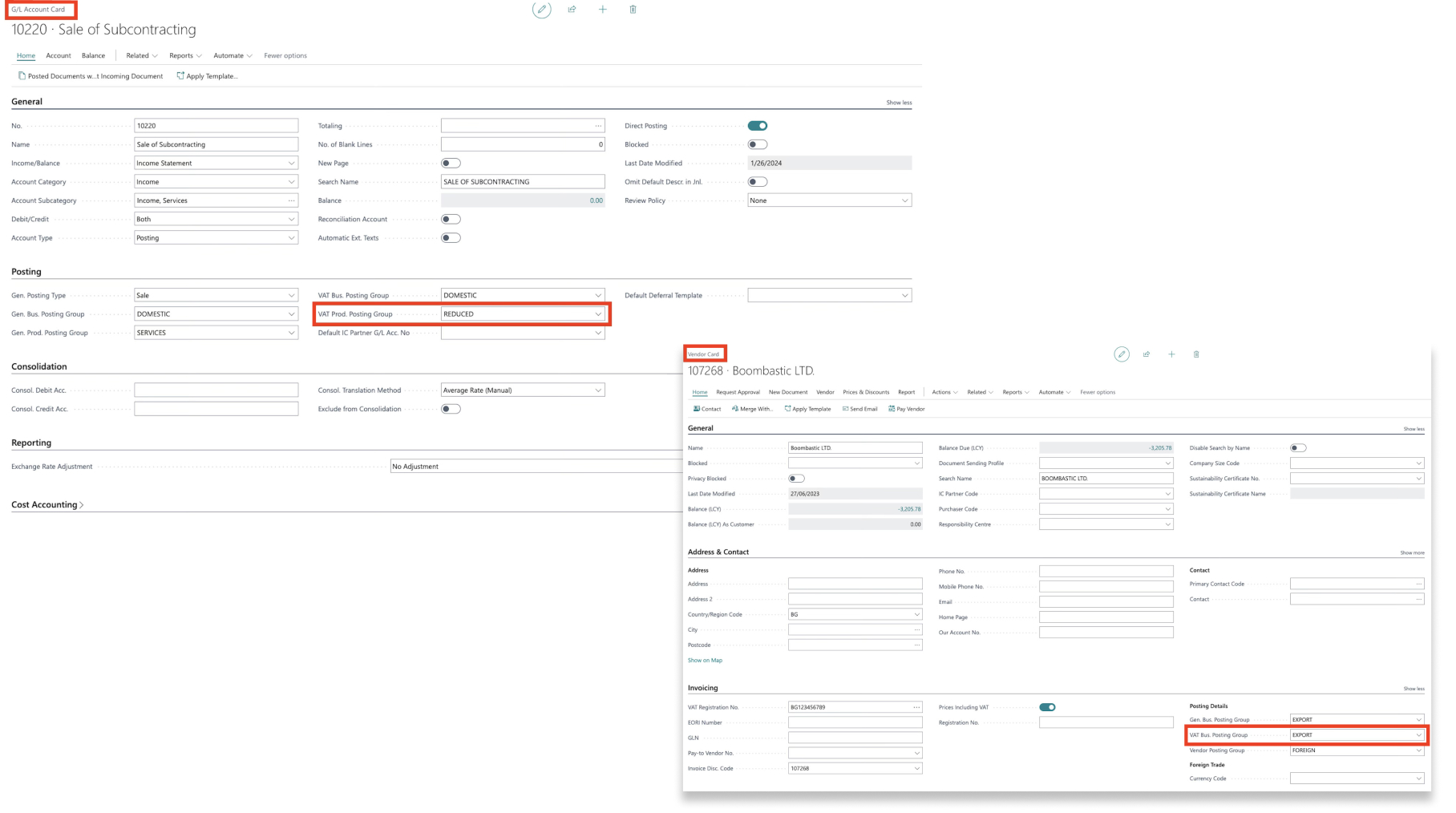
Navigate to the Vendor record associated with the expense and note the VAT Business Posting Group value. Screenshot showing the VAT Bus. Posting Group field in the vendor record
Navigate to the G/L Account mapped to the expense category in Payhawk and note the VAT Product Posting Group value.
Add the combination to VAT Posting Setup:
In MS Business Central, navigate to VAT Posting Setup.
Check if a row exists with the identified VAT Business Posting Group and VAT Product Posting Group combination.
If the combination does not exist, create a new entry with those values.
For example, if the vendor has VAT Business Posting Group = EXPORT and the G/L account has VAT Product Posting Group = REDUCED, you must create a row in the VAT Posting Setup table with these exact values.
Save and re-export:
Save the new VAT Posting Setup entry.
Return to the Payhawk Web Portal and try to export the expense again.