This article provides answers to some of the most frequently asked questions (FAQ) related to the Payhawk mobile app.
What is the minimum mobile operating system (OS) version I must have to use the Payhawk mobile app?
The minimum mobile operating system version which you must have in order to use the Payhawk mobile app depends on the mobile app framework. For optimal experience, make sure you’re always using the latest version. To check your current version, see the article about viewing the version of your Payhawk mobile app.
How do I check the required operating system version?
You can check the required version in different ways, depending on the operating system of your device.
To check the required operating system version on Android:
Go to Google Store.
Find Payhawk.
Click on About this app.
Scroll down to App Info.
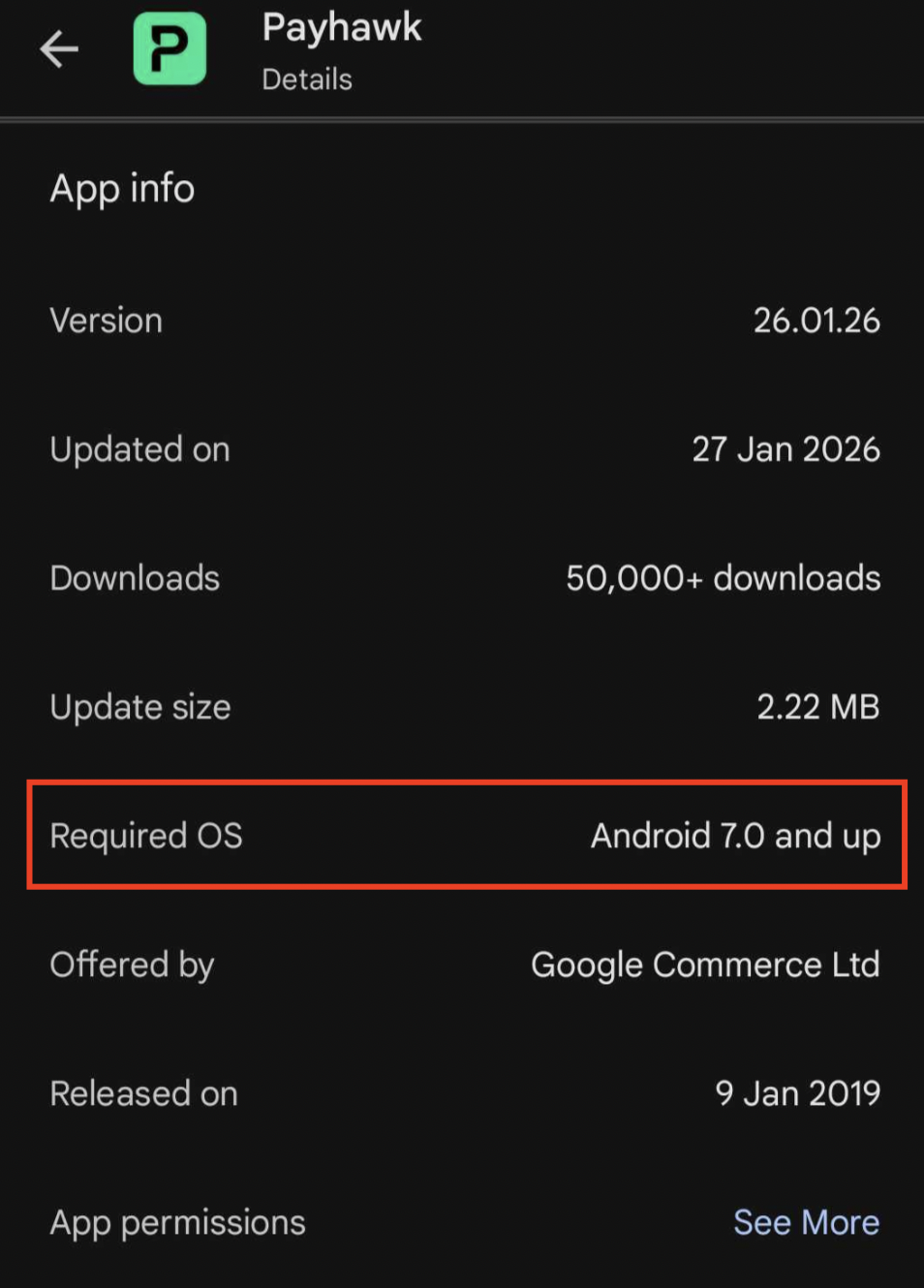
Under Required OS, check the required version, for example, Android 7.0 and up.
To check the required operating system version on iOS:
Go to App Store.
Find Payhawk.
Scroll down to Information.
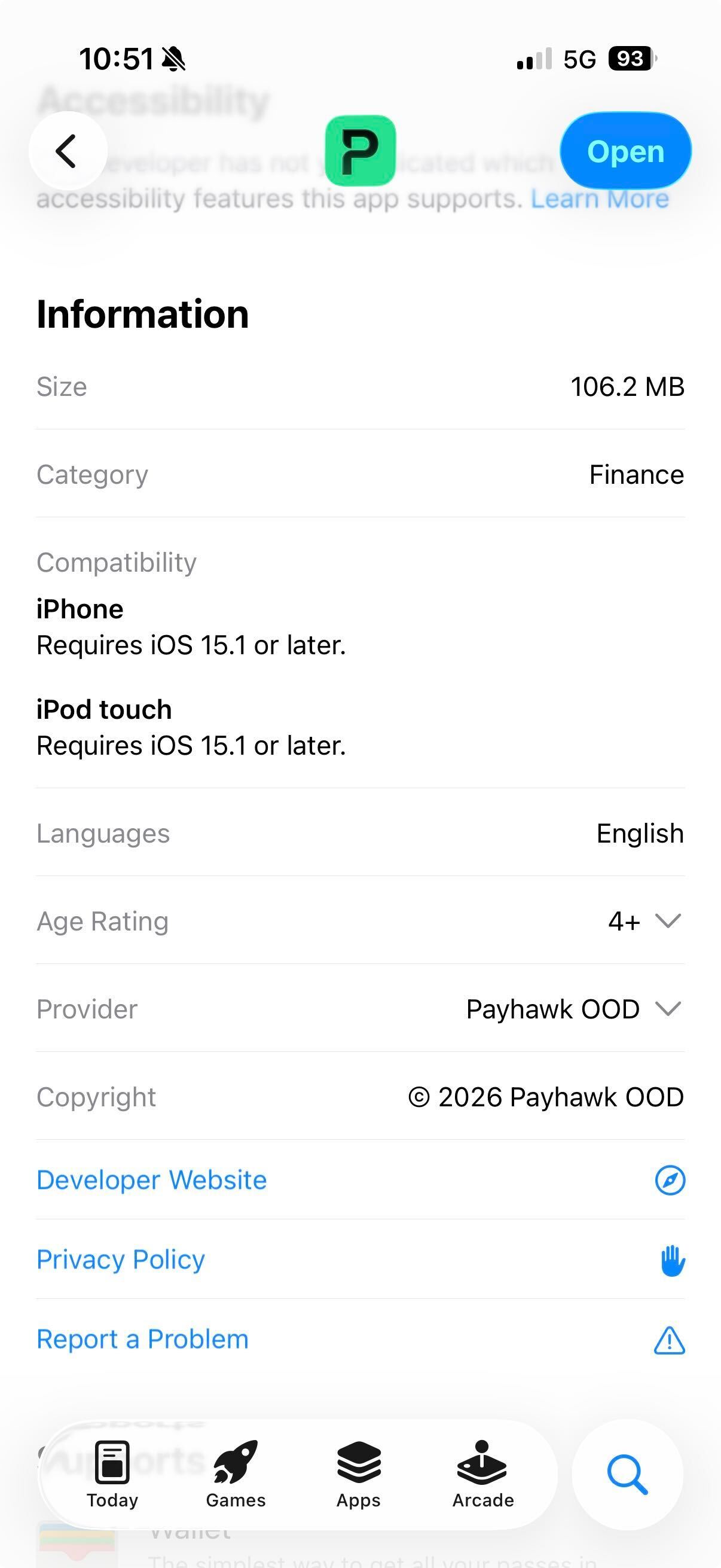
Under Compatibility > iPhone, check the required version, for example, Requires iOS 15.1 or later.
How do I check the operating system version of my device?
You can check the version of your device in different ways, depending on the operating system of your device:
To check the operating system version of your Android device:
Go to Settings.
Tap About Phone.
Check the OS of your device.
To check the operating system version of your iOS device:
Go to Settings.
Tap General.
Tap About.
Check the OS of your device.
How can I check the current version of my Payhawk app?
For more information, see the help article about viewing the current version of your Payhawk mobile app.
How can I check the newest version of the Payhawk mobile app?
You can check the newest version of the Payhawk mobile app in different ways, depending on the operating system of your device:
To check the newest version of the Payhawk mobile app for Android:
Go to Google Store.
Find Payhawk.
Tap About this app.
Scroll down to App Info.
Under Version, you’ll find the latest version.

To check the newest version of the Payhawk mobile app for iOS:
Go to App Store.
Find Payhawk.
Under What’s New, you’ll find the latest version.

Why can’t I see other users’ expenses in the mobile app?
Both employees and administrators can view only their own expenses. For full access, you need to check the Payhawk’s web portal.
Why can’t I upload a picture from the photo gallery on my device?
If you cannot upload a picture via the Add from photo gallery option on your device, make sure that you've given permission to the Payhawk mobile app to access your photo library.
You can give permission to the Payhawk mobile app to access your photo library in different ways, depending on the operating system of your device:
For Android, follow the Google Store instructions.
For iOS, follow the Apple instructions.