When new employees start to work at your company, you can invite them to your team structure in Payhawk via email, via SMS, or you can also add employees in bulk without sending them an invitation. When employees leave the organization, you need to remove them.
To invite an employee to multiple entities, you can either use the Payhawk multi-entity capabilities or add the user separately to each entity.
Inviting employees via email or SMS invite
To invite employees to your organization in Payhawk:
In the Payhawk Web Portal, go to the Employees > Employees tab.
Click on the + New button.
In the dialog that opens, you can invite employees over email or with SMS to their cell numbers.
To send an email invite, enter the email of the employee, select the Payhawk role you want to assign to them, and click on Invite. As a result, the employee will receive an email with a registration link.
.jpg)
To send an SMS invite, enter the email of the employee and switch on the Invite with SMS toggle button. Fill in the employee name and cell number, select the Payhawk role, and click on Invite. As a result, the employee will receive an SMS with a registration link.

The pending invitation status of an employee will change, and the employee will move under the Employees > Active tab once they register to Payhawk.

Inviting employees when importing them in bulk
You can also add employees in bulk without sending them an invitation right away, for example, if you want to set up your teams and approval workflows first.
To import employees without inviting them:
Go to Employees, click on the three-dot menu next to + New, and select Import.
Select Add only and click on Generate template.
Fill in the template and select No in its Send invitation column.
Upload the template, select the confirmation checkbox, and click on Import. As a result, the employees receive the Invited status but no invitation email. Any approvals assigned to them will wait until they register.
When you are ready to invite them, a Payhawk Administrator can open each employee under Employees > Invited and click on Resend invite. Until then, employees can still get access on their own through Forgot your password? or SSO (if your company uses it), and will still receive some other emails, such as card approval requests.
Deleting employees
You can remove both active Payhawk users and employees with pending invitations from Payhawk.
Group Payhawk Administrators can be removed at the group level only.
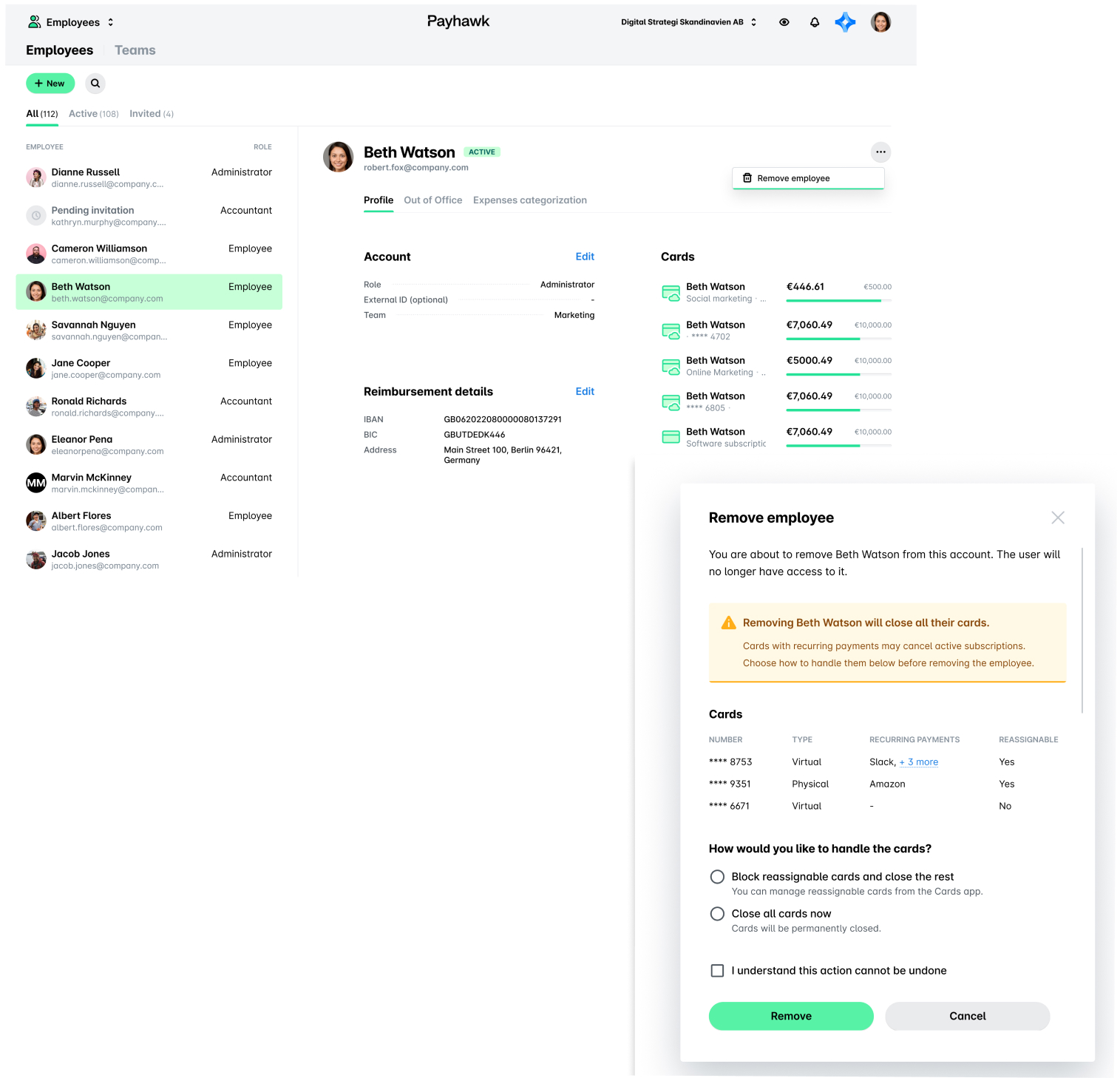
To delete an employee from your company:
In the Payhawk Web Portal, go to the Employees > Employees tab.
Select the desired employee by clicking on the record.
Click on the three dots menu and select the Remove employee option.
In the dialog that opens, if the user has cards with recurring payments, choose how to handle these cards:
Select the Block reassignable cards and close the rest option if you want to block the cards that can be reassigned and to close the rest of the cards for that user.
You can then manage reassignable cards through the pending task Reassign or close cards in your Dashboard. After clicking on the pending task you will get redirected to the Cards app with all cards that need to be reassigned. You can manage the cards one by one.
Select the Close all cards now option, if you want to close all cards immediately.
Confirm your choice and click on Remove.
If your company manages employees across multiple entities, you can also remove employees at the group level by following a similar process.
Notes on employee removal
The below-described information on removing employees applies to integrations with HR systems (HRIS) as well.
Before removing an employee:
Make sure all unsubmitted expenses are submitted, as they will be lost once the employee is removed from the system.
Make sure all reimbursable or other unpaid expenses are fully processed, as these cannot be completed once the employee is removed.
Unpaid expense records will still be viewable in the system, but no further actions can be taken on them.
When you remove an employee from Payhawk:
All historical data, including submitted expenses, transactions, reports, and activity logs, will remain accessible for financial and compliance purposes.
The employee will no longer appear in the active employee list.
Removed employees' historical data will continue to appear in the All view of relevant sections (for example, Cards, Expenses) and can still be included in exports and reports.