Group Administrators can create spend policies once on the group level and apply them to all or some entities. Each entity gets a read-only copy of the policy, which can only be changed from the group.
Creating a group spend policy
To create a group spend policy:
From the group account, go to Cards > Policies.
Create the policy following the same steps as in an entity. For more information, see managing spend policies.
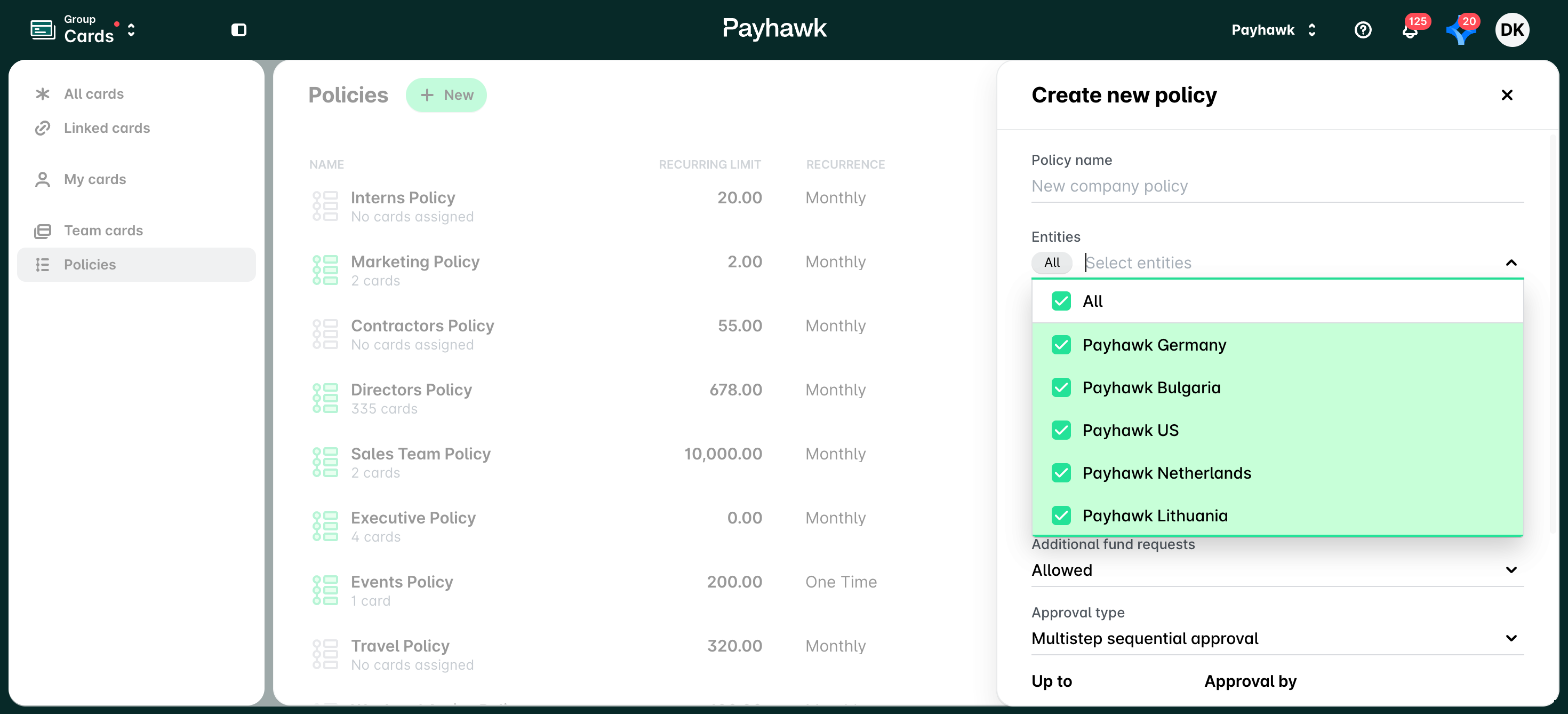
In the Entities field, select the entities the policy applies to. By default, All entities is selected, which also includes the entities you add to the group later.
The amounts of a group spend policy apply as the same number in the currency of each entity, without conversion. For example, a limit of 500 is EUR 500 in an entity that uses EUR and GBP 500 in an entity that uses GBP.
Entity defaults and card assignment
In each entity, the copy of a group spend policy can be assigned to cards and set as the entity default, like any other policy.
In the spend policy details, the number of cards opens the group Cards list with the cards that use this policy. The number shown for each entity opens the list for that entity only.
In the entity, the copy of a group spend policy is marked as Managed by group and is read-only. Entity administrators can't edit it, but they can still assign it to cards and set it as the entity default.
Limitations
Group spend policies can't be managed through the Payhawk Developer API or Payhawk MCP.
Group spend policies can't use competence groups as approvers.
Spend policies with supplier merchant rules stay in each entity.
Moving existing entity spend policies
To bring the existing spend policies of your entities into the group, click on Review and migrate on the Policies page. For more information, see moving your entity settings to the group level.