The Agent Fetch functionality of the Financial Controller AI Agent can automatically retrieve receipts and invoices from vendor websites, such as Uber, Mailjet, and LinkedIn, match them with corresponding card expenses, and upload them to the system once its online receipt and invoice fetching functionality is activated.
It also applies auto‑coding, assigning the correct GL codes, tax rates, and expense categories based on your company’s accounting policies, ensuring each document is accurately processed without manual effort.
Online receipt and invoice fetching is currently available in the Payhawk Web Portal only.
How the Agent Fetch works
When a card expense is logged and a receipt or invoice is missing, the Agent automatically attempts to retrieve it from the vendor's website as part of the chasing schedule, before prompting you to upload it manually. It matches the document by amount and date, attaches it to the expense, and notifies you once it's done. The entire process is hands-off unless the Agent needs your input.
You only need to step in under the following circumstances:
First-time login or expired session - If the Agent hasn't accessed a particular vendor before, or if a previous session has expired, it will send you a secure login link to authenticate. Once logged in, the Agent stores the session securely and handles all future fetches from that vendor automatically with no action required from you until the session expires. The duration of the session is determined by the vendor portal's settings, typically configured for a set period.
CAPTCHA verification - If the supplier's website requires a verification step, the Agent will pause and notify you to complete it. Once done, the Agent resumes automatically.
The Agent only accesses the payments history and invoices panel of each portal. It does not open or download any other documents.
Vendor access requirements
The Financial Controller AI Agent can fetch receipts and invoices only if the vendor stores them in your online account. If the receipt or invoice resides solely within the vendor’s app or is otherwise inaccessible through your account, you’ll need to upload it manually.
If you made a purchase as a guest (without registering an account), the Agent will still prompt you to log in. You can then either register an account linked to your purchase or upload the receipt or invoice manually.
Matching receipts and invoices to expenses
The Financial Controller AI Agent identifies the correct receipt or invoice by comparing the expense amount and date against your records on the vendor’s website. If multiple documents exist in your account, the Agent will use this data to choose the most accurate match.
If the AI Agent cannot fetch the receipt or invoice, it will notify you in the chat and then ask you to upload the document manually.
Activating online receipt and invoice fetching
To use the Agent Fetch functionality, you must be the owner of the expense you want to retrieve through the chat.
To activate online document fetching for a vendor, use any of the following options:
From the chat - Open a conversation with the Financial Controller AI Agent in the Payhawk Web Portal and request to enable online fetching. Once enabled, the Agent will simplify the process of collecting, matching, and uploading receipts and invoices and save you manual effort.

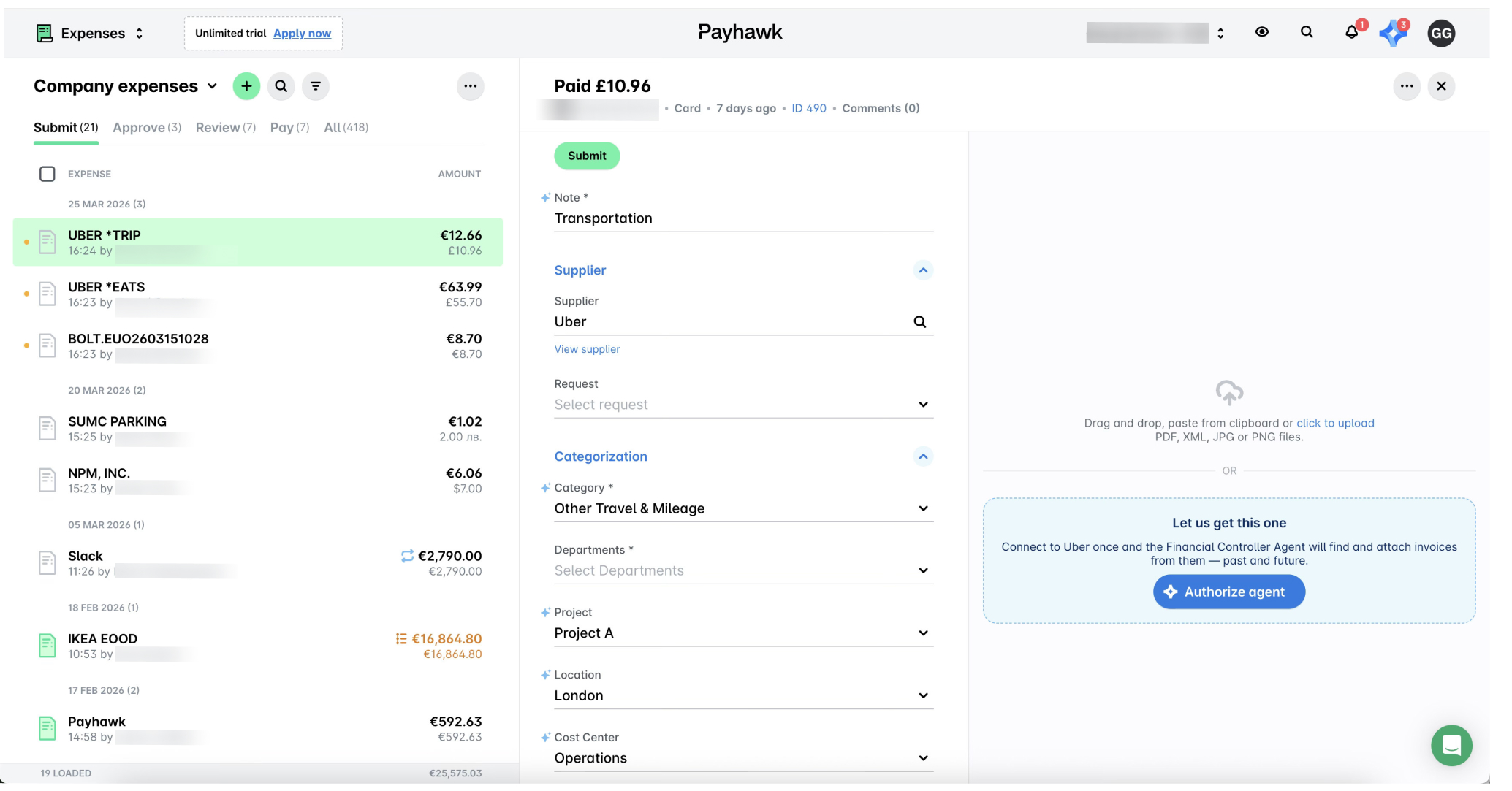
From an expense - When viewing an expense that is missing a receipt or invoice, you will see an Authorize agent prompt in the document upload area. Click on it to connect the Agent to that vendor, and it will find and attach invoices from them, both past and future.
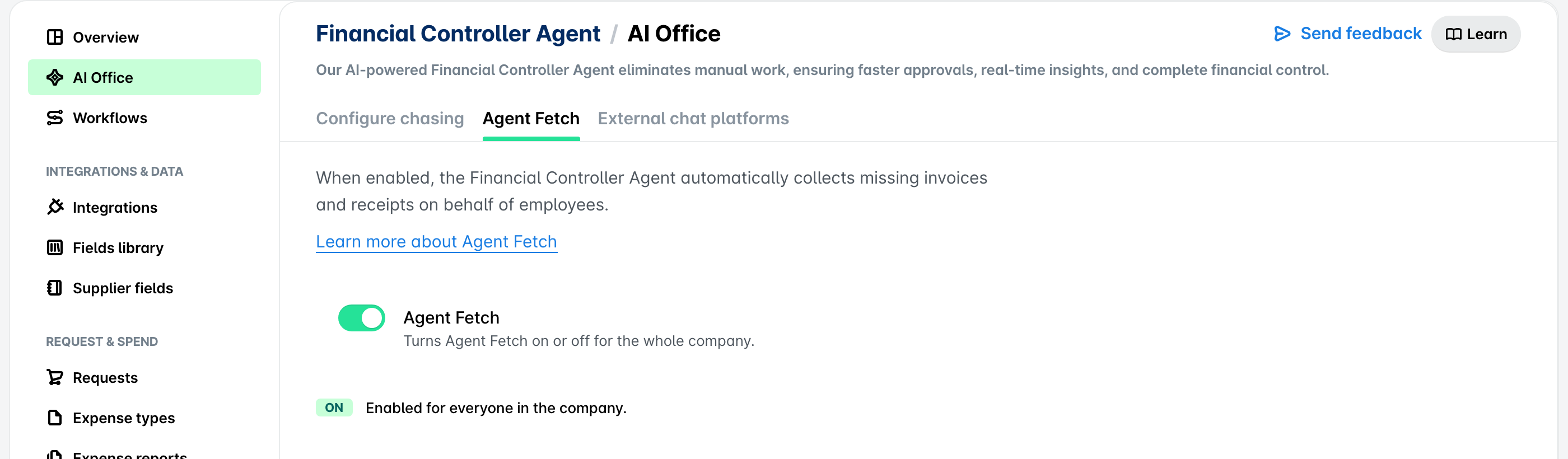
You can turn Agent Fetch on for your company’s Payhawk account and enable the Financial Controller AI Agent to fetch receipts and invoices online for all employees from the same toggle you use to deactivate it.
Deactivating online receipt and invoice fetching
Payhawk Administrators can turn Agent Fetch off for the whole company from the Payhawk Web Portal. When it's turned off, the Financial Controller AI Agent stops retrieving receipts and invoices from vendor websites for everyone in the account, and users need to upload their documents manually.
To toggle off Agent Fetch:
In the Payhawk Web Portal, go to Settings and select AI Office > Financial Controller Agent.
Click on Manage.
Open the Agent Fetch tab.
Switch on the Agent Fetch toggle to enable it for your company’s Payhawk account. When it's on, the status shows Enabled for everyone in the company.
Alternatively, you can deactivate the online receipt and invoice fetching by chatting with the Financial Controller AI Agent. For example, type “Turn off Agent Fetch“.