The Requests, Trips, and Cards apps follow the same navigation pattern as Spend and display the same side panel structure.
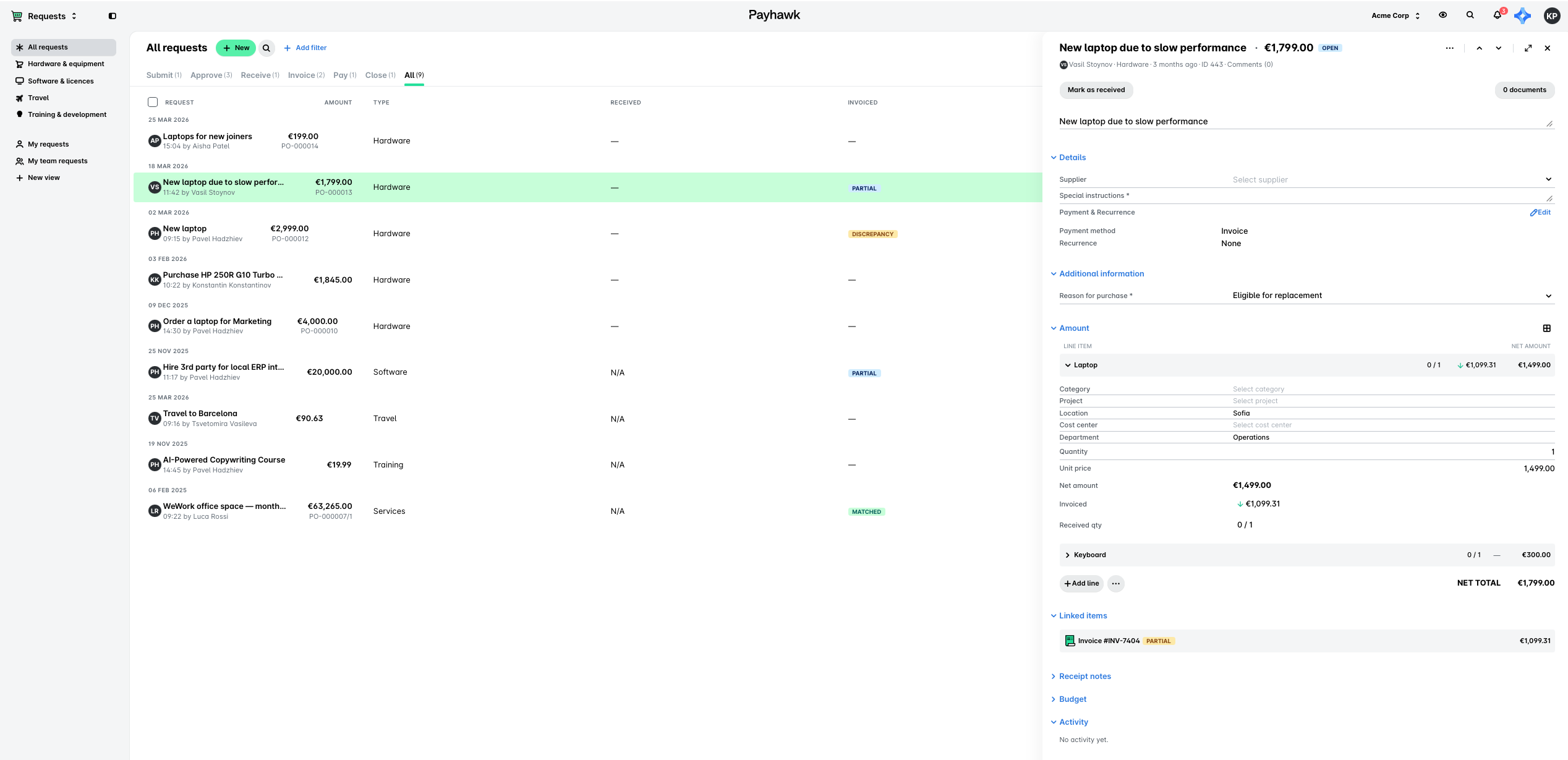
The Requests app
Now, the side panel lists All requests first, followed by the different request types enabled and created by your organization, such as Hardware & equipment, Software & licences, Travel, and Training & development.
You can now select a request type to see only that type, for example, Training & development, without filtering the requests. As before, you only see the request types that your organization has enabled, for example, if your organization doesn’t use Software & licences, they won’t appear in the side panel under All requests.
The new navigation allows saved views to move into the side panel, which holds both the standard views and the custom views. The standard views, such as My requests for Employees, or My team requests for Team Managers, cannot be changed. Custom views include any view you create with the + New view button.
The request document panel can now be hidden, as not every request needs a document. For example, requesting a laptop that your company already stocks needs no quote and no vendor, so you can hide the document panel.
The new requests line items layout and functionalities are the same as the expense line items ones.
The Trips app
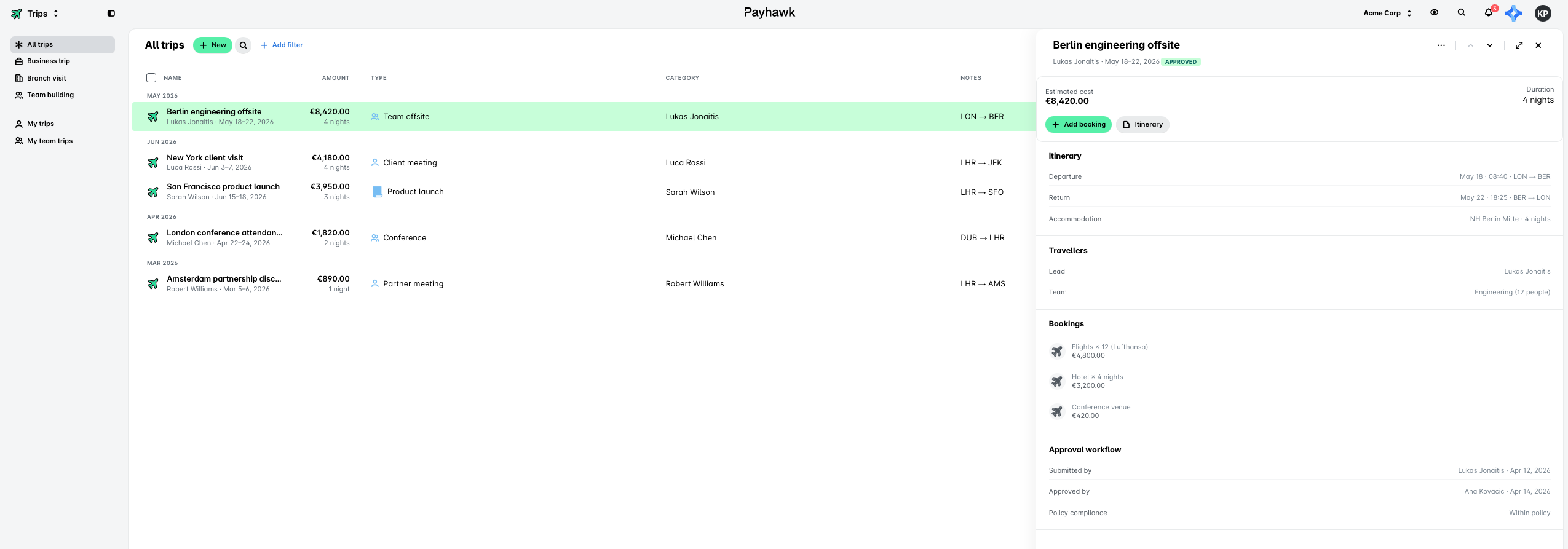
Now, the side panel lists All trips first, followed by the different trip types enabled and created by your organization, such as Business trip, Branch visit, and Team building.
You can now also select a trip type to see only that type, for example, Team building, without filtering the trips. As before, you only see the trip types that your organization has enabled, for example, if your organization doesn’t use Business trip, this trip type won’t appear in the side panel under All trips.
The new navigation allows saved views to move into the side panel, which holds both the standard views and the custom views. The standard views, such as My trips for Employees, or My team trips for Team Managers, cannot be changed. Custom views include any view you create with the + New view button.
The Cards app
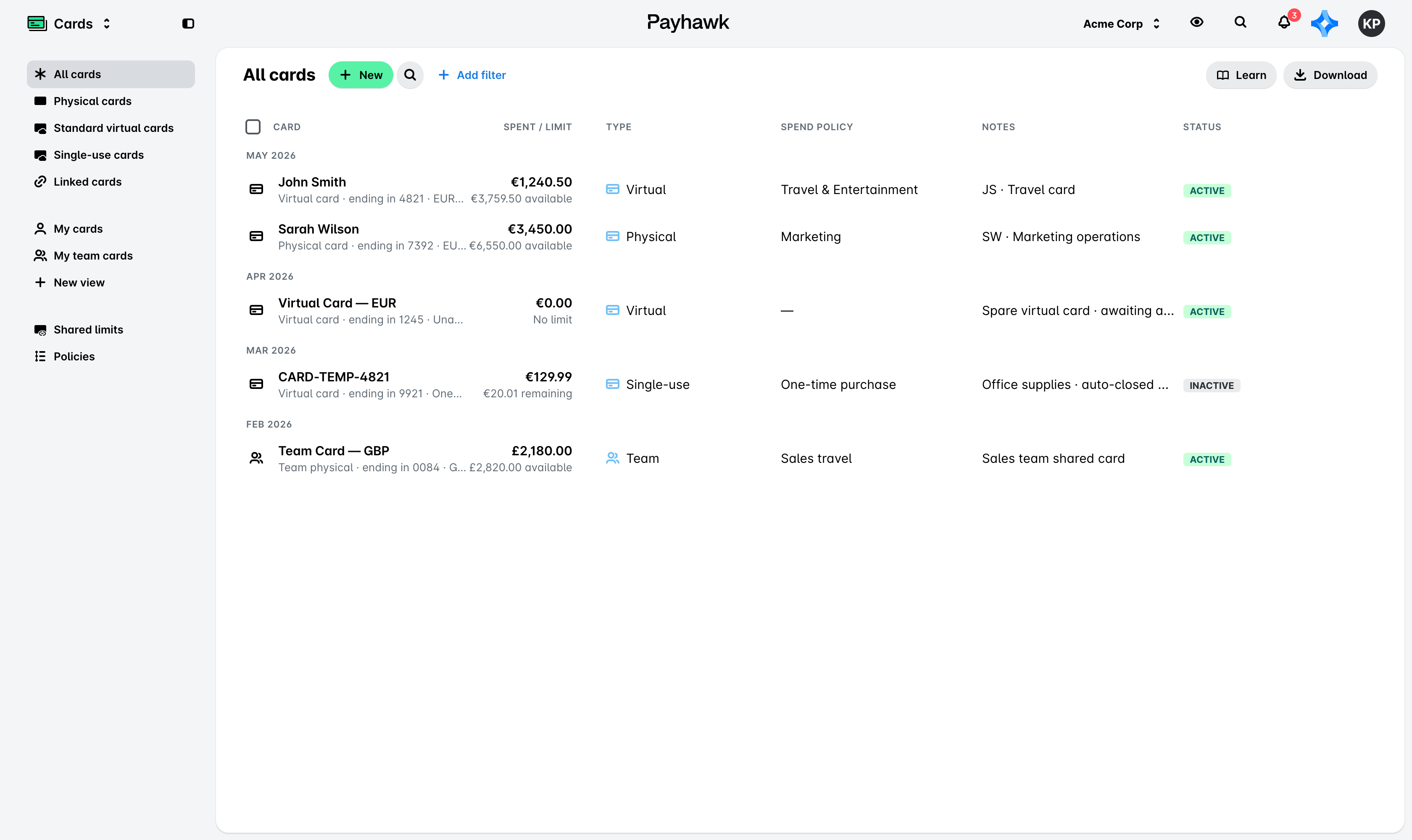
Now, the side panel lists All cards first, followed by the different card types used by your organization, such as Physical cards, Standard virtual cards, Single-use cards, and Linked cards.
You can now select a card type to see all cards from this type, for example, Physical cards, without fitering the card types. As before, you only see the card types that your organization uses, for example, if your organization doesn’t use Linked cards, they won’t appear in the side panel under All cards.
The new navigation allows saved views to move into the side panel, which holds both the standard views and the custom views. The standard views, such as My cards for Employees, or My team cards for Team Managers, cannot be changed. Custom views include any view you create with the + New view button.
Team cards and Policies now appear in the side panel. As before, they show your team cards and card policies.
Useful resources