Remittance advices can be sent to the contact email of the supplier that has already been entered in Payhawk - which is an option enabled by default.
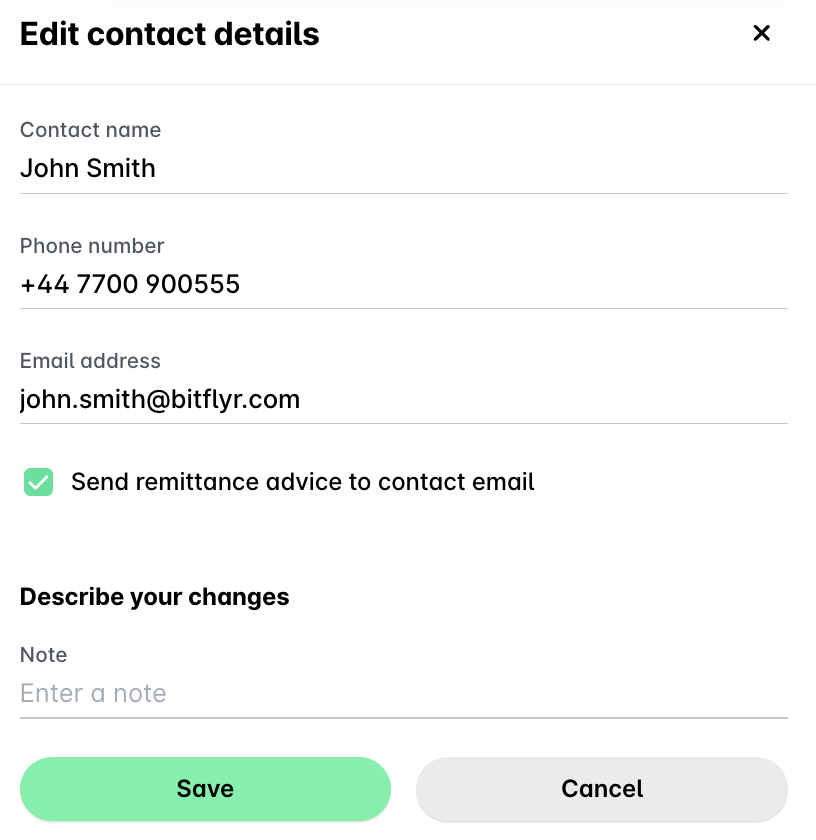
However, you can also edit the supplier details and enter specific emails for remittance advices as well as enter recipient emails while confirming payment details or authorizing payments.
Adding recipient emails by editing the supplier details
To send a supplier's advices to someone other than the default contact:
In the Payhawk Web Portal, go to the Suppliers app.
Select the supplier.
In the Contact section, click on Edit.
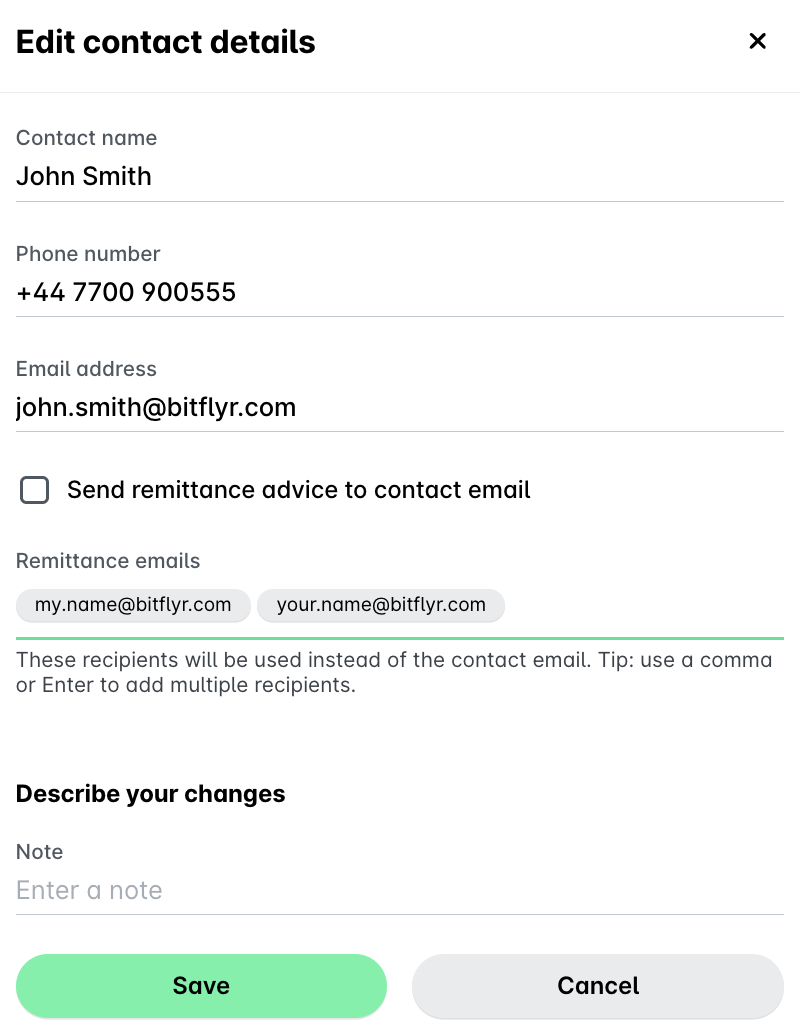
Select Send remittance advice to different recipients.
Enter the recipient emails. To add more than one, separate them with a comma or the Enter key.
Click on Save. As a result, all future advices for that supplier will be received by the recipients you set.
Defining supplier emails during payment confirmation
To specify recipient emails while confirming payment details:
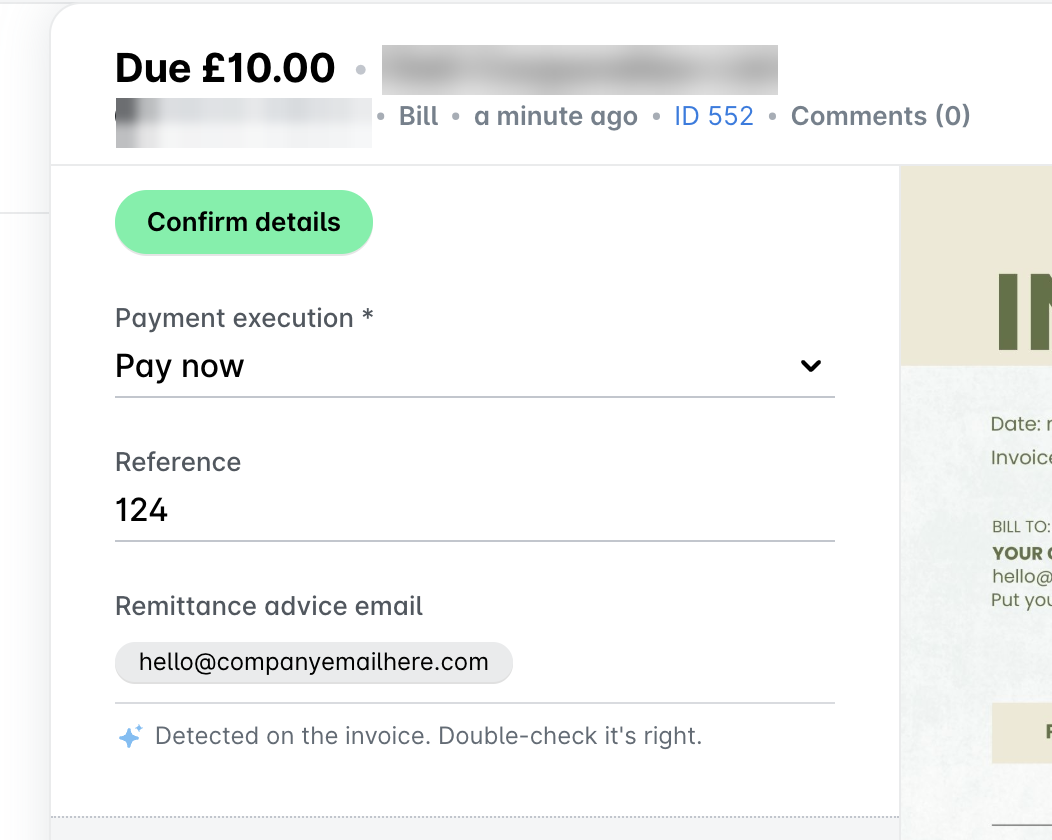
In the Payhawk Web Portal, go to Spend > Pay > Confirm details and open the relevant bill payment.
In the Remittance advice email field, fill in any emails you want the remittance advice to be sent. Separate multiple emails with a comma or the Enter key.
Confirm the payment details.
Entering emails here will automatically update the supplier's contact details. The default contact email option will be disabled, and the new addresses will be saved for that supplier.
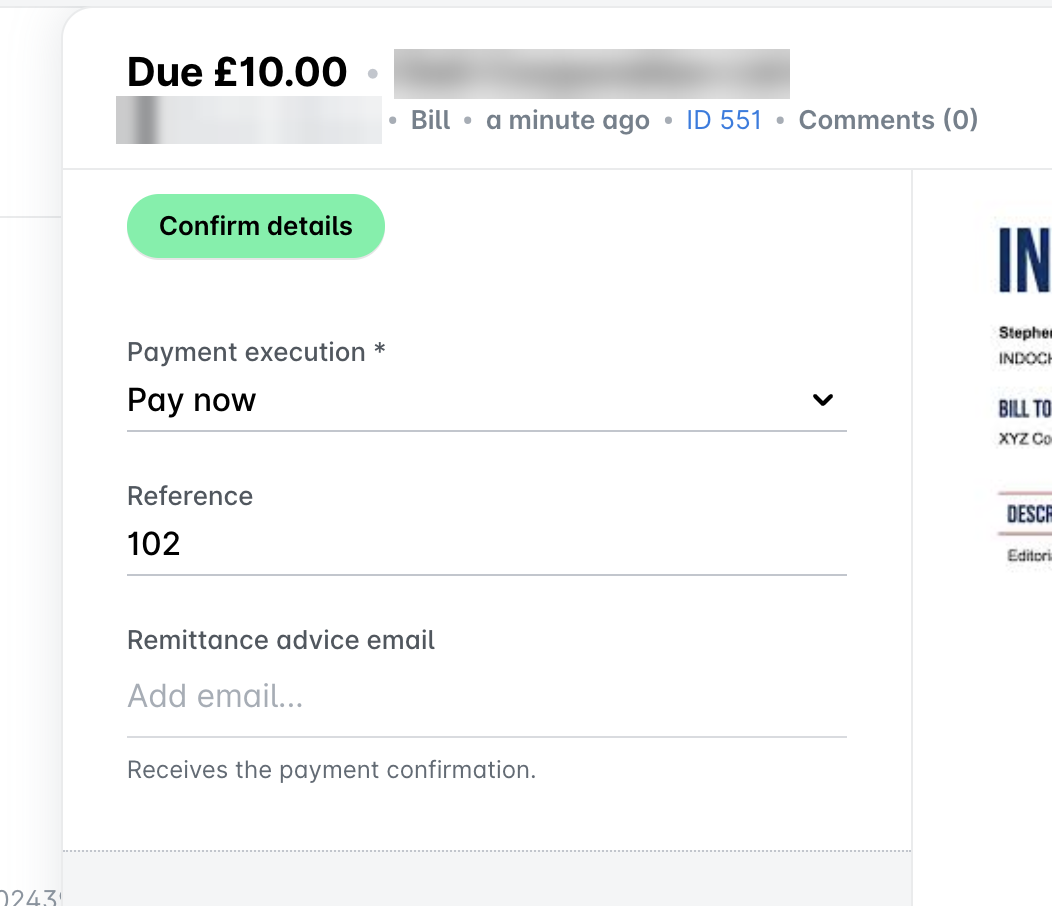
If an email is present on the attached expense document, Payhawk’s AI will extract and automatically populate the email into the field.
Defining supplier emails during payment authorization
To specify recipient emails while authorizing a payment:
In the Payhawk Web Portal, go to Spend > Pay > Authorize and open the relevant bill payment.
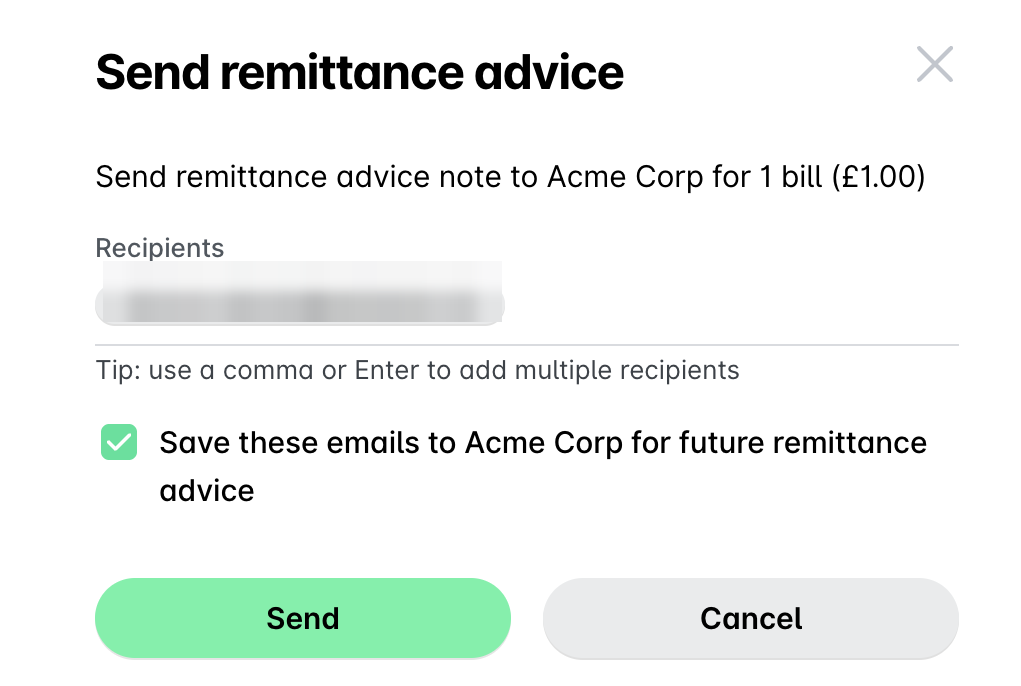
From its three-dot menu, select Send remittance advice.
Review or add the recipient emails.
To store these emails for future use, ensure Save these emails to [supplier] for future remittance advice is selected. This requires supplier editing permissions.
Click on Send.
Triggering remittance advices during bulk payment authorization
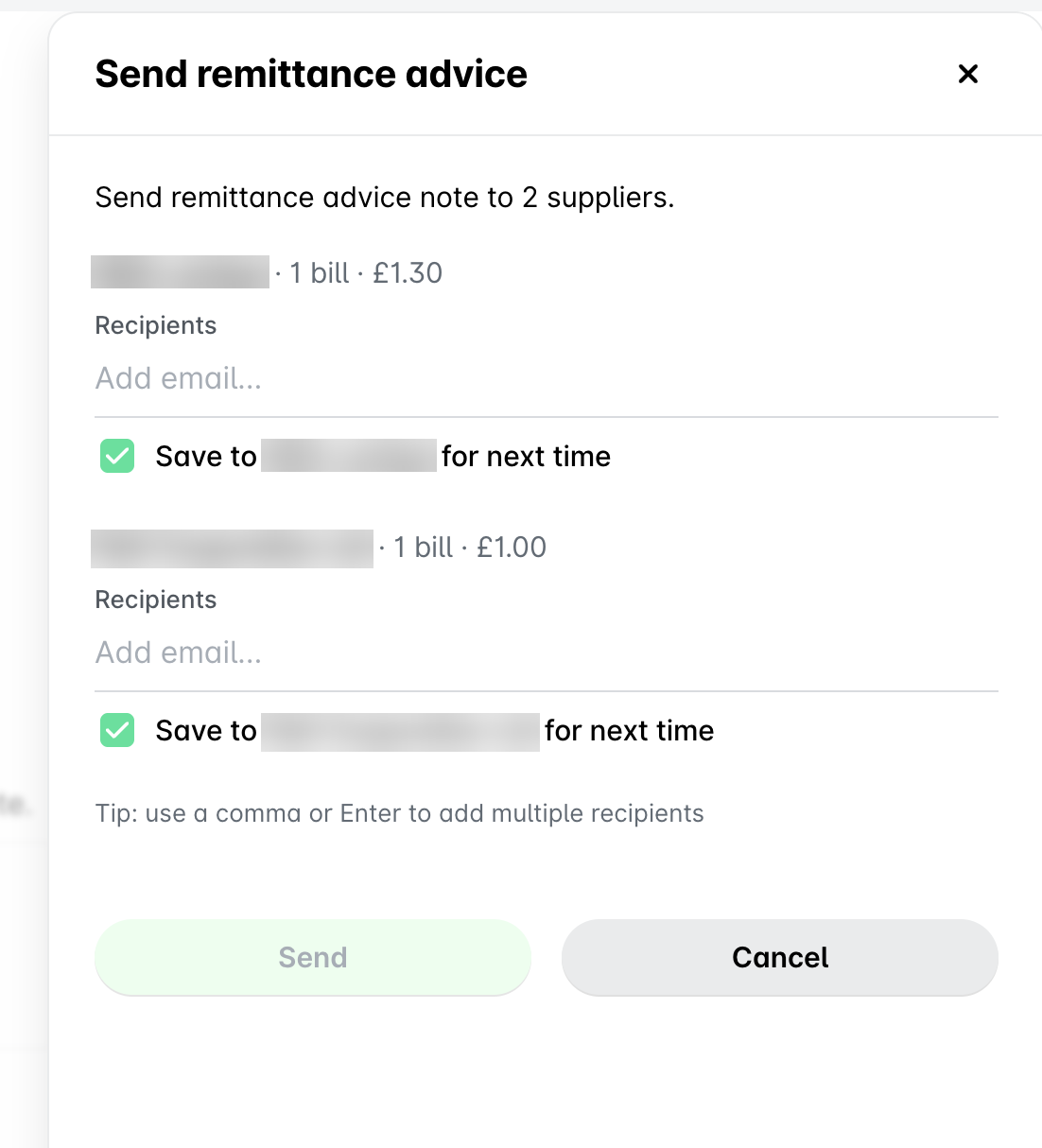
Advices can be managed as part of a bulk authorization. Once a batch is authorized, the Send confirmation dialog will display suppliers requiring your attention, such as those with missing emails or addresses pulled from invoices that need verification.
Add or check the recipients for each supplier.
Make sure Also save any new emails to the supplier's contact details is selected if you want to store them.
Click on Send.
Add or verify the recipients for each supplier.
Select Also save any new emails to the supplier's contact details to store them.
Click on Send.
To resend a remittance advice, you need to send it per bill as bulk sending applies only to the first transmission of advices.
Resending a remittance advice
If a supplier misplaces the original email, the advice can be resent. Payhawk will resend the email using the original secure link, which will reflect the current payment status.
Open the bill in the Payhawk Web Portal.
Select Send remittance advice.
Verify the recipient address in the flyout dialog and confirm.
Sending remittance advices to suppliers with no contact details
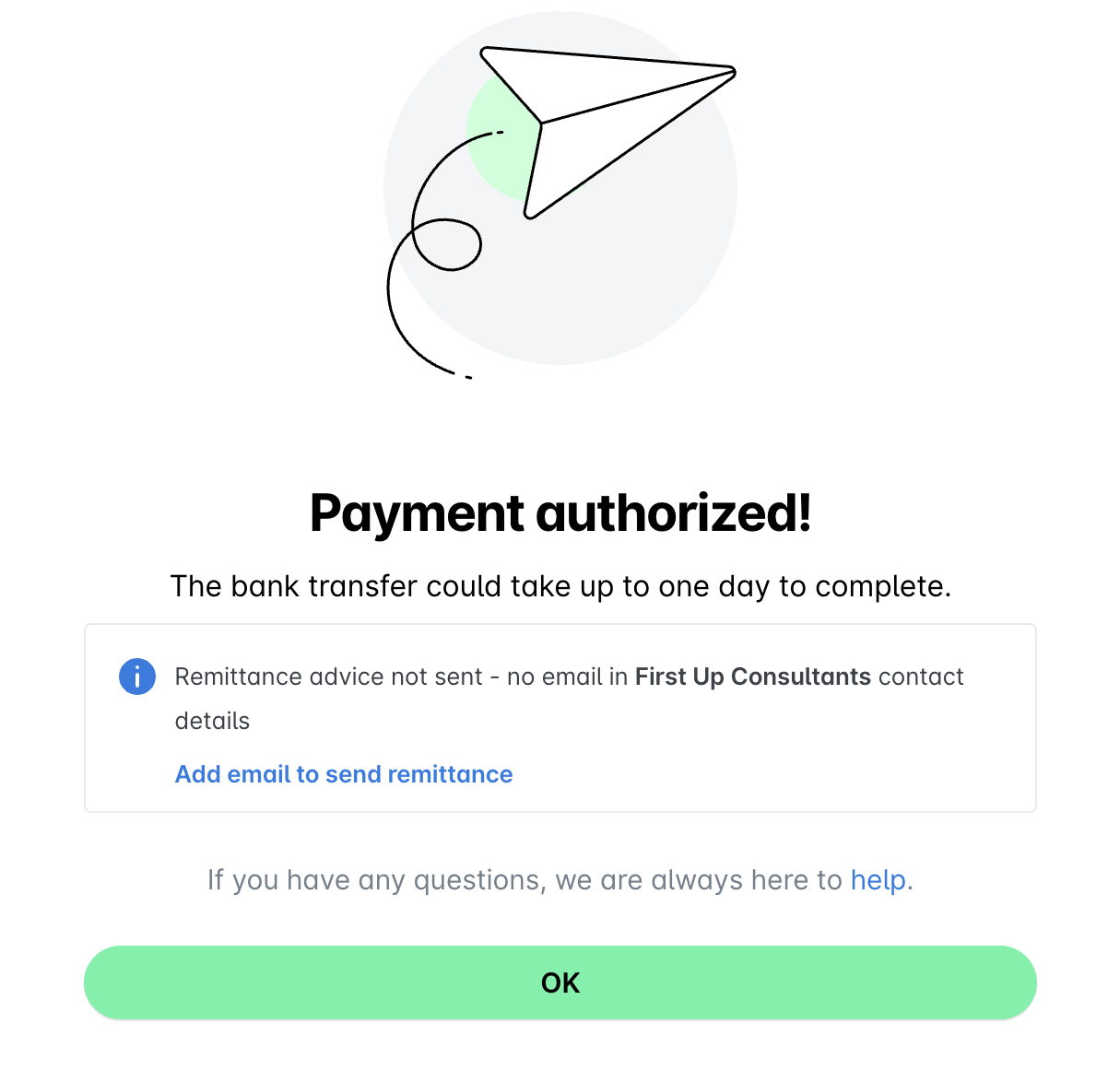
If a supplier lacks a contact email, the payment confirmation screen in the Pay > Authorize tab will indicate that an advice was not sent.
Click on Add email to send remittance.
Enter the recipient email address.
Click on Send.