След потвърждаване на доставката на артикули или услуги, заявката може да се затвори автоматично от системата или ръчно от Счетоводител на Payhawk или Администратор на Payhawk.
Автоматично затваряне на заявки
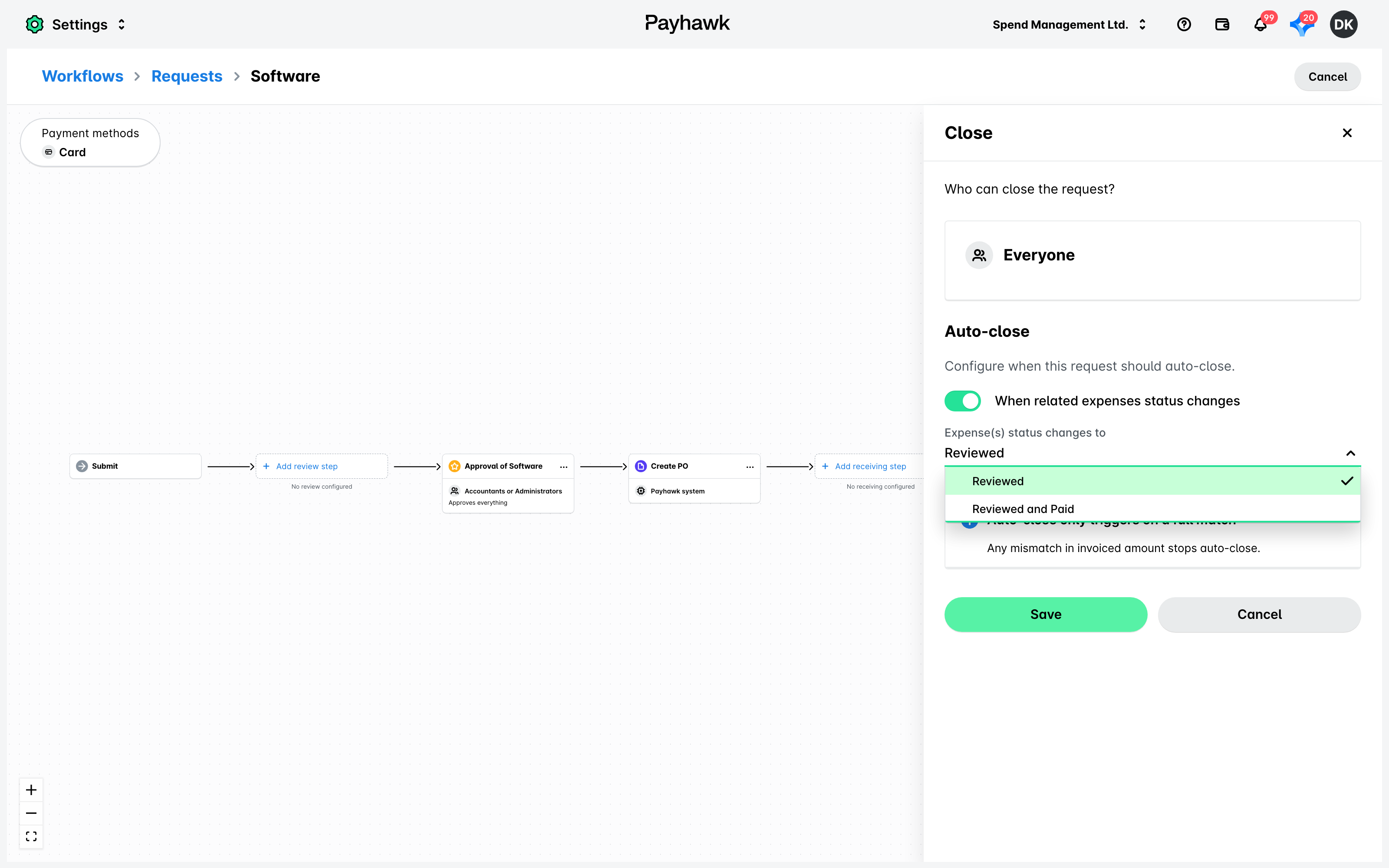
За да активирате автоматичното затваряне на заявки, трябва да включите функцията в приложението Настройки. Опцията за автоматично затваряне по подразбиране се задейства, когато свързаните фактури са изцяло платени, тоест когато са изпълнени следните условия:
Статусът на полученото количество е НАПЪЛНО.
Статусът на фактурираната сума е СЪОТВЕТСТВИЕ.
Когато е активирана, опцията за автоматично затваряне ще се прилага, независимо дали фактурираната сума е уредена чрез банков превод или маркирана като ръчно платена.
Ако разход е маркиран като неплатен или банков превод е върнат след уреждане, заявката не може да се отвори отново.
За да активирате опцията за автоматично затваряне на заявки:
В уеб портала на Payhawk отидете на Настройки > Процеси за одобряване > раздел Заявки, изберете [Тип заявка] и след това кликнете върху Редактиране на работен процес.
Отворете стъпката Затваряне и в секцията Автоматично затваряне активирайте превключвателя При промяна на статуса на свързаните разходи, за да конфигурирате кога заявката трябва да се затваря автоматично. Ако е активиран, от падащото меню изберете:
Опция Проверена – Заявката се затваря автоматично след проверката ѝ.
Опция Проверена и платена – Заявката се затваря автоматично след проверката и плащането ѝ.
Кликнете върху Запазване.
Кликнете върху Публикуване на работния процес.
Ръчно затваряне на заявки
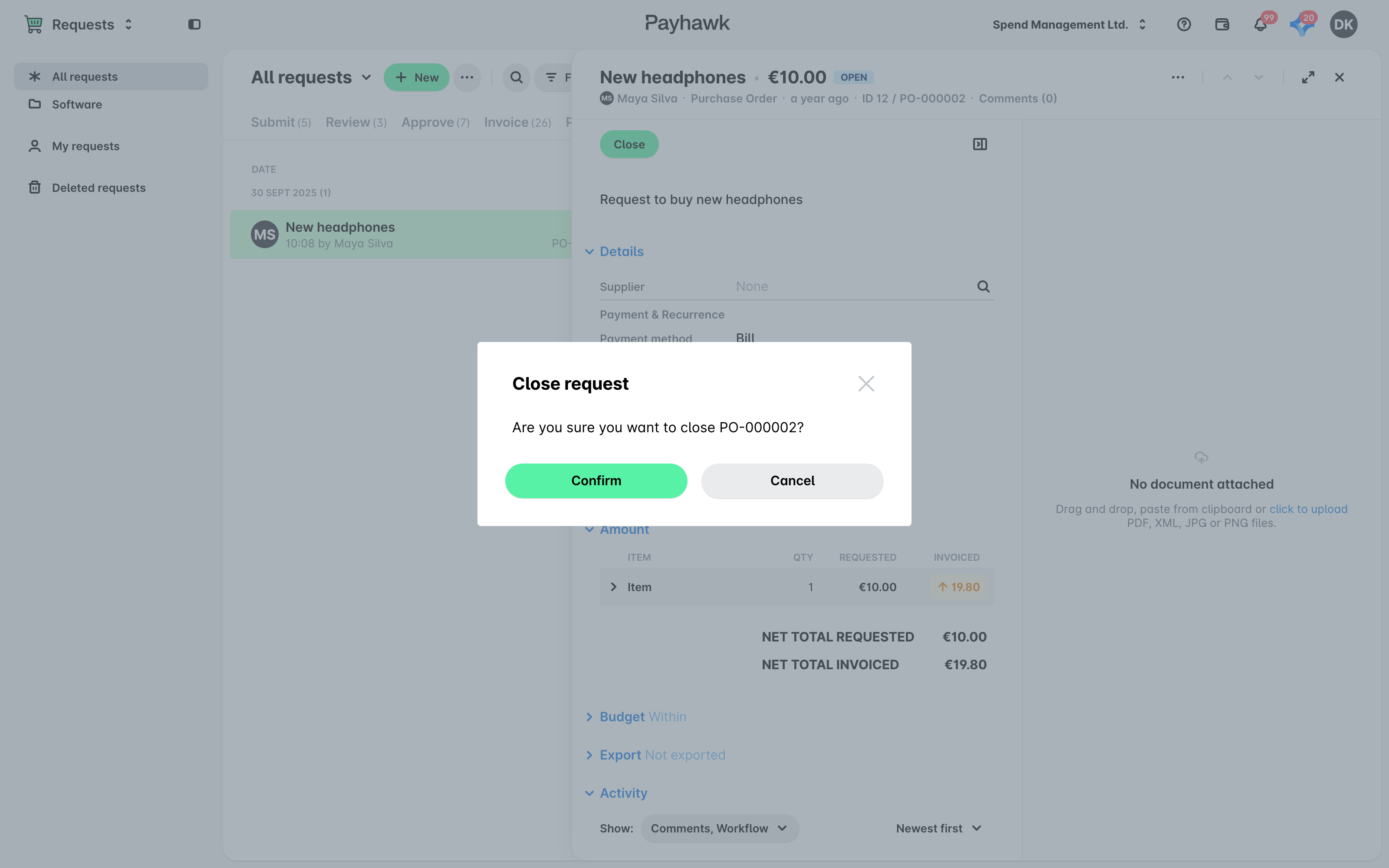
За да затворите заявка ръчно:
Отидете на Заявки > Затваряне и изберете желаната заявка.
Кликнете върху Затваряне.
В отворилия се диалогов прозорец кликнете върху Потвърждаване.
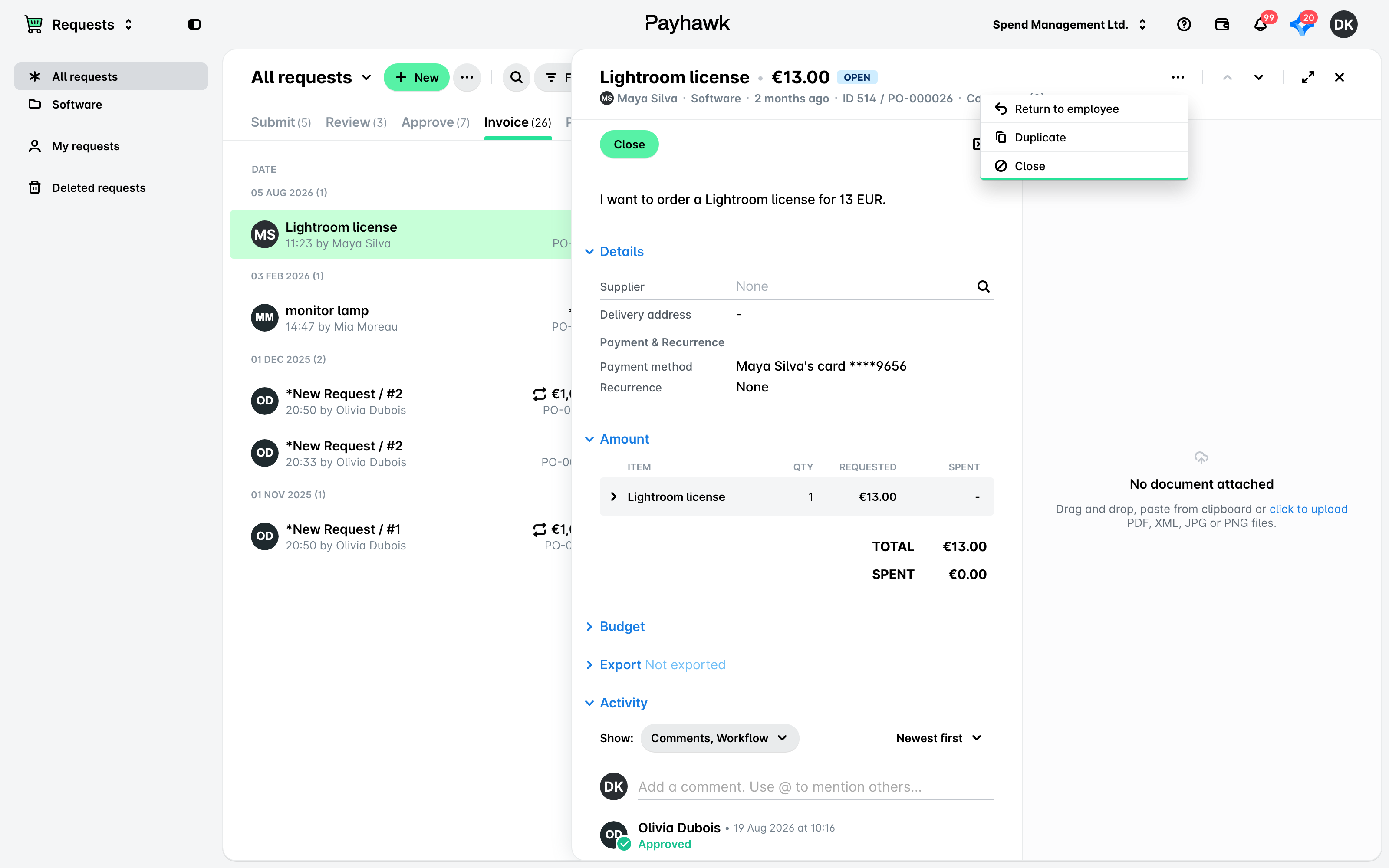
Можете също да затворите заявка на по-ранен етап от жизнения ѝ цикъл:
Отидете на Заявки и изберете желаната заявка.
Кликнете върху менюто с трите точки и изберете Затваряне.
В отворилия се диалогов прозорец кликнете върху Потвърждаване.
Повторно отваряне на заявки
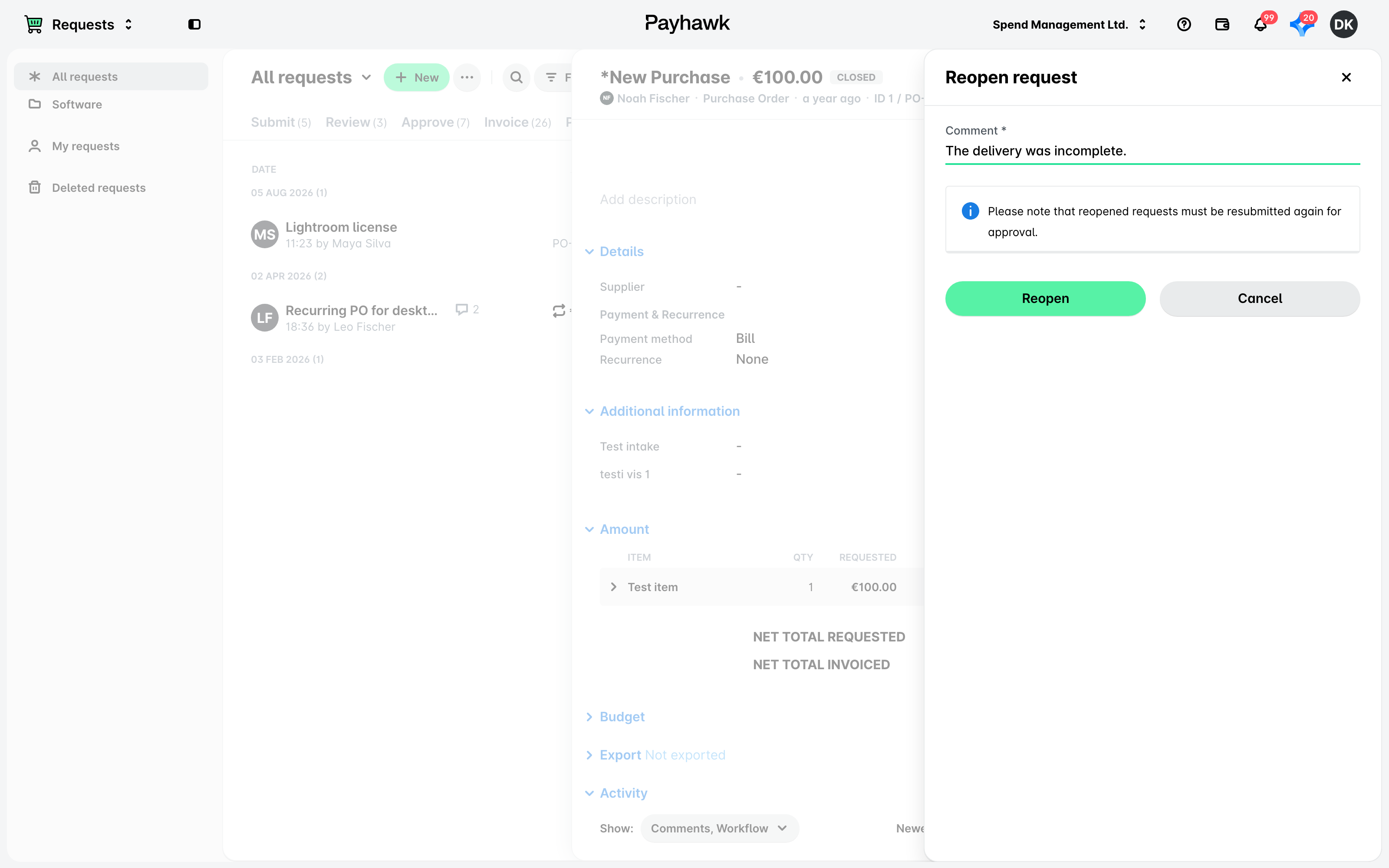
След като дадена заявка е затворена, можете да я отворите отново:
Отидете на Заявки > Всички заявки и изберете желаната заявка.
От менюто с трите точки изберете Повторно отваряне.
В отворилия се диалогов прозорец въведете причината за повторното отваряне и кликнете върху Повторно отваряне.
В резултат повторно отворената заявка ще се премести в раздел Подаване и трябва да се подаде отново съгласно работния процес за одобрение, определен за компанията ви.
Полезни ресурси