Функцията за пощенска кутия на Payhawk ви позволява да настроите автоматично препращане на документите за разходи, които получавате.
Когато е зададен имейл адрес на пощенската кутия за препращане, всяка фактура от доставчик се препраща автоматично към имейл адреса на пощенската кутия. За повече информация вижте описаните специфики.
Задаване на правила за препращане и имейл адрес
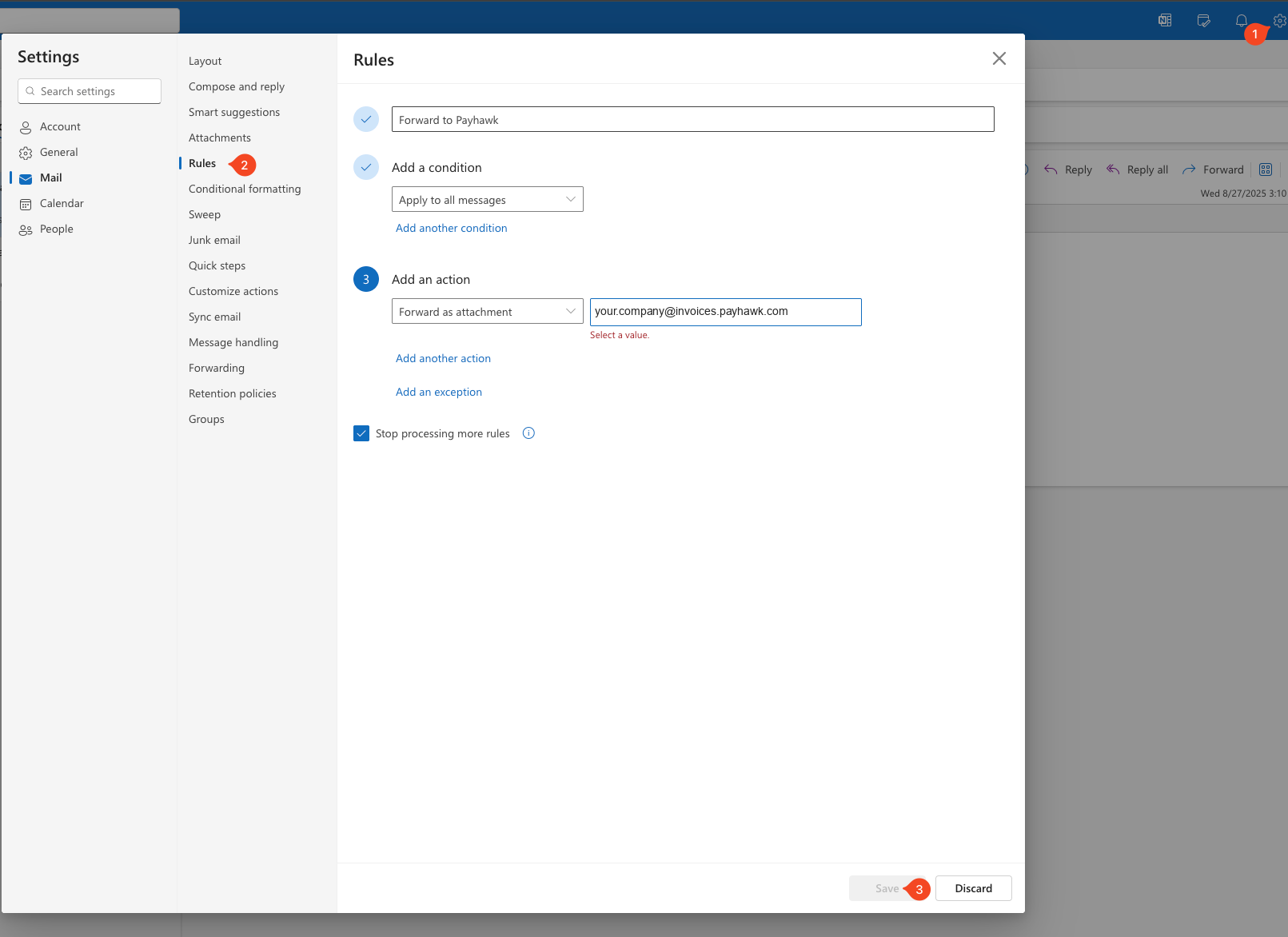
За да настроите имейл адрес за препращане към пощенската кутия чрез Outlook:
Влезте в акаунта си в Outlook.
Отидете на Настройки > Правила.
Създайте ново правило и въведете името му, например „Препращане към Payhawk“.
В секцията Добавяне на условие изберете приложимото условие от падащото меню, например Прилагане към всички съобщения, Прилагане към служители или Прилагане към доставчици.
В секцията Добавяне на действие изберете Препращане като прикачен файл от падащото меню. В полето до падащото меню въведете уникалния имейл адрес, който Payhawk автоматично е генерирала за компанията ви – например your.company@invoices.payhawk.com.
Кликнете върху Запазване.
Полезни ресурси