When segregation of duties covers workflow changes, a change you make to a workflow doesn't go live right away. Payhawk holds that change until another user who can edit workflows approves it.
Your workflow keeps its current setup while the change waits for approval, so the users in that workflow can carry on working as usual.
Sending a workflow change for approval
To change a workflow that segregation of duties covers:
In the Payhawk Web Portal, go to Settings > Workflows.
Open the Spend types or Card requests tab, and click on Edit workflow for the workflow you want to change.
Make the desired changes to the steps, approvers, and conditions, and click on Save.
Click on Save and send for approval. As a result, Payhawk creates an authorization request and sends it to the eligible approvers.
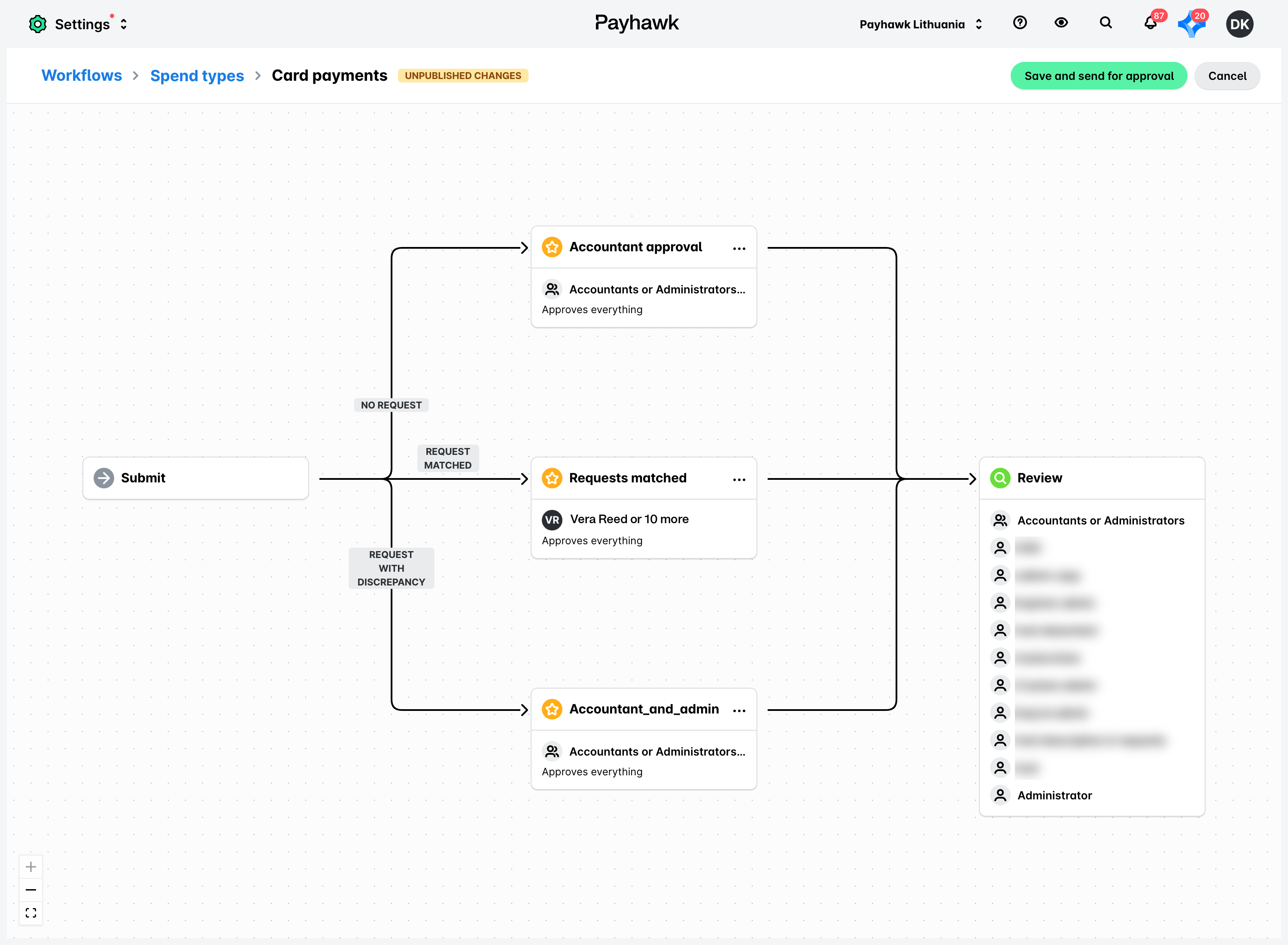
You cannot approve your own workflow change.
Withdrawing a workflow change
To withdraw a workflow change while it still waits for approval:
Go to Settings > Workflows.
Open the workflow with the pending change.
Click on Withdraw change.
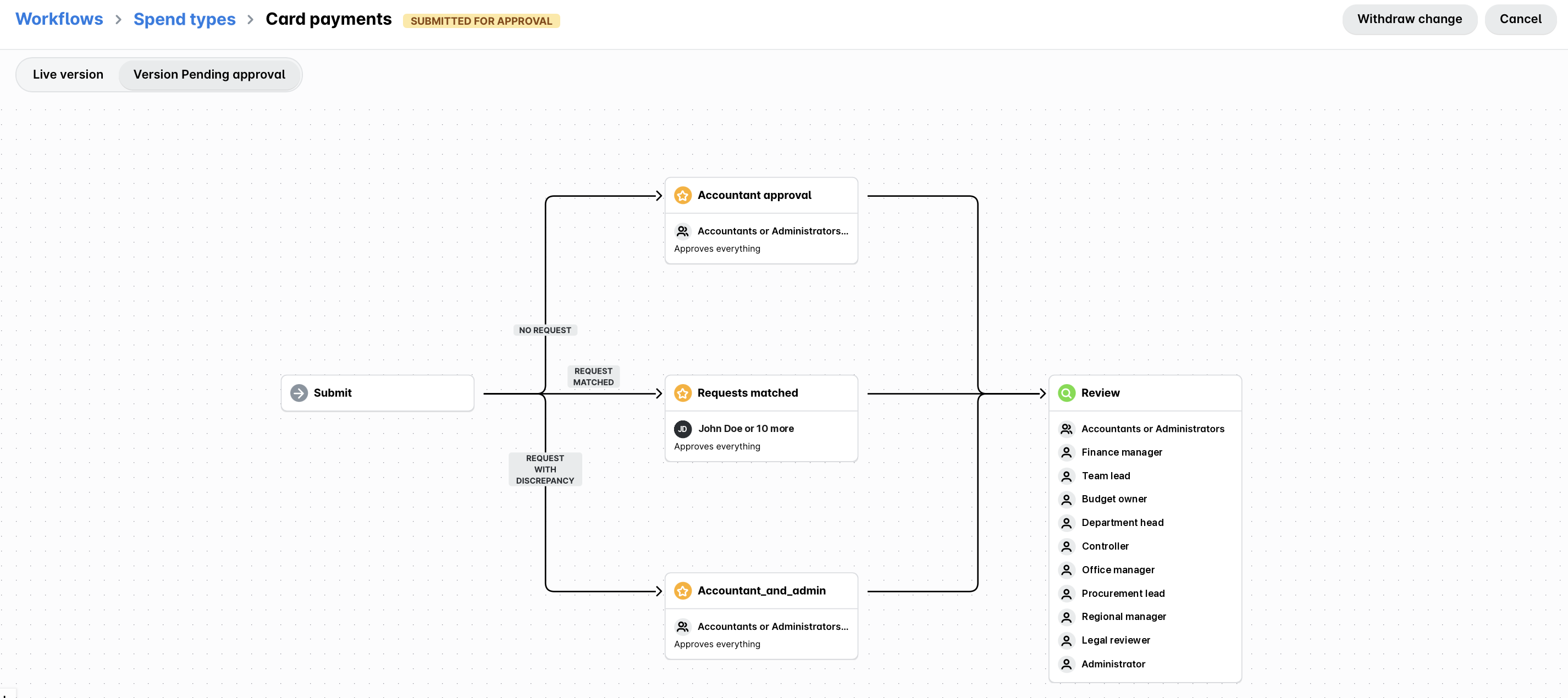
Payhawk confirms that it accepted the withdrawal, and the workflow shows a Change withdrawn message naming the person who withdrew the change. The change is not applied, and you can edit the workflow again.
Useful resources