Once you create your custom template, you can set global formatting rules that will be applied to the template files and sheets.
You can create formatting rules for individual files and sheets. Such rules will take precedence over any conflicting global template rules.
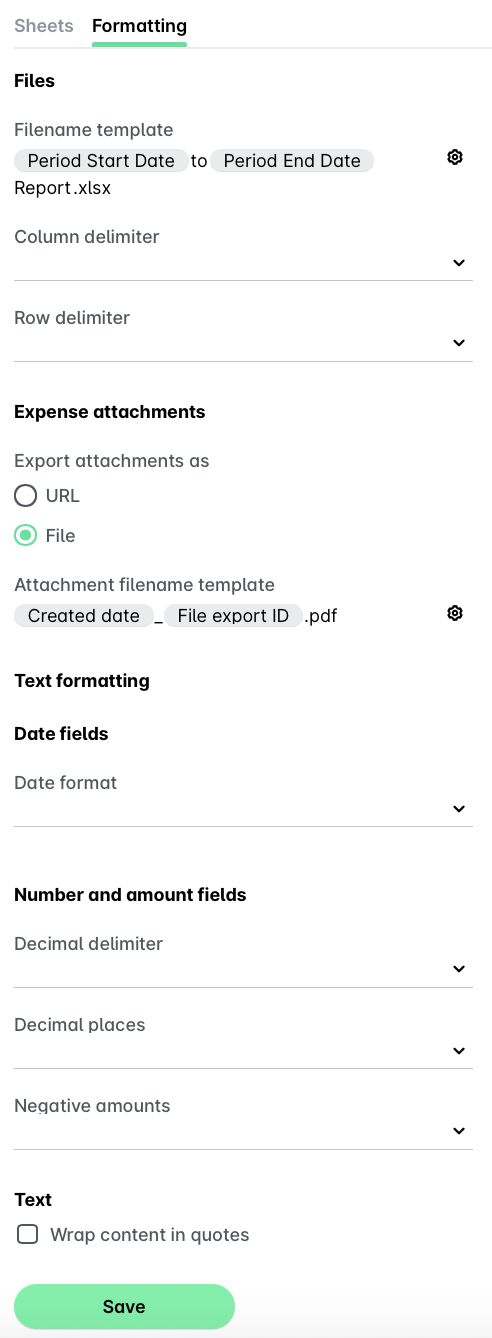
You can configure the formatting of your custom template by opening the app switcher in the top-left corner and going to Settings > Exports:
Select the desired template.
Under its Formatting tab, you can:
Click on Save.
Defining the filename template and delimiters
To set a template for the names of the template files from the Formatting tab of the selected template:
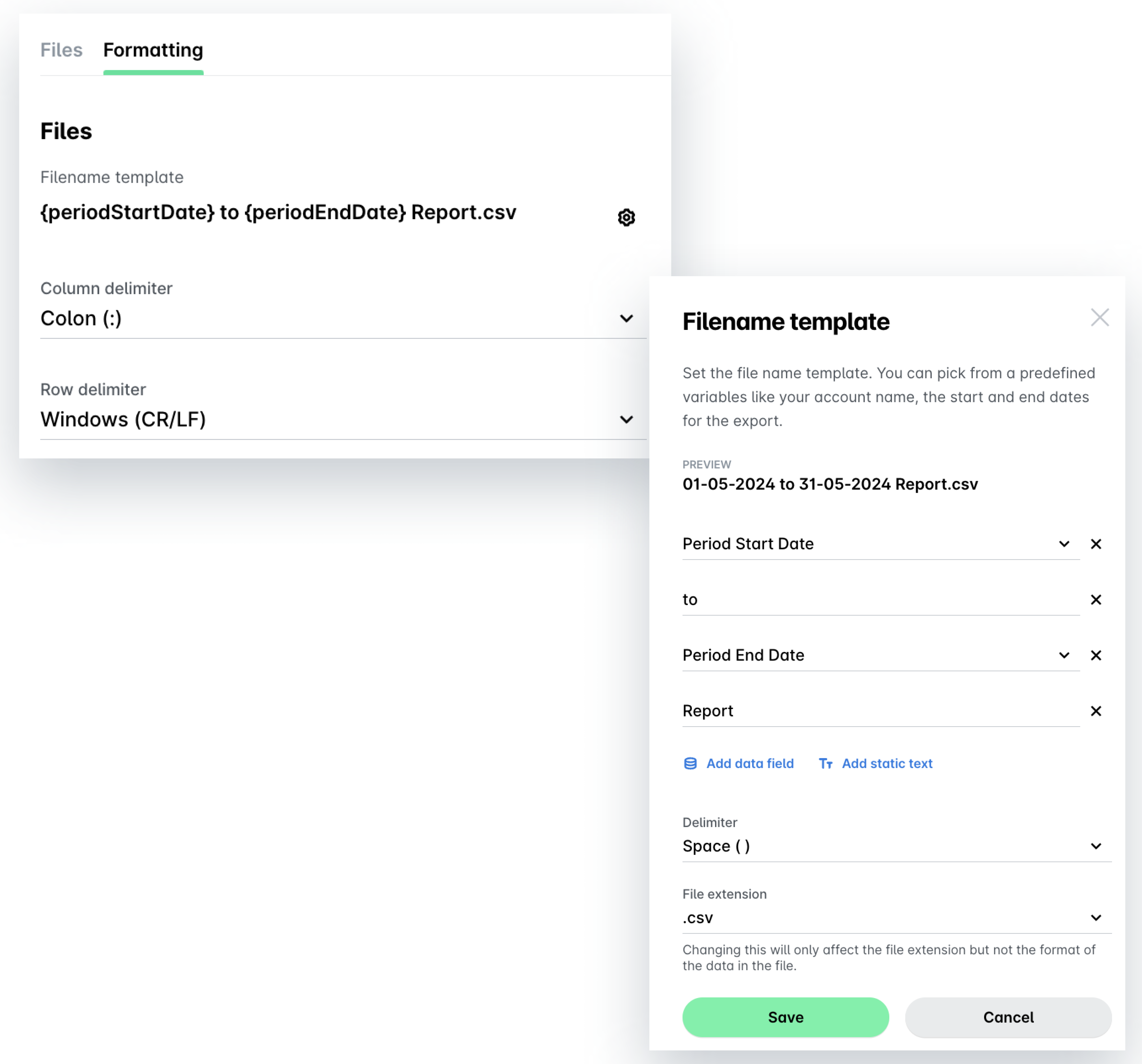
Under Files, click on the Settings icon.
In the dialog that opens, select the data you want to see in the file name - account name, start or end date of the period, or add your custom input.
To include yet another data field, click on Add data field.
To add your custom text to the file name, click on Add static text.
From the Delimiter drop-down menu, select the type of delimiter you want to be applied to the file name.
To set a specific file extension for your template file, fill in the desired format under File extension.
Click on Save.
Back to the File screen, from the respective drop-down menus, select the column delimiter.
From Row delimiter, select the type of line breaks for the template:
Windows (CR/LF) - Carriage Return and Line Feed moves the cursor to the beginning of the line while a line feed character moves the cursor to the next line.
Unix (LF) - Line feed moves the cursor to the next line without returning to the beginning of the line.
Defining settings for expense attachments
You can also define settings from the Formatting tab of the selected template for the expenses you want to attach to your exports.
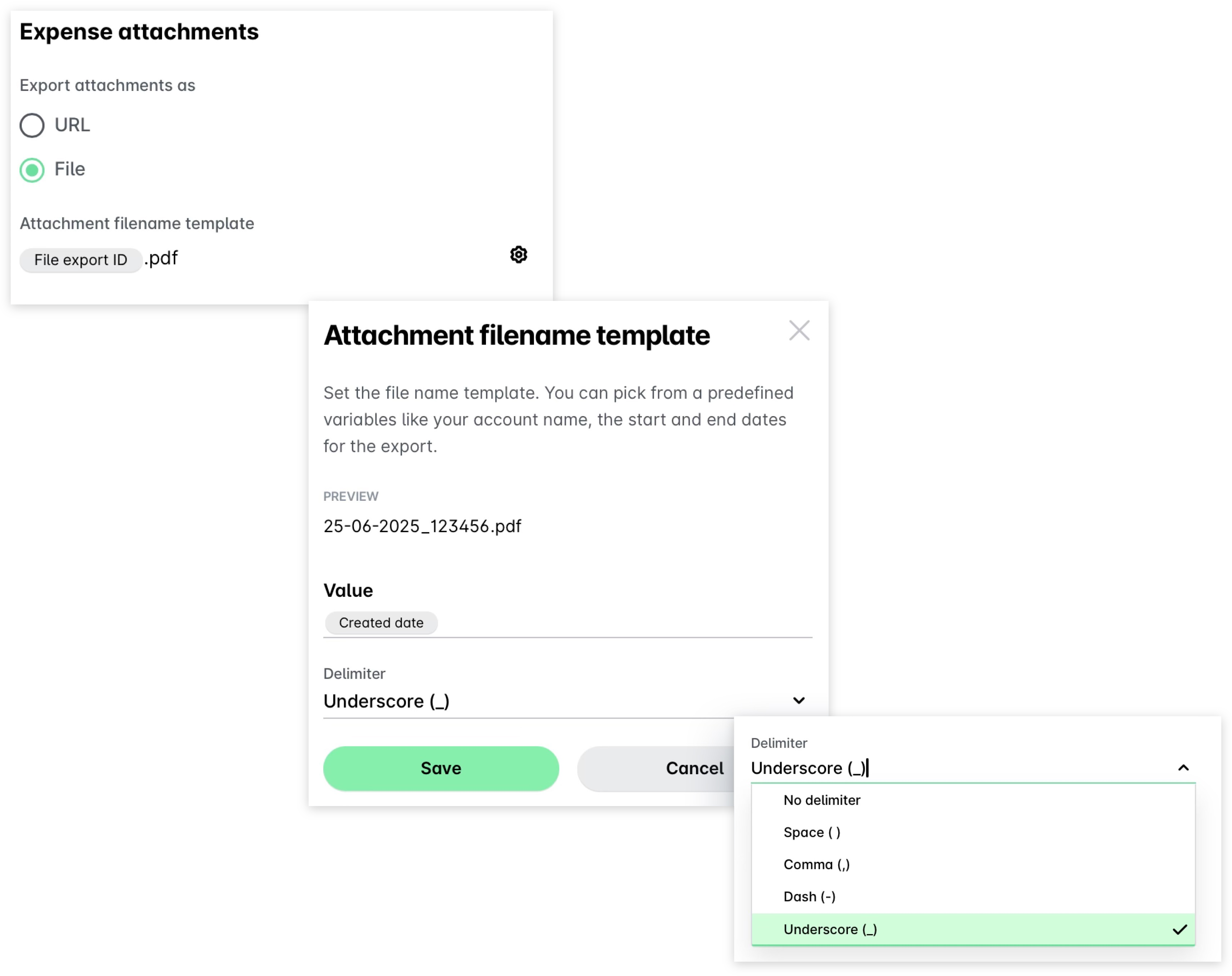
Under Expense attachments, select the format in which you want to attach the expenses.
Define a template for naming the attached files by selecting the Attachment filename template > Setting icon.
In the dialog that opens, enter the data you want to include in the name of the attachment. In the Value field, start your input with the at symbol (@) and choose from the list of available options - for example, the supplier name, the date of the expense creation, and more.
From the Delimiter drop-down menu, select the type of delimiter you want to be applied to the attachment name.
Note that if a file name is duplicated, the system will automatically add a unique identifier to the repeated names thus enabling you to distinguish between the files.
Click on Save.
Configuring dates, numbers, and amounts
You can define settings from the Formatting tab of the selected template for the text, dates, numbers, and amounts included in the template.
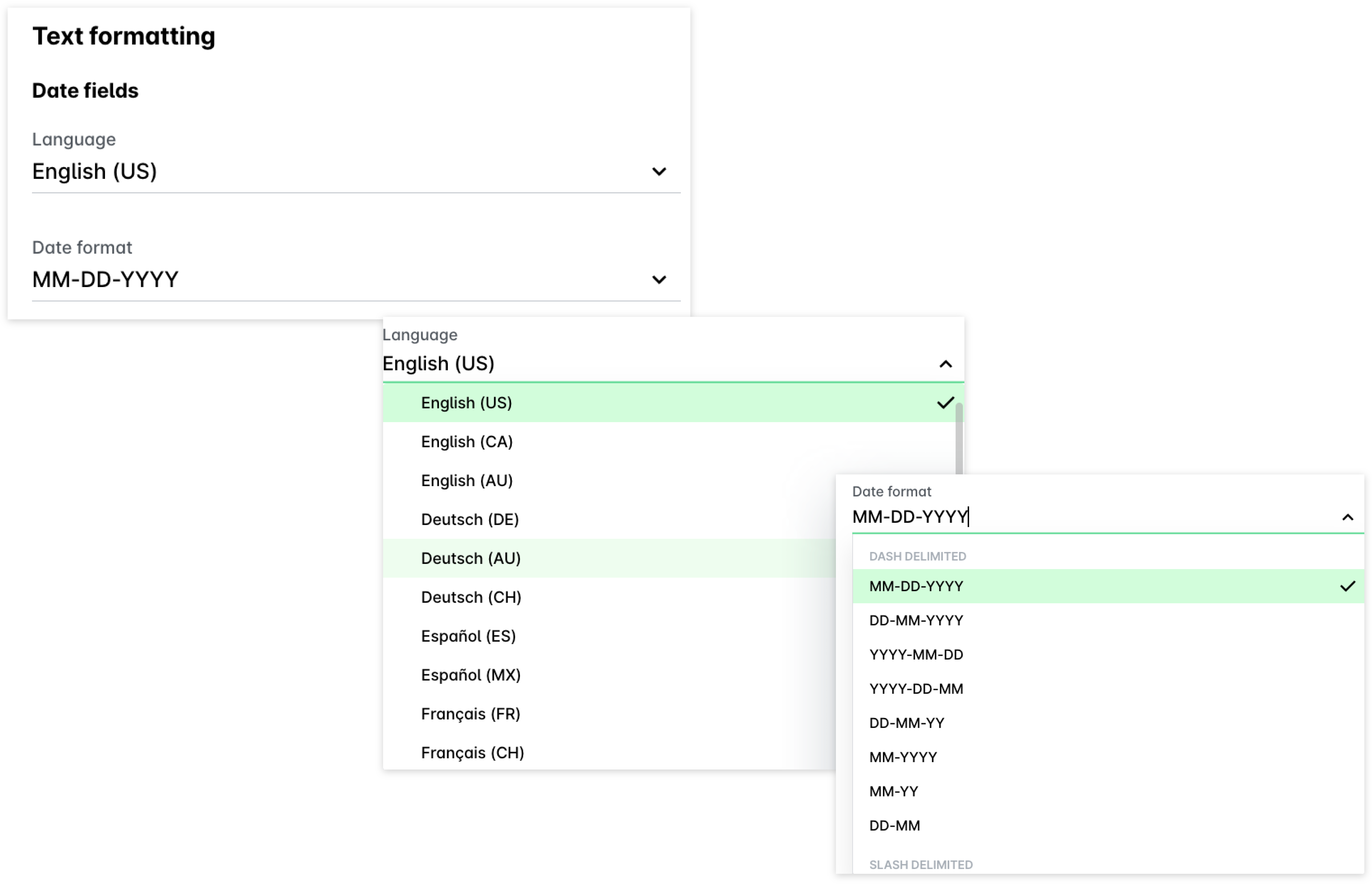
Under Text formatting, specify the desired language for the export.
Define the date format you want to apply to the export.
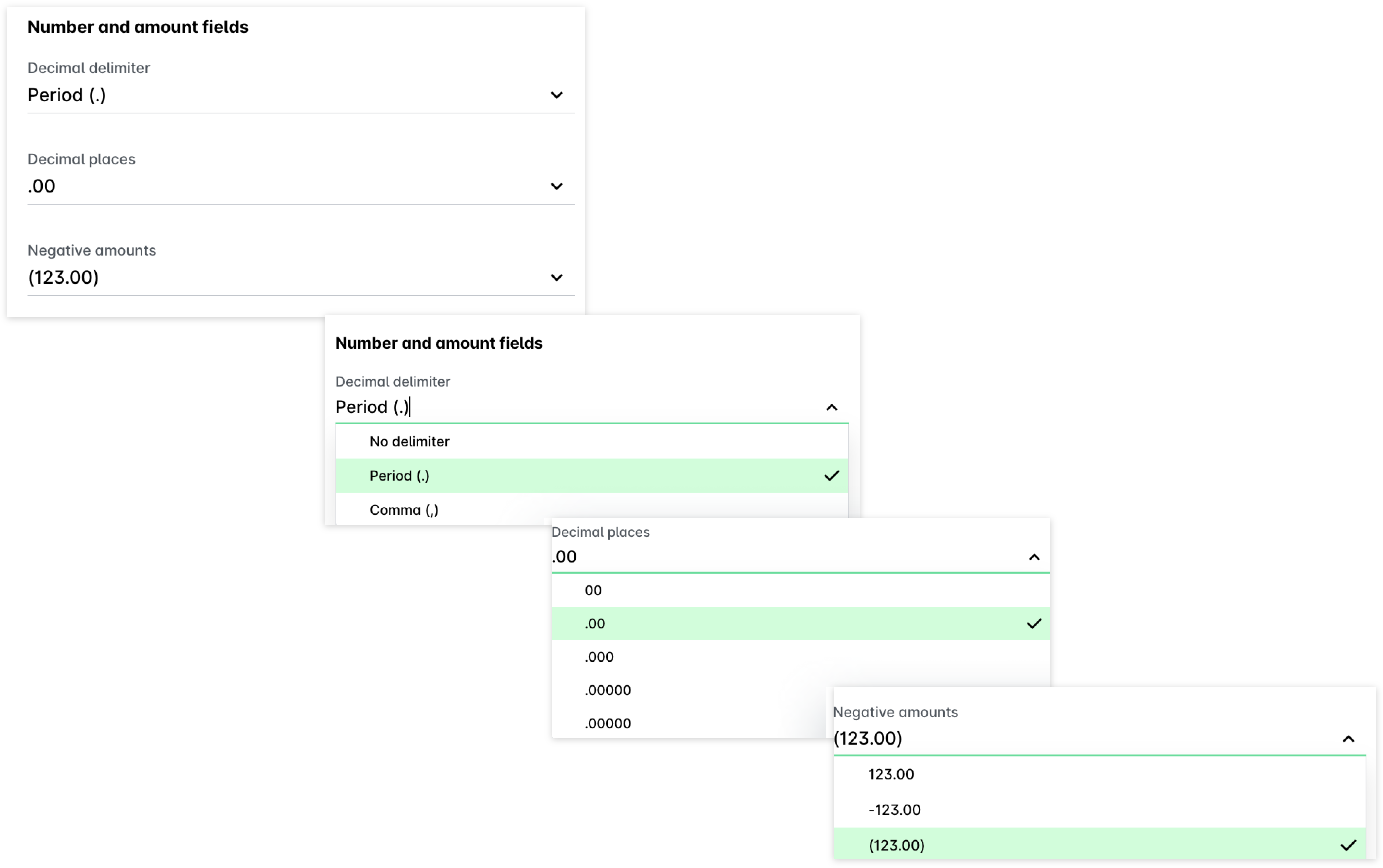
From the respective drop-down menus, set the desired decimal delimiter, decimal places, and the preferred way to display the negative values.
If you want to use quotes to wrap the included content in the export template, select the checkbox.

The global date-formatting settings for a template can be overridden by defining a specific date format for a cell through the export field options such as Current date or Last review date.