Finance teams can export expense and payment data for settled transactions from the Export app and, then, use that data for accounting purposes to share it with external ERP systems and accounting software.
For the Finance team to select and use an accounting template from the Export app, Payhawk Administrators need to enable it from the Payhawk account of the respective entity.
If you have already customized Excel or CSV templates, some of the features for the pre-defined accounting templates may not be available.
Adding new templates
To enable the desired accounting export template:
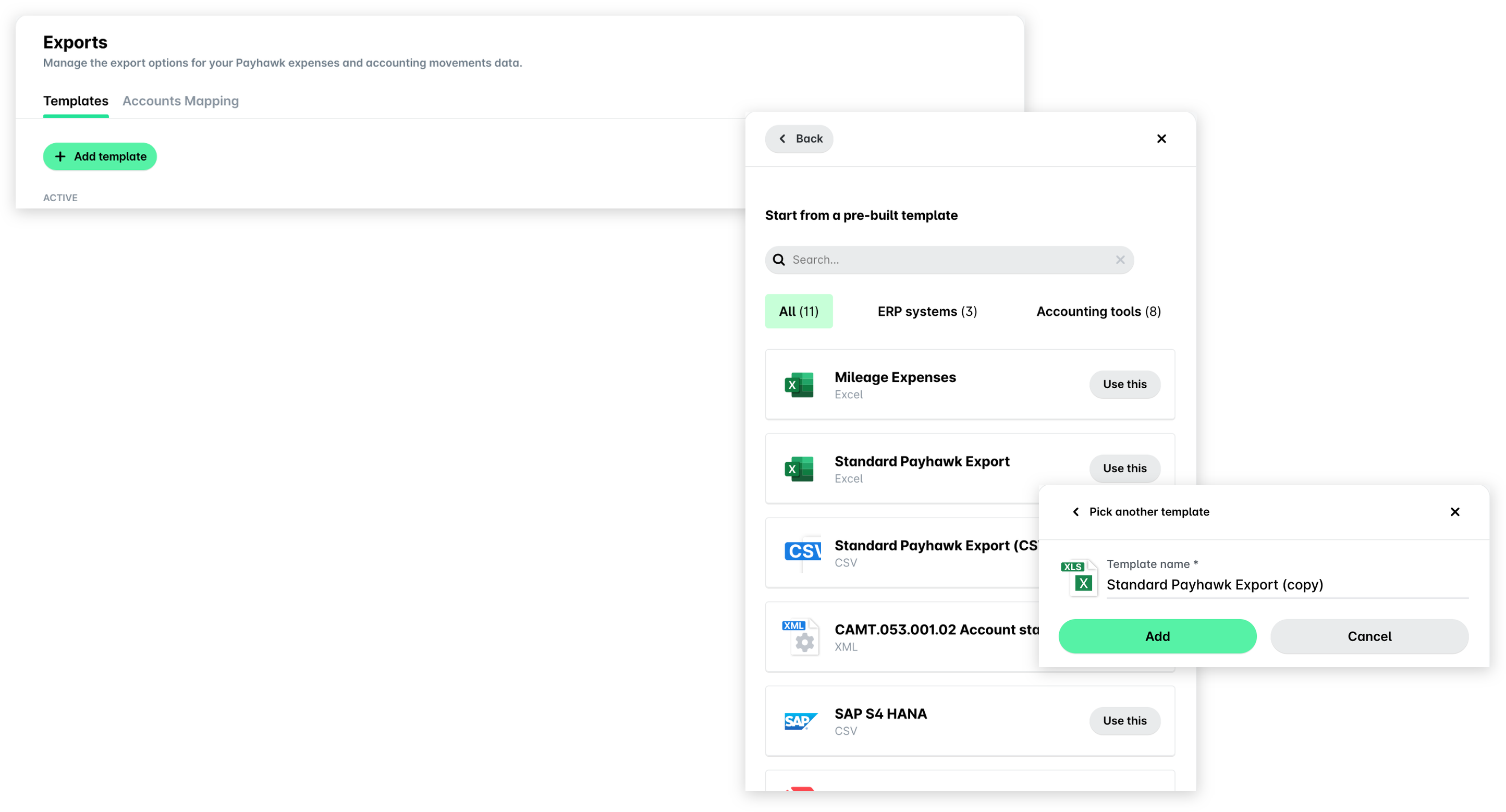
In the Payhawk Web Portal, open the app switcher in the top-left corner and go to Settings, then select Exports (under OTHER) in the left pane and open the Templates tab.
Click on the + Add template button.
In the panel that opens, find the template you need and click on Use this. You can search for a template or filter the list by All, ERP systems or Accounting tools.
Provide a name for the template and click on Add.
Once you confirm the selection, the accounting template will be added to the list of templates under the ACTIVE section.
Mapping accounts for accounting templates
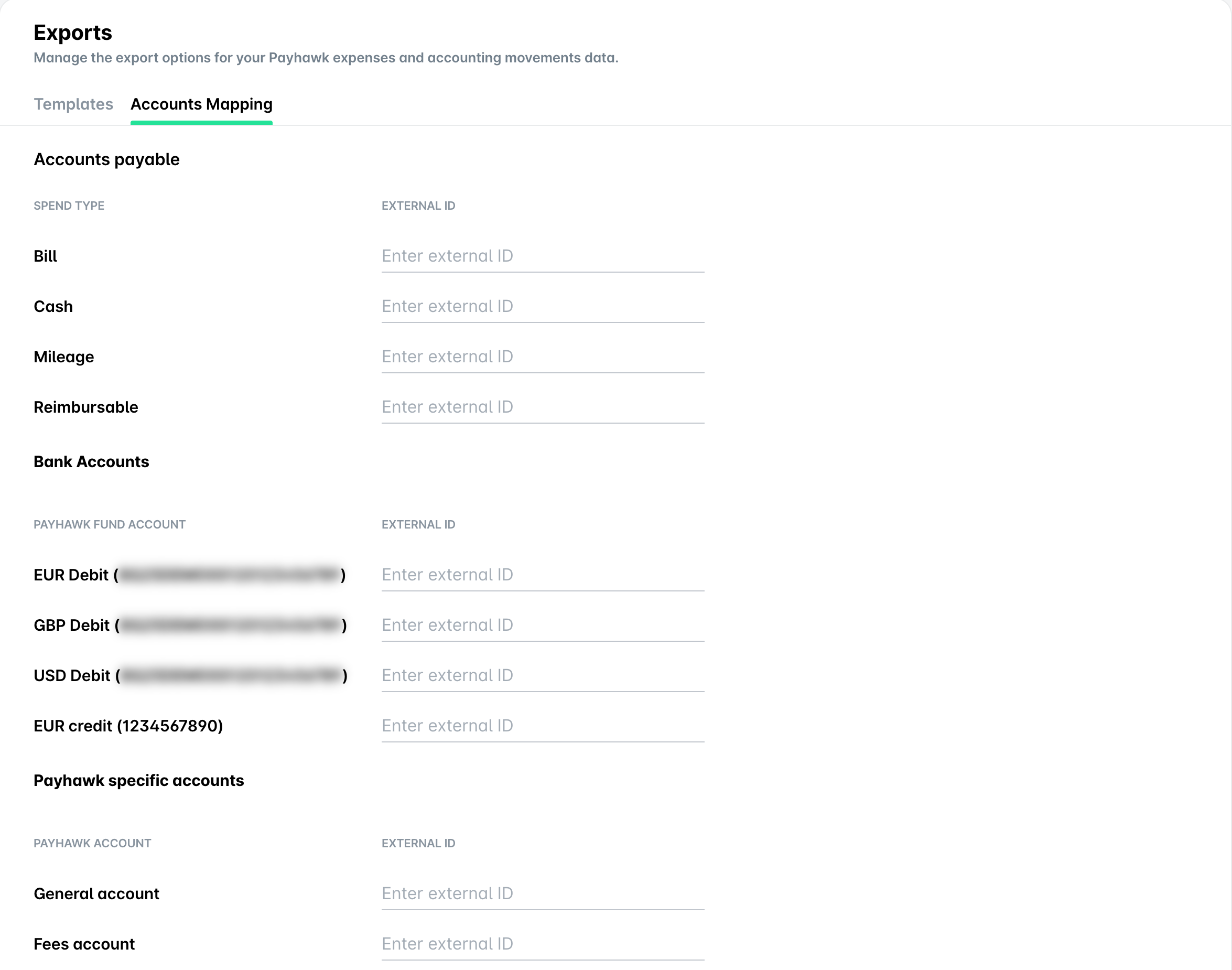
To be able to share the accounting data from the specified export template to the external ERP system or accounting software you are using, you need to fill in the external ID values so that the accounts between the two systems can be mapped.
Open the app switcher in the top-left corner and go to Settings > Exports > Accounts Mapping tab.
Against the listed spend types, bank accounts, Payhawk specific accounts, and entity names, fill in the corresponding external IDs.
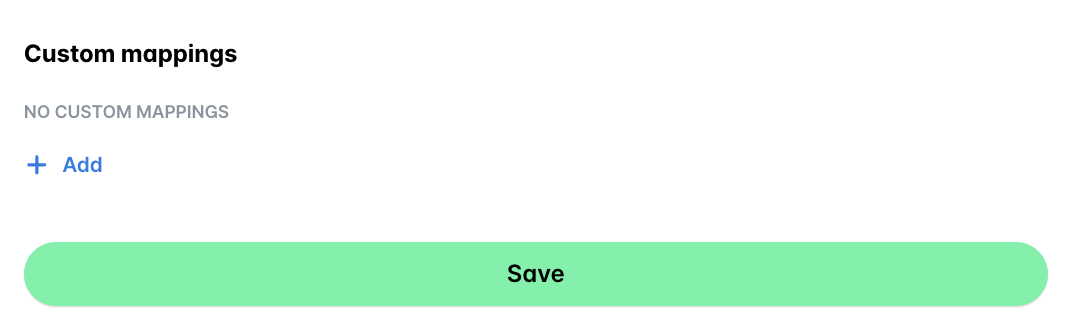
Under Custom mappings, fill in any custom fields you have created in Payhawk and want to be exported with the accounting template. To add more custom fields, use the + Add button.
When done, click on Save so that the mapping data can be applied to the template.
Archiving accounting templates
If you no longer need an accounting template, you can archive it.
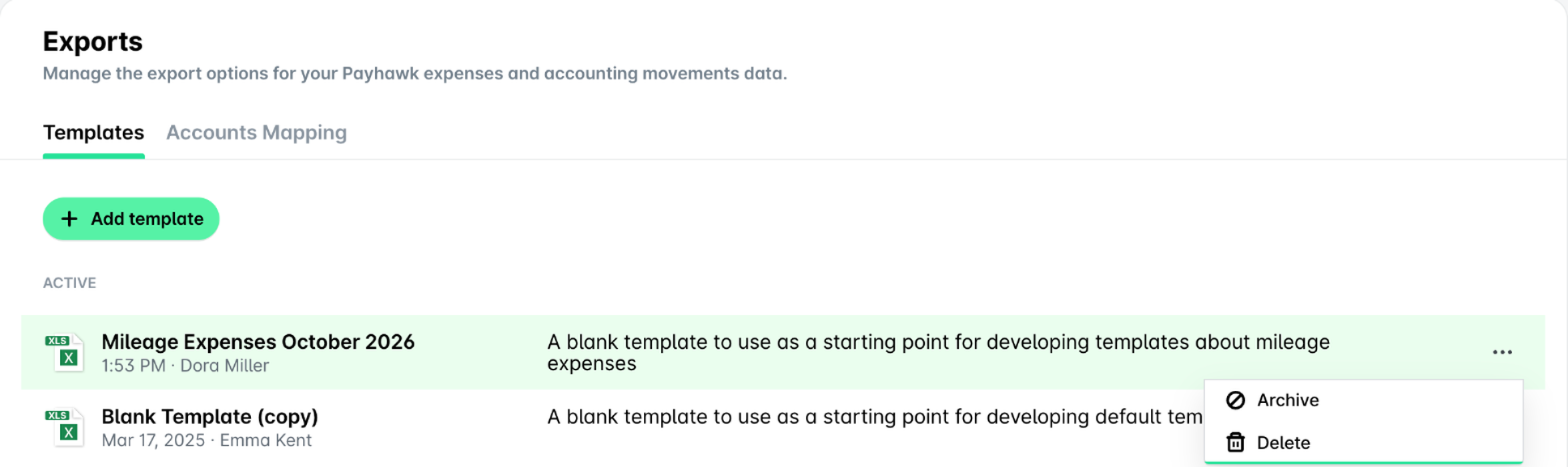
Open the app switcher in the top-left corner and go to Settings > Exports > Templates.
Click on the three dots menu of the accounting template you want to archive and select the Archive option.
As a result, the archived template will be moved under the Settings > Exports > Templates > ARCHIVED section.
Alternatively:
Open the app switcher in the top-left corner and go to Settings > Exports > Templates.
Select the desired template by clicking on it.
Click on the three dots menu to the upper right and select Archive.

Re-activating accounting templates
Even though you might have archived an accounting template, you can restore its active state if you need to use it again:
Open the app switcher in the top-left corner and go to Settings > Exports > Templates > ARCHIVED section.
Click on the three dots menu of the accounting template you want to activate and select the Reactivate option.
As a result, the restored template will be moved under the Settings > Exports > Templates > ACTIVE section.

Renaming accounting templates
To rename an accounting template:
Open the app switcher in the top-left corner and go to Settings > Exports > Templates.
Select the desired template by clicking on it.
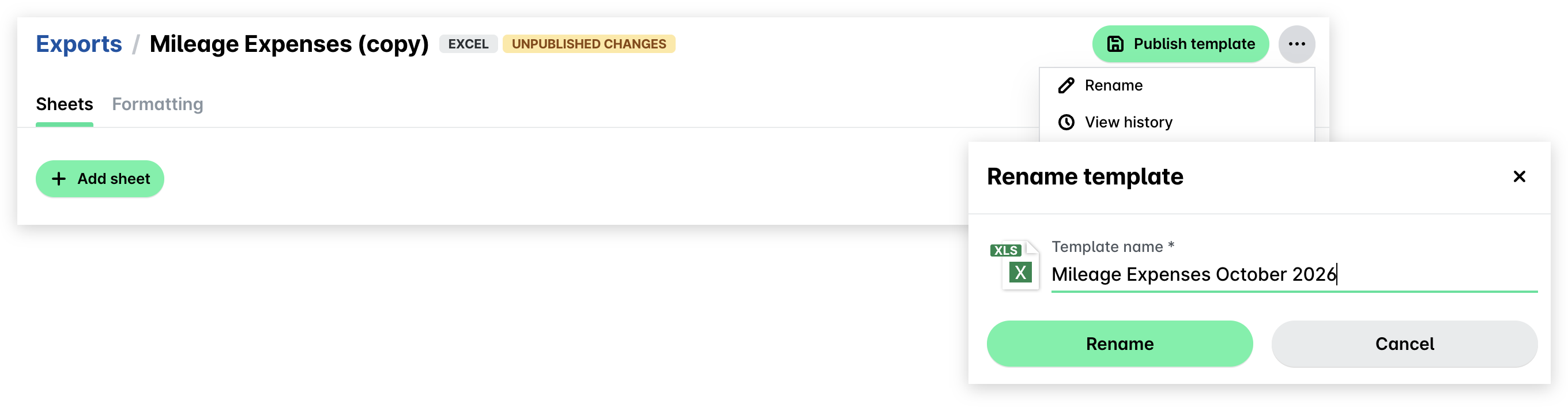
Click on the three-dot menu to the upper right and select Rename.
In the panel that opens, update the name and click on Rename.
Deleting accounting templates
To delete an accounting template used for scheduled export, you need to configure another template that will be used for the scheduled export.
To permanently remove an accounting template:
Open the app switcher in the top-left corner and go to Settings > Exports > Templates.
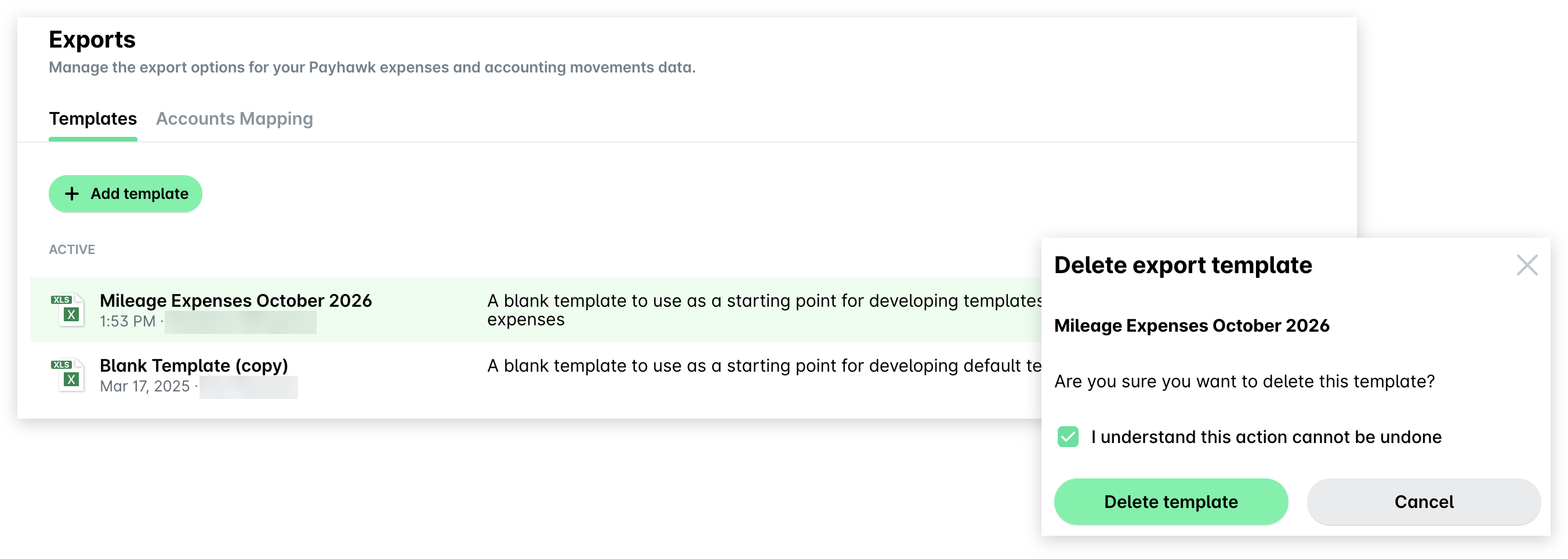
Click on the three dots menu of the desired template and select the Delete option.
In the dialog that opens, select the checkbox and click on Delete template.
Alternatively:
Open the app switcher in the top-left corner and go to Settings > Exports > Templates.
Select the desired template by clicking on it.
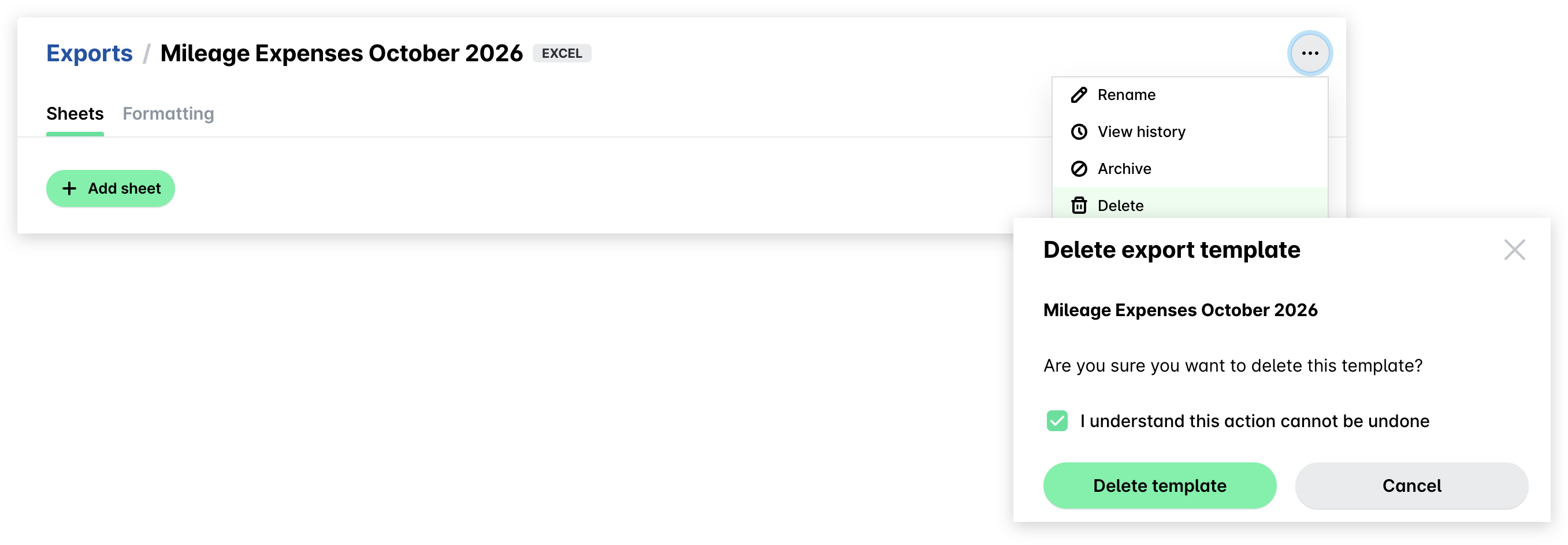
Click on the three dots menu to the upper right and select Delete.
In the dialog that opens, select the checkbox and click on Delete template.
Publishing and enabling the templates
For the Payhawk Accountants at your company to start using accounting templates, you need to publish them so that their latest version becomes available to use in the Export app.
Open the app switcher in the top-left corner and go to Settings > Exports > Templates.
Select the desired template by clicking on it.
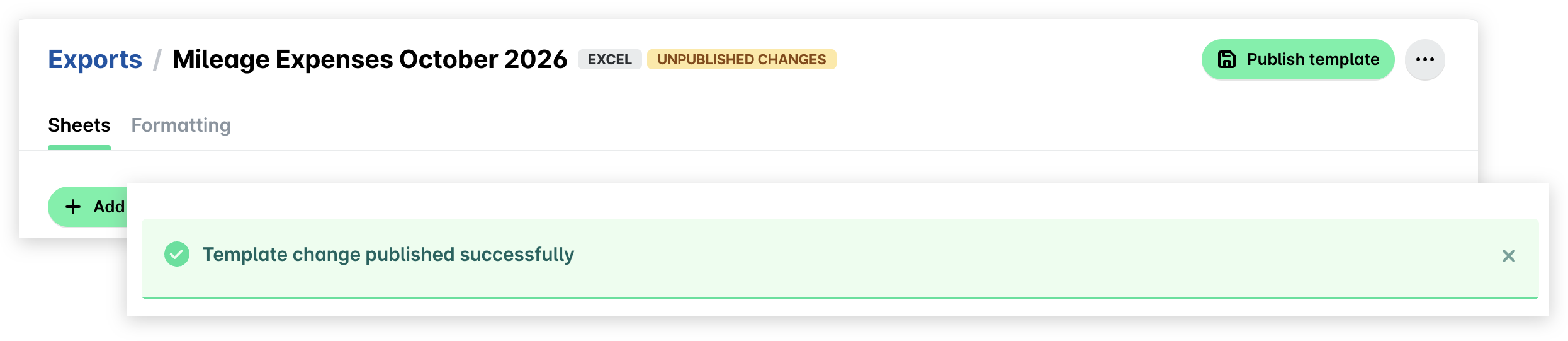
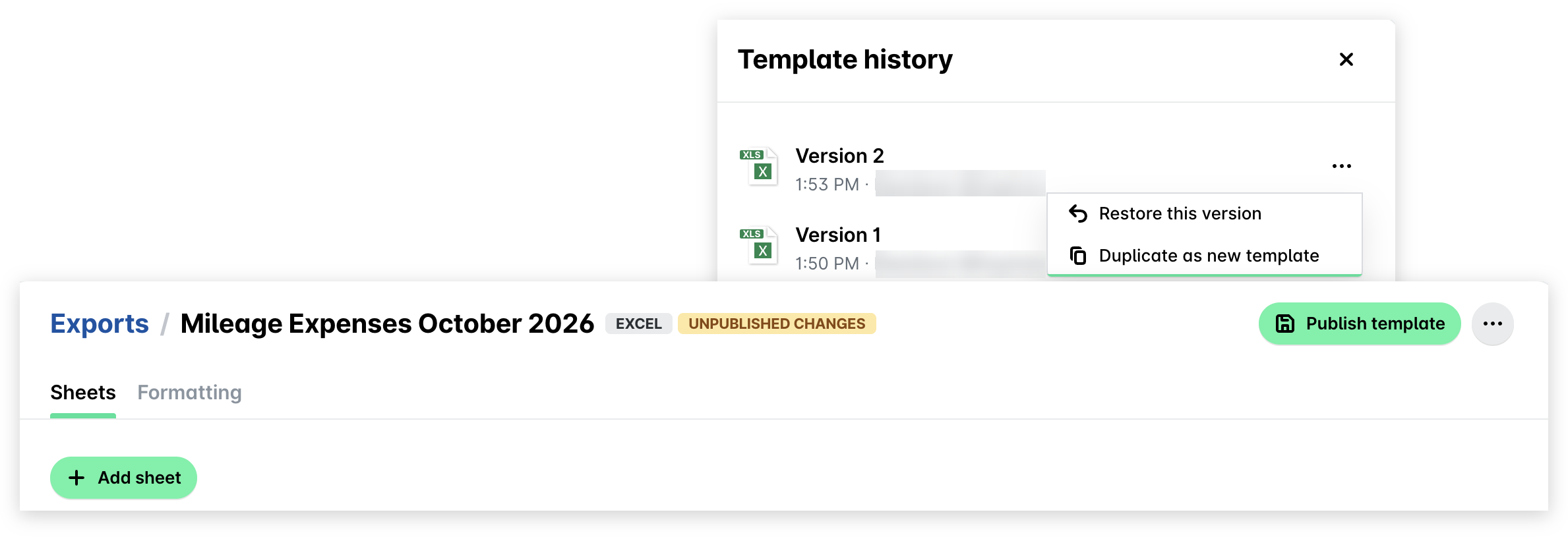
Click on Publish template. This button appears only when the template has unpublished changes, shown by the Unpublished changes label next to the template name. As a result, a confirmation message is displayed above the list of sheets or files.
Viewing the history of template updates
Any changes Payhawk Administrators make to an accounting template are available to see in the history log of that template.
Open the app switcher in the top-left corner and go to Settings > Exports > Templates.
Select the desired template by clicking on it.
Click on the three dots menu to the upper right and select View history. As a result, the Template history panel opens for you to view.
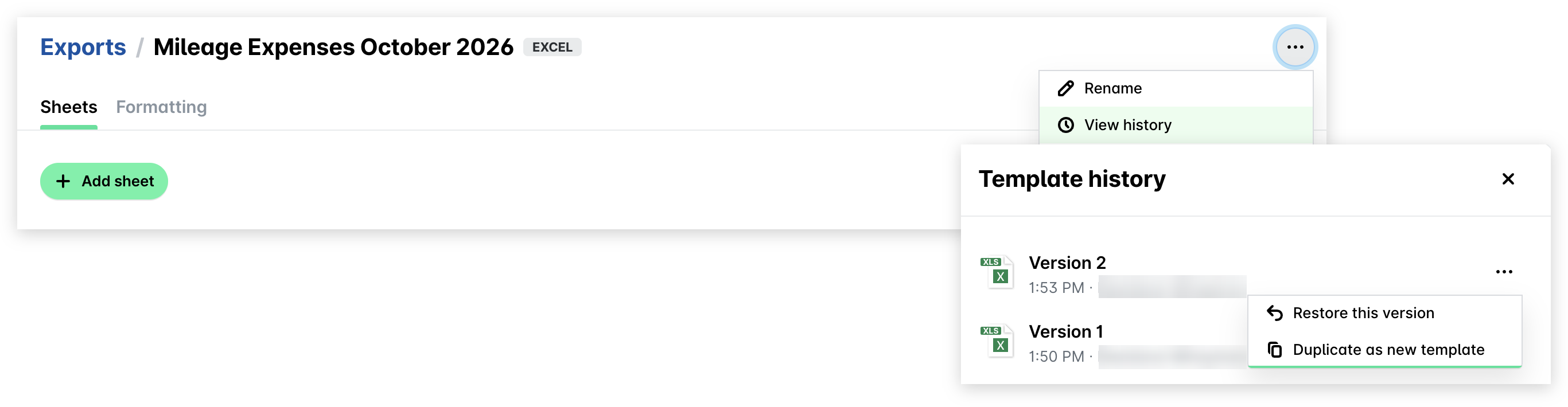
From here, you can restore a previous version or duplicate a previous version and set it as a new template.
Restoring previous template versions
From the Template history panel, click on the three dots menu against the version you want to restore and select the Restore this version option. The version is loaded as unpublished changes. To make it the current version, click on Publish template. The restored version is then added to the history log as a new version.
Duplicating accounting templates
You can use an existing accounting template and build another one on top of it. In such cases, you can duplicate the existing template.
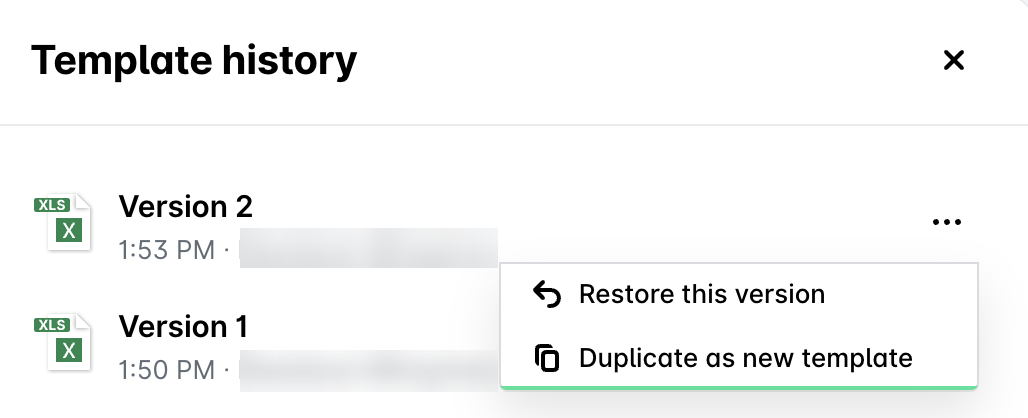
From the Template history panel, click on the three-dot menu against the version you want to duplicate and select the Duplicate as new template option. As a result, a copy of that version is added to the list of active templates with the number 1 after its name, and its page opens.
Useful resources