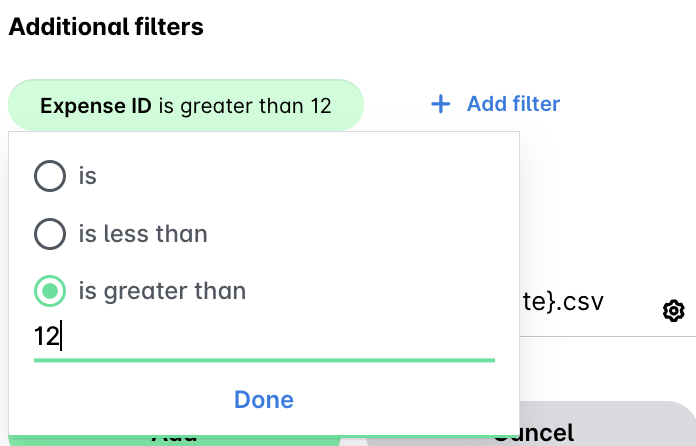
Payhawk accounting templates contain sheets (Excel export) or files (CSV export), which you can further customize.
Adding new files and sheets
You can add as many files and sheets to your custom template as you need:
In the Payhawk Web Portal, open the app switcher in the top-left corner and go to Settings > Exports.
Select the desired template and click on the + Add file (or + Add sheet respectively) button.
In the panel that opens, define:
The name of the file or sheet.
The data that will be included in the file.
How single payments linked to multiple expenses are exported, under Export format.
The date on which the included data will be based.
The filters for the included data.
How the data is sorted, under Sorting.
The format of the file name.
Click on Add.
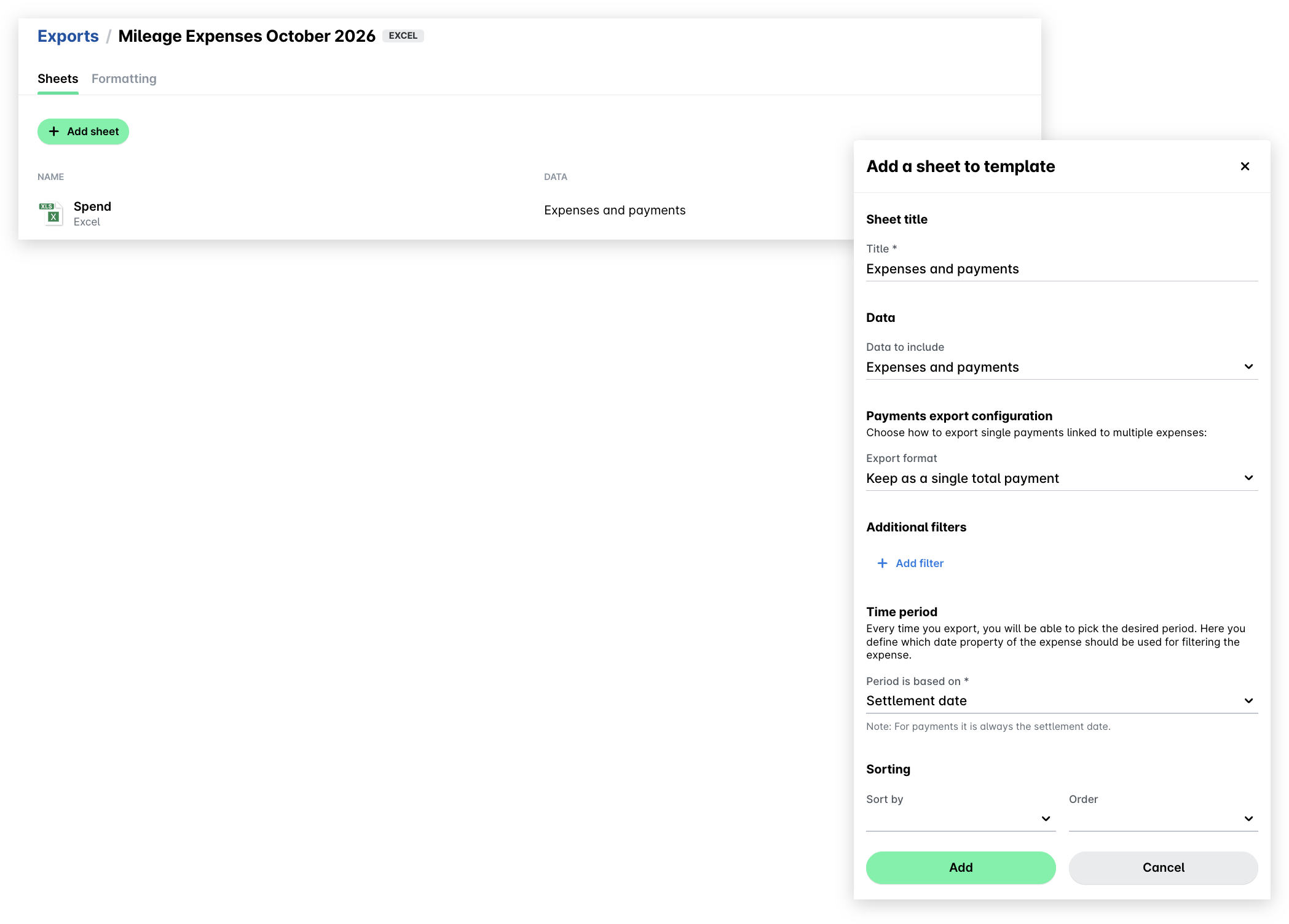
Defining the included data
To configure what data will be included in the file, select the desired option from the drop-down menu - for example, Expenses.
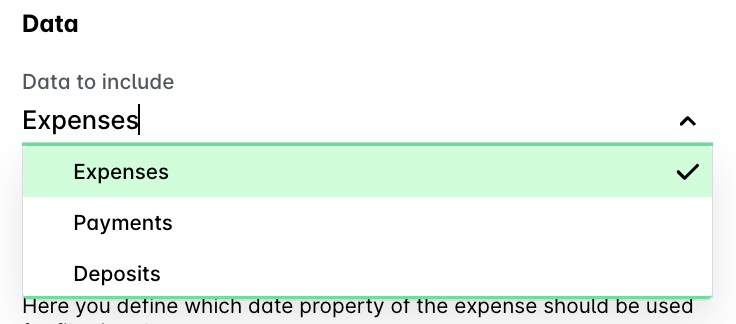
Defining the period for the report
To configure the date based on which the desired data will be included in the file, select the desired option from the drop-down menu - for example, the Settlement date of the payments.
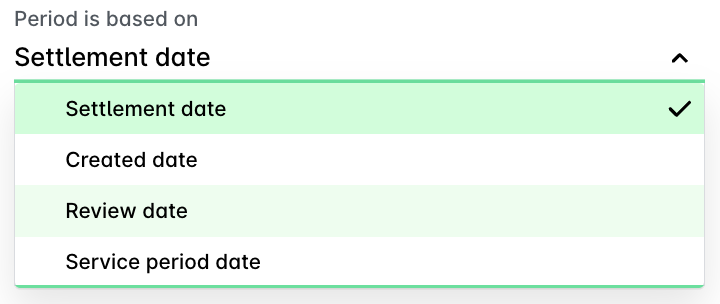
Filtering the included data
You can filter the included data based on criteria such as export date, supplier, reviewer, and more.
Click on + Add filter.
Select the criteria and add its values if required.
Click on Done.
You can also aggregate and add more filters in the same way.
Configuring the file name
You can also configure the format of the file name.
In the File name field, click on the Settings icon.
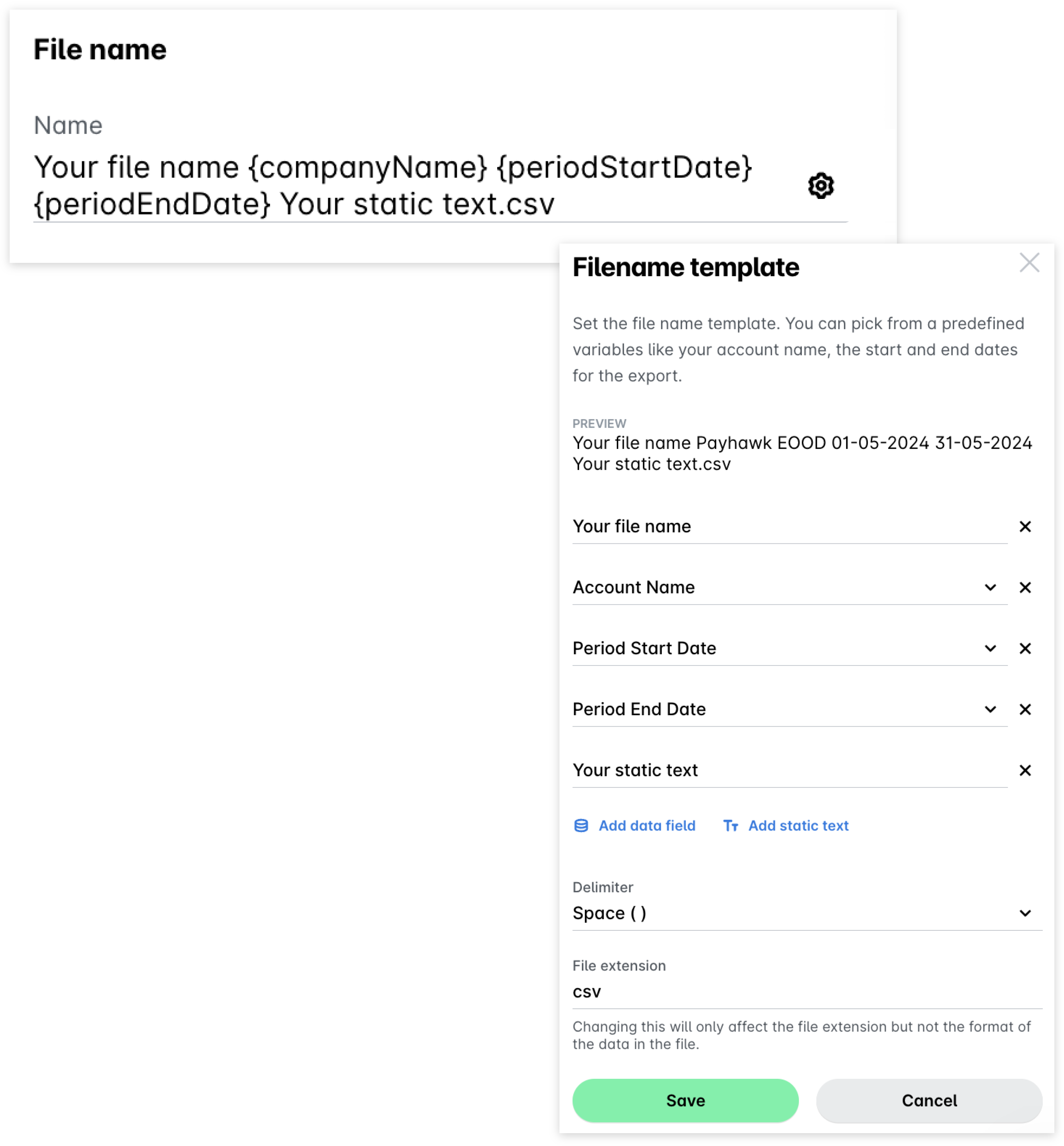
In the dialog that opens, select the data you want to see as the file name - account name, start or end date of the period, or add your custom input.
To include yet another data field, click on Add data field.
To add your custom text to the file name, click on Add static text.
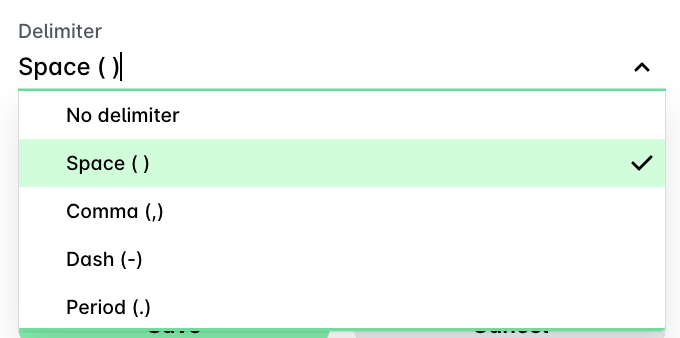
From the Delimiter drop-down menu, select the type of delimiter you want to be applied to the file name.
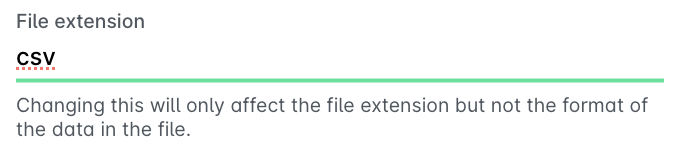
Your accounting system may require you to import your accounting data from a specific file format. You can define that format by setting the file extension for the template file under File extension.
Note that setting a specific file extension won't change the format of the included data itself.
Click on Save. You'll be returned to the previous screen.
Click on Add.
Editing files and sheets
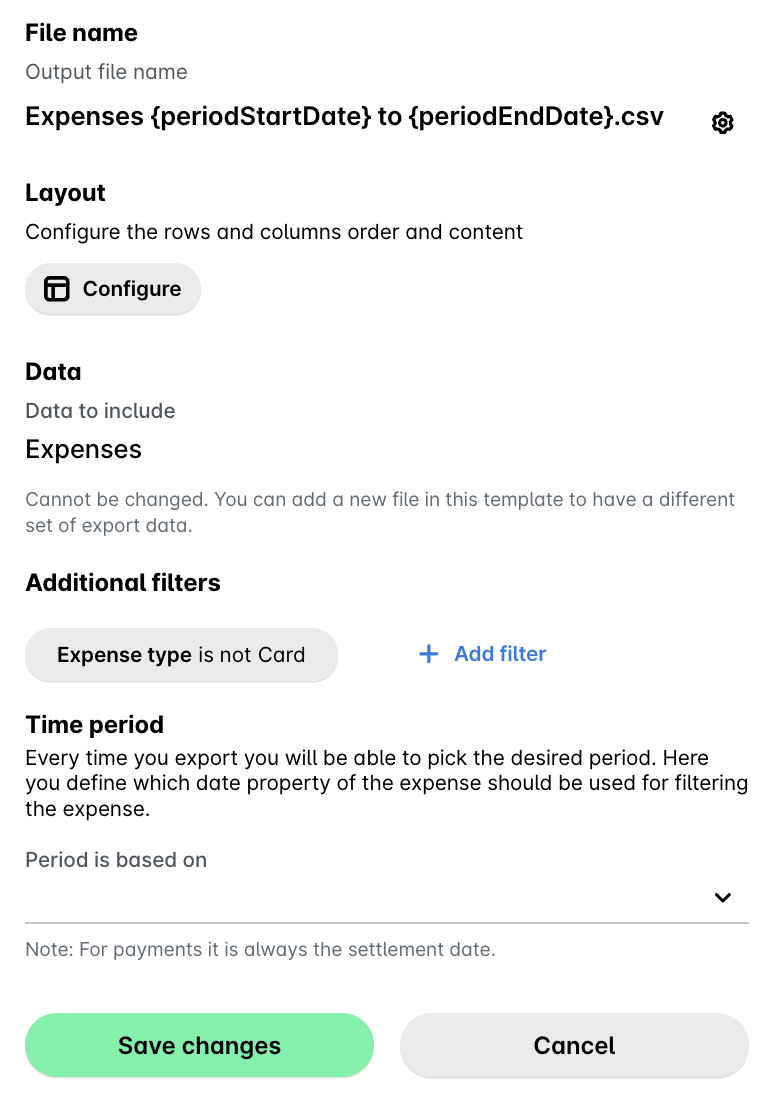
To edit a template file or sheet:
Open the app switcher in the top-left corner and go to Settings > Exports, then select the desired template and file.
From here, you can:
Click on Save changes.
Duplicating files and sheets
You can reuse a file or sheet that has already been configured by duplicating it.
Open the app switcher in the top-left corner and go to Settings > Exports, then select the desired template and, then, the file or sheet you want to modify.
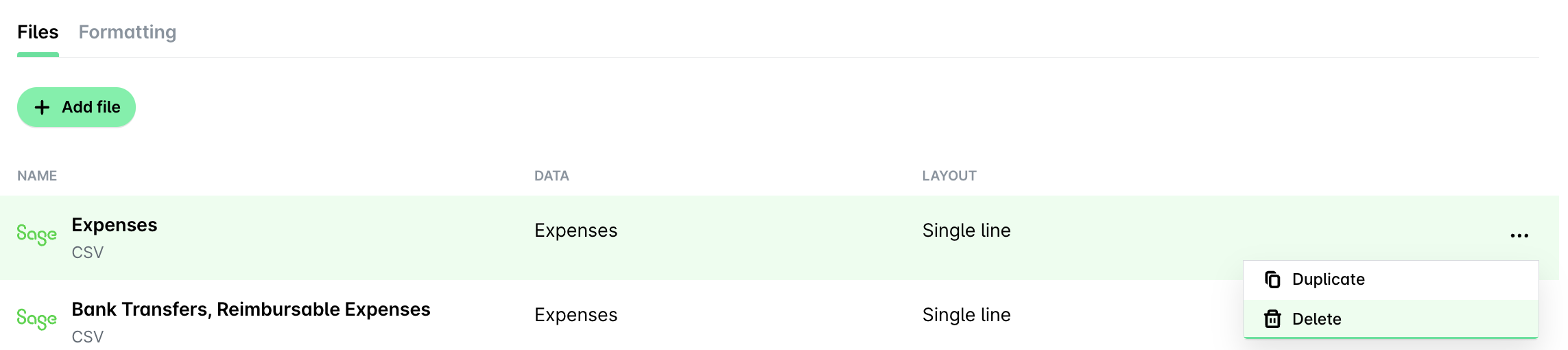
Click on its three dots menu and select Duplicate. The duplicated file will be added to the list under Files/Sheets.

Deleting files and sheets
When you no longer need a file or sheet, you can permanently remove it from the list under Files.
Open the app switcher in the top-left corner and go to Settings > Exports, then select the desired template and, then, file by clicking on it.
Click on its three dots menu and select Delete.
Useful resources