Documentation Index

Fetch the complete documentation index at: https://payhawk.document360.io/llms.txt

Use this file to discover all available pages before exploring further.

Managing the settings of fields

Prev Next

You can set the visibility and the required-for-review and required-for-submission options for each Payhawk field to which they apply.

Available visibility settings for fields

The available visibility options for the fields differ depending on the field and its function as follows:

Field

Visibility settings

Category

  • Preselected roles: Accountant and Administrator (cannot be modified).

  • You can additionally grant visibility to any Payhawk role except Employee by adding it in the visibility settings. These roles will then be able to view the field.

Note

  • Preselected roles: Accountant and Administrator (cannot be modified).

  • You can add any Payhawk role to the visibility settings to allow those roles to view the fields.

The Note field supports template creation based on expense data, automatic population from historical expense data, or both. For more information, see the article on using smart note suggestions and templates.

Document

  • Cannot be disabled.

  • Preselected roles: All Payhawk roles (cannot be modified).

Document date

  • Cannot be disabled.

  • Preselected roles: Accountant and Administrator (cannot be modified).

  • You can add any Payhawk role to the visibility settings to enable those roles to view the field.

Due date

  • Cannot be disabled.

  • Preselected roles: Accountant and Administrator (cannot be modified).

  • You can add any Payhawk role to the visibility settings to enable those roles to view the field.

Document type

  • Preselected roles: Accountant and Administrator (cannot be modified).

  • You can add any Payhawk role to the visibility settings to enable those roles to view the expense field.

Document number

  • Preselected roles: Accountant and Administrator (cannot be modified).

  • You can add any Payhawk role to the visibility settings to enable those roles to view the field.

Service period

  • Preselected roles: Accountant and Administrator (cannot be modified).

  • You can add any Payhawk role except Employee to the visibility settings to enable those roles to view the field.

Supplier

  • Cannot be disabled.

  • Preselected roles: Accountant and Administrator (cannot be modified).

  • You can add any Payhawk role to the visibility settings to enable those roles to view the field.

Tax rate

  • Preselected roles: Accountant and Administrator (cannot be modified).

  • You can add any Payhawk role except Employee to the visibility settings to enable those roles to view the field.

Discount

  • Preselected roles: Accountant and Administrator (cannot be modified).

  • You can add any Payhawk role except Employee to the visibility settings to enable those roles to view the field.

Amortization

  • Preselected roles: Accountant and Administrator (cannot be modified).

  • You can add any Payhawk role except Employee to the visibility settings to enable those roles to view the field.

Team

  • Preselected roles: Accountant and Administrator (cannot be modified).

  • You can add any Payhawk role to the visibility settings to enable those roles to view the field.

  • If a user belongs to multiple teams, the field will be visible to them.

Setting the visibility of fields

By configuring the visibility settings for the fields, you can control which roles at your company can view them.

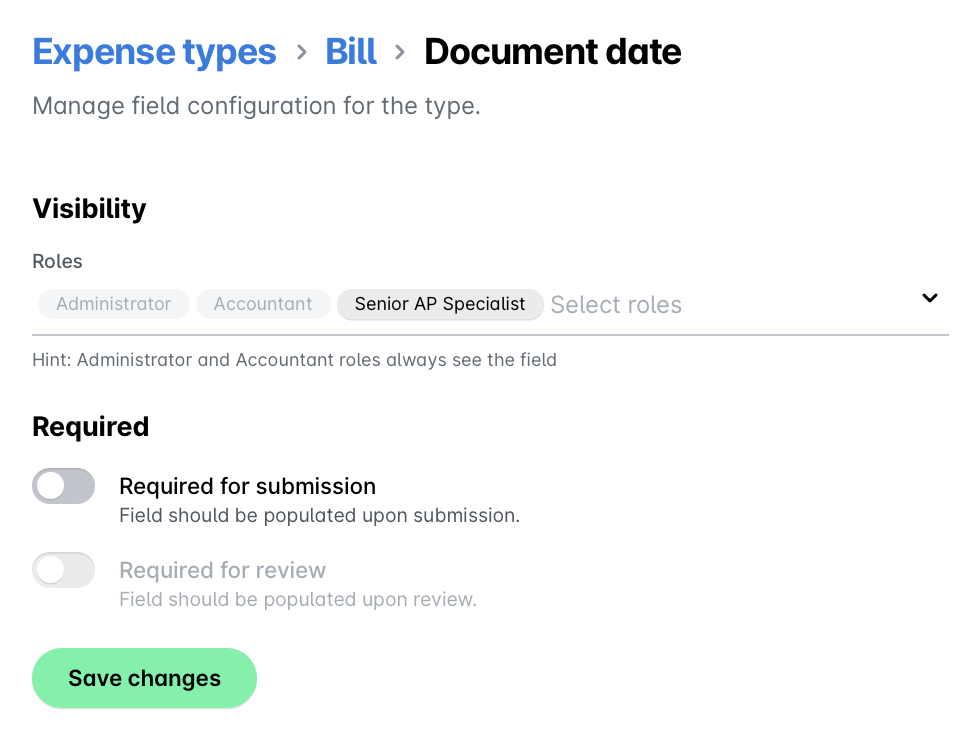
For the purposes of this example, you will change the Document date expense field visibility settings:

  1. In the Payhawk Web Portal, go to Settings > Expense types > [Expense type].

  2. Select Document date.

  3. From the Visibility drop-down list, select the roles you want to have access to that field - for example, Senior AP Specialist and Auditor.

  4. Click on Save changes.

    Configuration settings for expense types, highlighting roles and submission requirements.

Setting the required-for-review options for fields

As a Payhawk Administrator, you can also define which fields are required for review. As a result, if any of the required fields have been left blank, reviewers will not be able to mark an expense or request as reviewed.

For example, to require reviewers to make sure a document date for an expense or request is filled in:

  1. In the Payhawk Web Portal, go to Settings > Expense types > [Expense type].

  2. Select Document date.

  3. Toggle on Required for review.

  4. Click on Save changes.

Setting the required-for-submission options for fields

As a Payhawk Administrator, you can also define which fields are required for the submission of an expense or request. As a result, if any of the required fields have been left blank, expense or request owners will not be able to submit the expense or request.

For example, to require expense or request owners to fill in the document date when submitting an expense or request:

  1. In the Payhawk web portal, go to Settings > Expense types > [Expense type].

  2. Select Document date.

  3. Toggle on Required for submission.

    The Document field provides an additional option for setting a threshold below which no document is needed for your employees to submit an expense or request. To enable it, enter the desired amount.

  4. Click on Save changes.

Settings for expense categories

Expense categories provide additional options for suggestion strategies related to the automatic population of expense data into the category field of the expense or request. For more information, see the article about the suggestion strategies for expense categories and fields.

For more details on managing expense categories, see the following resources:

Useful resources