The Implementation AI Agent helps you complete the key setup steps needed to start using Payhawk quickly.
It guides you through tasks like:
Connecting your accounting system
Funding your account
Issuing cards
Setting up approvals
Making your first spend
The AI Agent adapts the setup based on your subscription and account status, so you only see the steps relevant to your company.
Your company needs to complete KYC verification before you can fund your account or issue cards. This can take up to 5 business days. While you're waiting, the Implementation AI Agent will show you other tasks you can complete in the meantime. Once verification is complete, the next steps will unlock automatically. If the Payhawk Compliance team needs more information from you, the AI Agent will let you know and help you through it.
The Implementation AI Agent will track your progress and recommend what to tackle next. You can adjust its suggestions, such as accounting codes when connecting your ERP, by chatting with it.
The following image shows a sample setup plan. The Implementation AI Agent builds this plan based on what Payhawk has learned about your company during signup and what makes sense for your account.
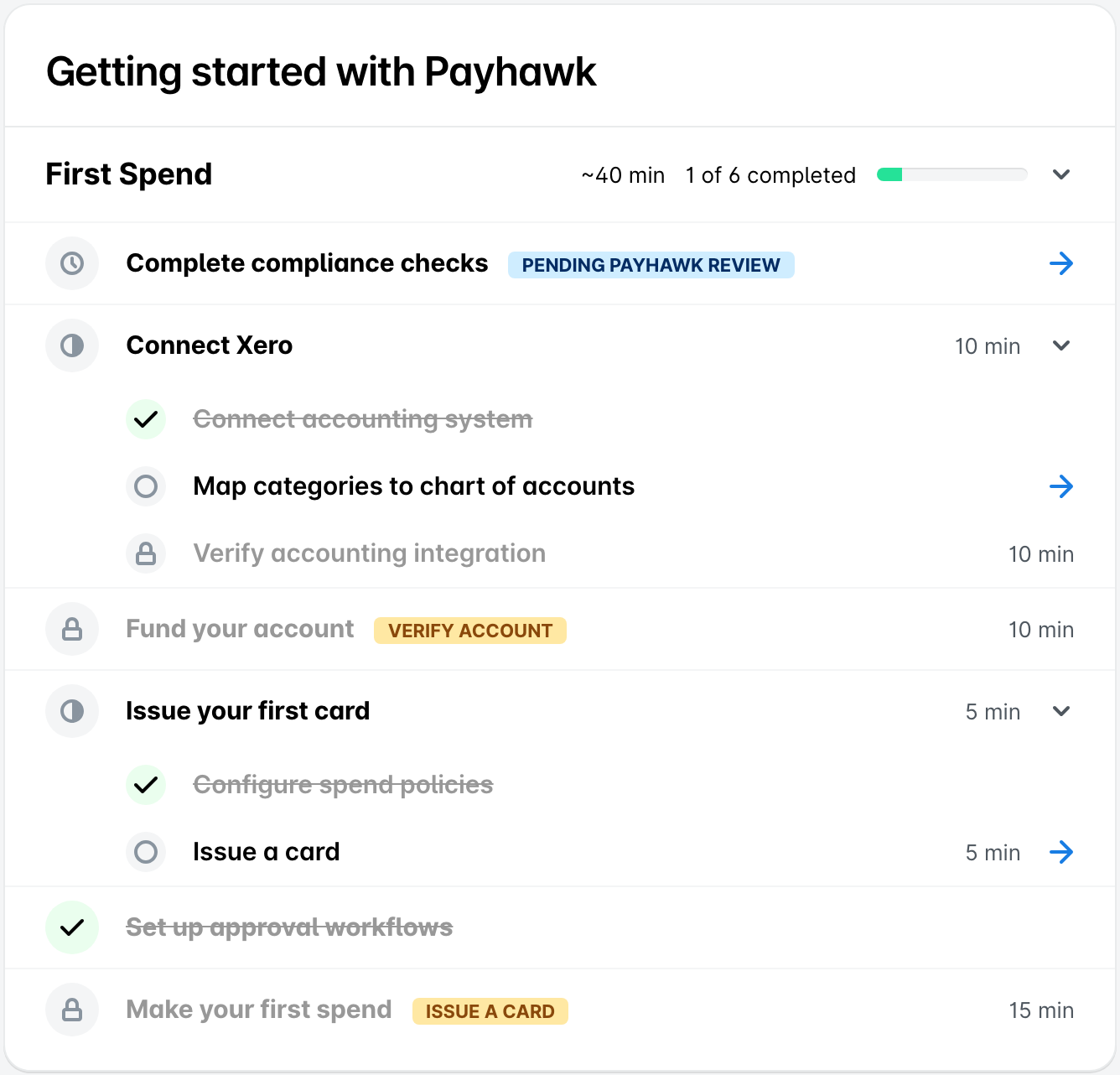
The Implementation AI Agent is currently in a gradual rollout and is not yet available to all customers.
Setting up your account
These are the main steps to get you from setup to your first spend. You'll only see the ones that apply to your subscription and account.
Connect your accounting system
Estimated time: ~25 min
To make sure your expense categories, tax codes, and account mappings are ready before you start spending, it's recommended to connect your ERP integration first.
This step appears if you're using an ERP.
What you'll do:
Connect Payhawk to your ERP, using the connection wizard to link your accounting system.
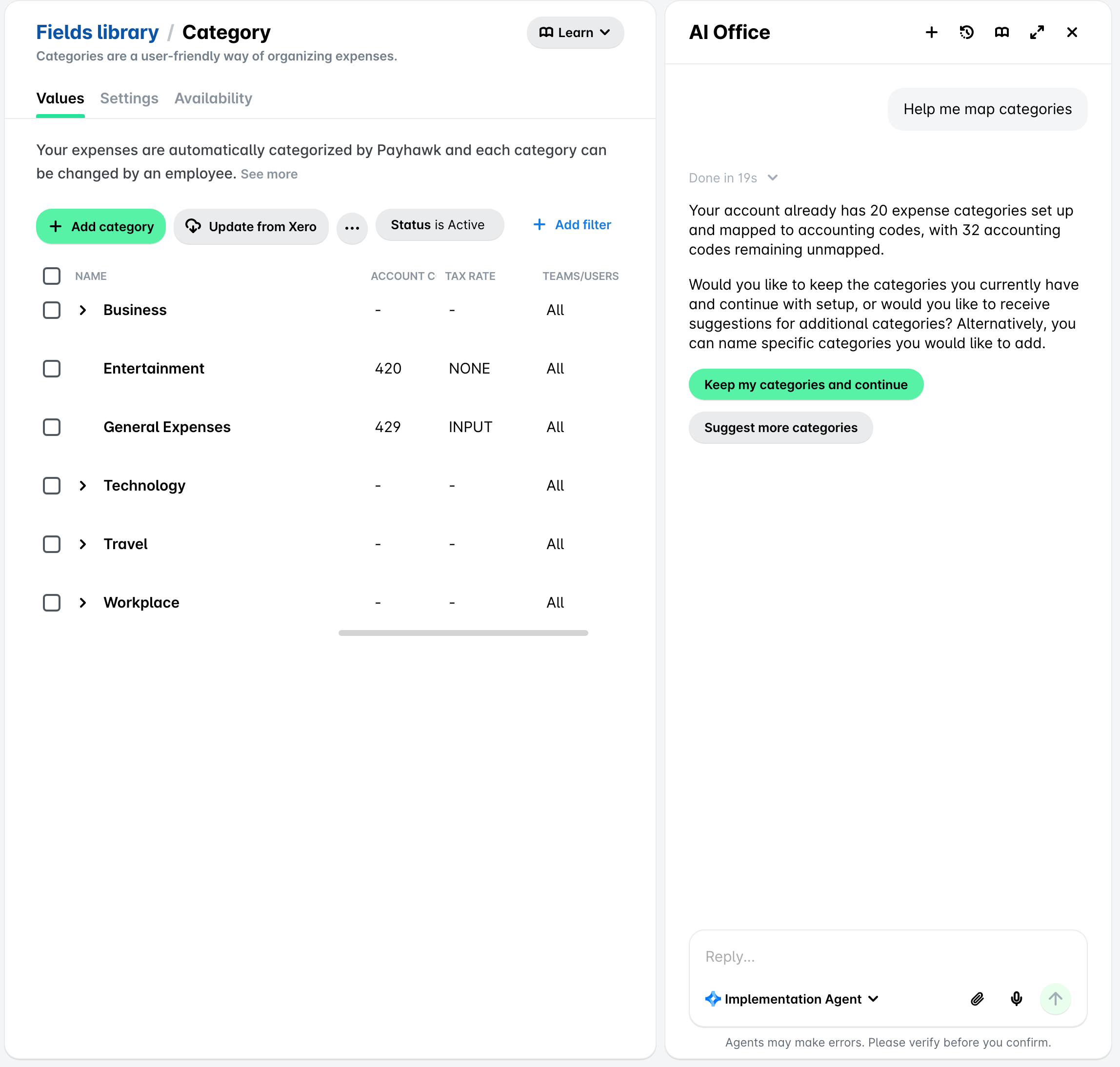
Map your chart of accounts, matching your expense categories to your chart of accounts. The Implementation AI Agent will suggest mappings based on your account names and common patterns. If you're not using an ERP integration, the AI Agent will take you to Settings to map accounts directly.
Verify the connection, checking that Payhawk and your ERP sync correctly. The Implementation AI Agent will suggest creating a test reimbursement to confirm everything works. You can skip this step if needed and it won't block your setup.
The following image shows what you'll see when the Implementation AI Agent guides you through connecting your ERP.
Fund your account
Estimated time: ~10 min
To start making card payments, you'll need to add funds to your Payhawk account.
This step appears after your company passes KYC verification and only if you have a prepaid account.
Issue your first card
Estimated time: ~5 min
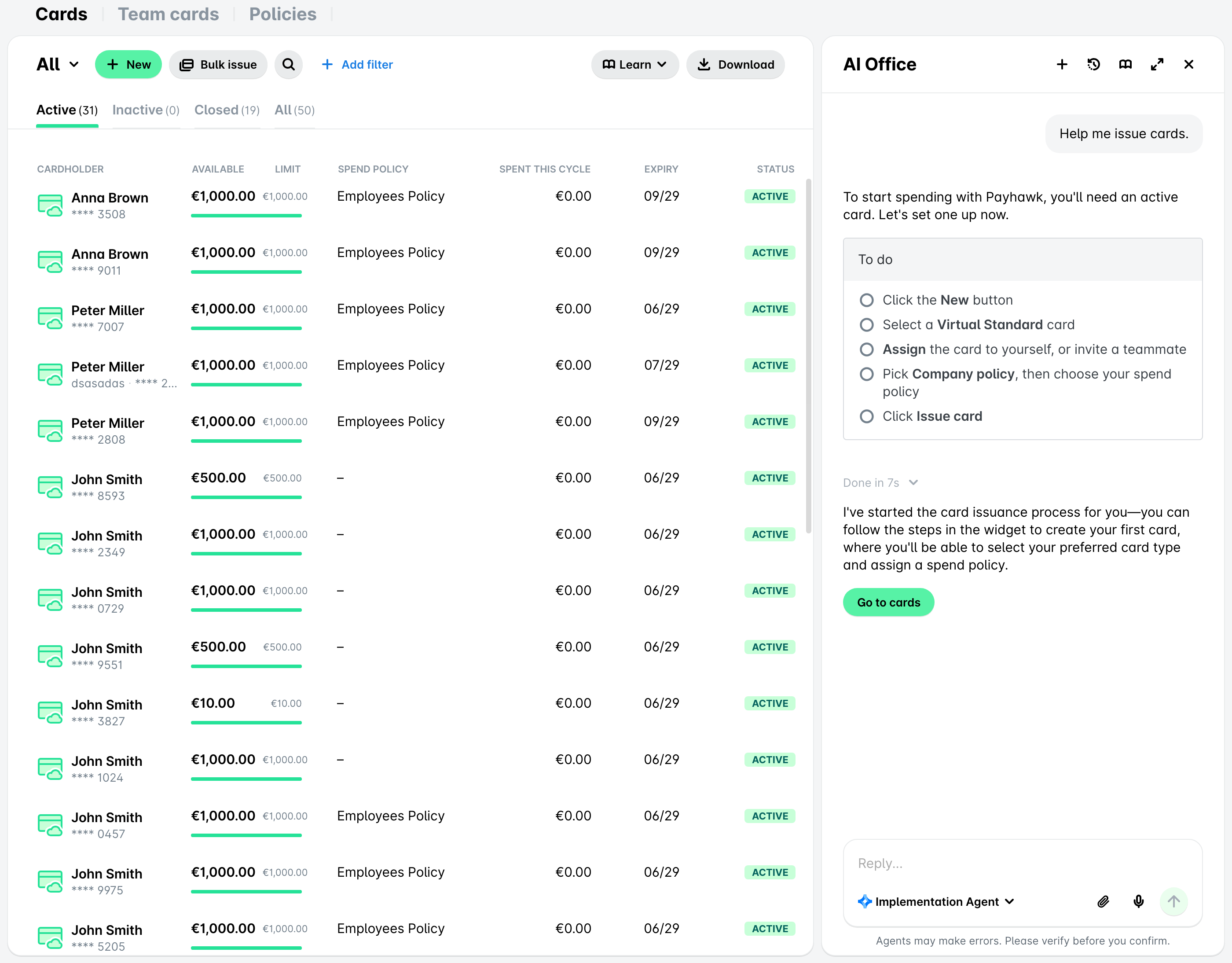
To start spending as quickly as possible, the Implementation AI Agent will help you issue your first card. It will keep things simple by focusing on what you need right now. Card limits and controls will be shown only if they're relevant to your setup. This step will appear if your subscription includes cards and you're outside the US.
The following image shows what you'll see when the Implementation AI Agent guides you through issuing a card.
Link your cards
Estimated time: ~20 min
To keep using your existing corporate cards in Payhawk, you can link them from your current provider. The Implementation AI Agent will identify your card provider based on your account and will walk you through the linking process.
This step appears for US customers instead of the step related to issuing new cards.
Set up approval workflows
Estimated time: ~15 min
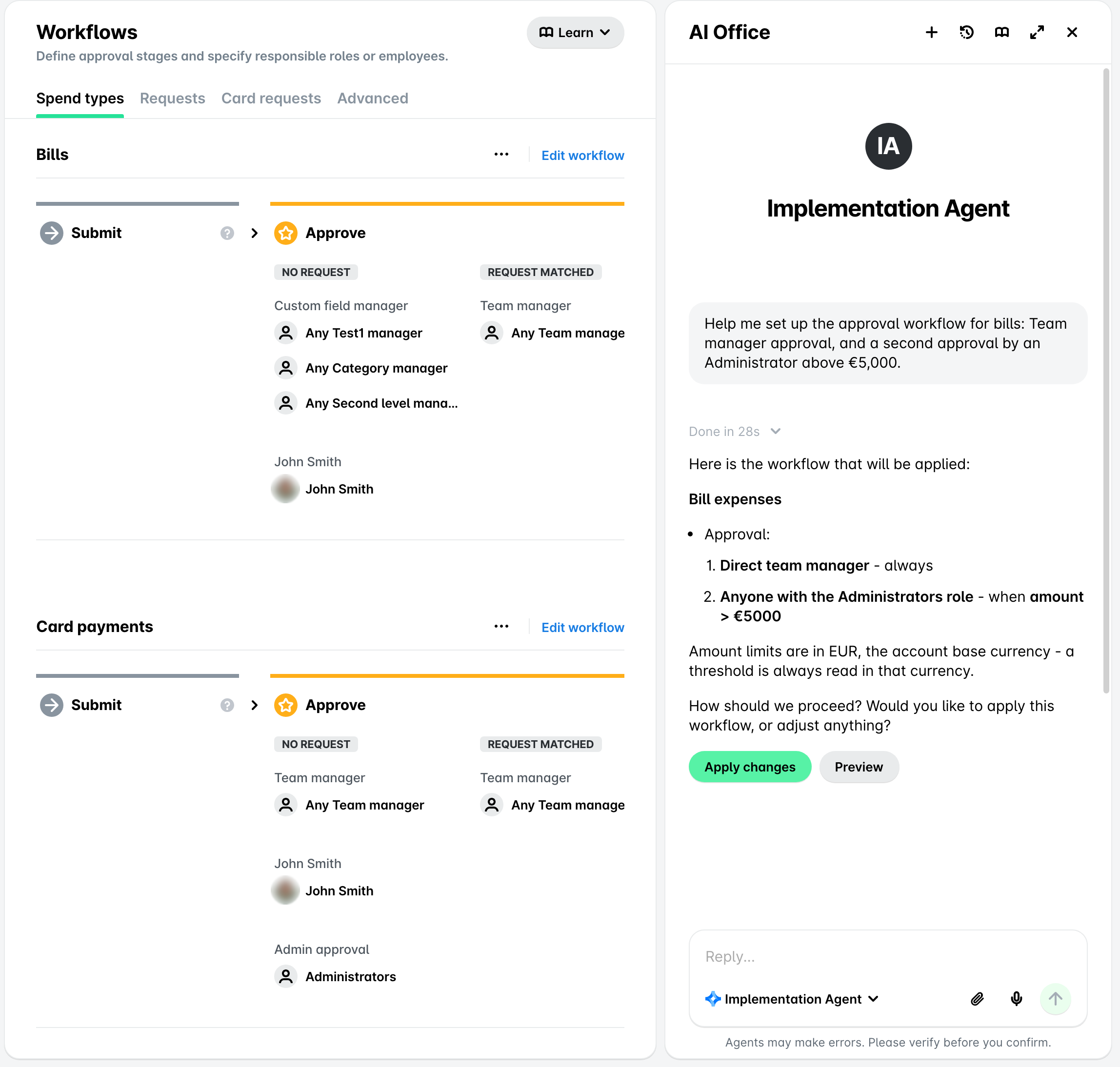
To control how expenses are approved at your company, the Implementation AI Agent will help you configure approval workflows. It will ask who should approve spending, whether you need a second approver above certain amounts, and suggest a few options to get started.
The Implementation AI Agent will recommend an approval structure based on how your organization manages spending. By default, it sets up a simple Team Manager approval and keeps things straightforward unless you need more complex rules.
The workflow applies to all spend types initially. You can customize them later for specific needs.
The following image shows how the Implementation AI Agent guides you through configuring approval workflows for bills. If you mention a role like Project Manager, it will match it to the closest role in your company.
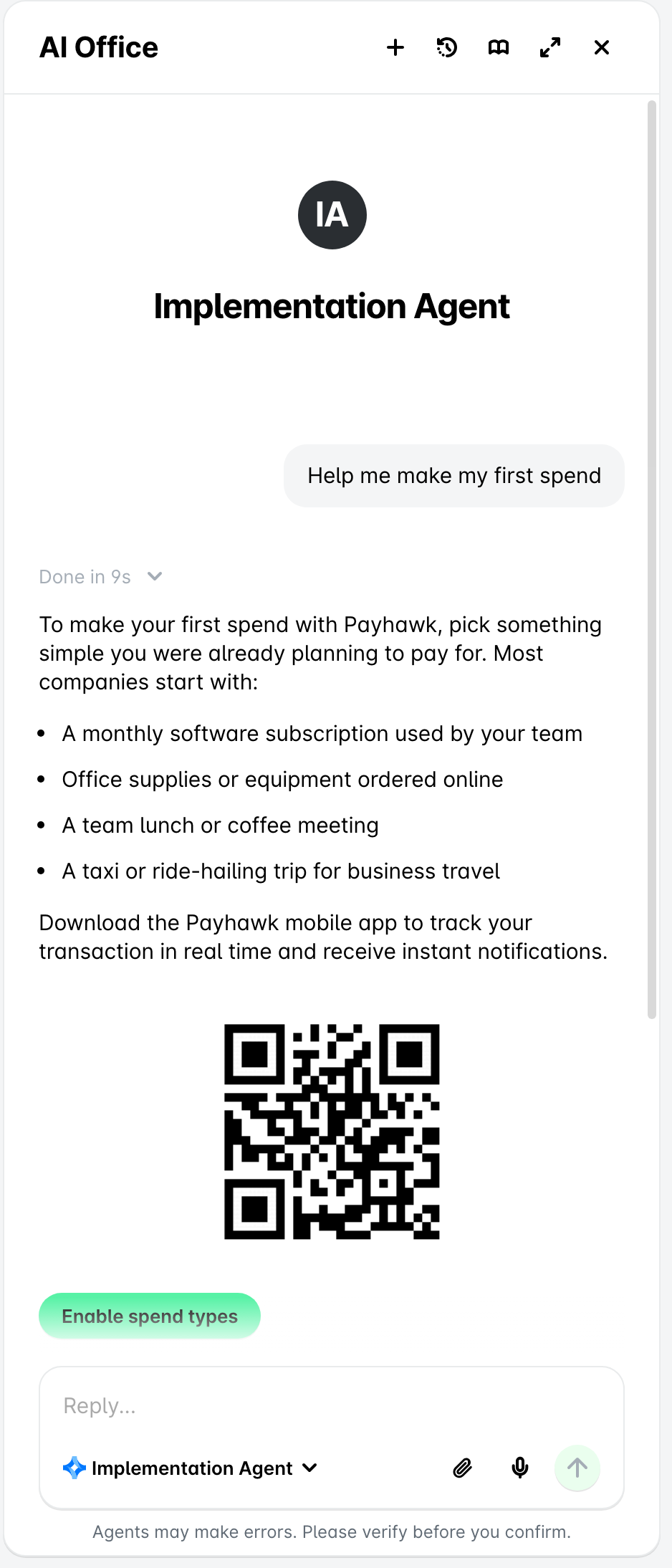
Make your first spend
Estimated time: ~15 min
To confirm everything is working properly, the Implementation AI Agent will walk you through making a real transaction once your cards are ready and your account is funded.
This step appears only if your subscription includes cards.
How the Implementation AI Agent prioritizes steps
The Implementation AI Agent guides you through setup in the right order:
The Agent prioritizes the steps needed to start spending sooner. Connecting your accounting system, issuing cards, and funding your account are prioritized because they directly unlock the ability to spend.
If some steps require approval, such as KYC verification, the Agent helps you continue with the rest of the setup while you wait.
Unnecessary steps are skipped - If your subscription doesn't include cards, card-related steps are not shown. If you're on a credit account, funding is not required.