.avif)
Best Business Central expense management software in 2026: compare 8 tools
26 Oct 20266 min


Many finance teams put spend management on hold until their ERP migration is finished. In practice, the ERP project is the best time to do it: you define the chart of accounts once, avoid a second migration and take manual expense work off the team when it's busiest
The safest time to change your spend management tool is during an ERP migration, not after it. You redesign the chart of accounts once, your new ERP gets clean expense data from day one, and you avoid reopening integrations a few months after go-live.
An ERP migration is one of the biggest projects a finance team takes on. It means months of data cleansing, testing, training and, often, a parallel run with two systems. So when someone suggests changing your expense tool at the same time, the instinct is to say "not now".
It's an understandable reaction. But waiting usually turns one project into two. You migrate the ERP with your current expense processes, then reopen the chart of accounts, cost centres and integrations a few months later to bring in a new tool.
This guide explains why your ERP migration is the right moment to implement spend management software, how it works alongside your current and future ERP, and what the cutover looks like in practice.
Most ERP project plans focus on the ERP itself: data migration, configuration, testing and training. The systems that feed it get less attention. Expense tools, corporate cards, supplier invoices, payroll and banking all send data into the ledger, and each one has to be remapped when the chart of accounts changes.
Spend is the busiest of these flows. Card payments, receipts and invoices arrive every day, from people across the business, not just finance. If that flow isn’t ready for the new ERP, the problems show up in the first month-end close: miscoded expenses, missing VAT, and suspense accounts that someone has to clear by hand.
In our conversations with finance leaders, the same three concerns come up again and again:
1. Designing the chart of accounts twice
An ERP migration is when finance revisits accounts, sub-accounts, cost centres and analytical dimensions. If you define expense categories in the same exercise, they line up with the new structure from the start. Do it later, and you'll be mapping a new tool onto an ERP that has only just stabilised.
2. A second, unplanned migration after go-live
Anything you implement after go-live means remapping categories, reviewing export formats and retesting integrations. That's a second, smaller migration your team has to plan, staff and sign off.
3. Renewing a tool that won’t connect to your new ERP
ERP projects slip; contract renewal dates don't. Renewing your current tool by default can tie you to a system that has no integration with your new ERP, and you'll find out just as the new system goes live.
4. Finance capacity drained by manual work during the project
Card payments, receipts and supplier invoices keep arriving every day of the ERP migration. If that flow is already automated, your team spends its hours on the migration, not on chasing receipts and keying in invoices.
5. A messy first close in the new ERP
Expenses arrive in the new ERP already coded with the final structure, with VAT split out and the receipt attached. No clean-up project in month two.
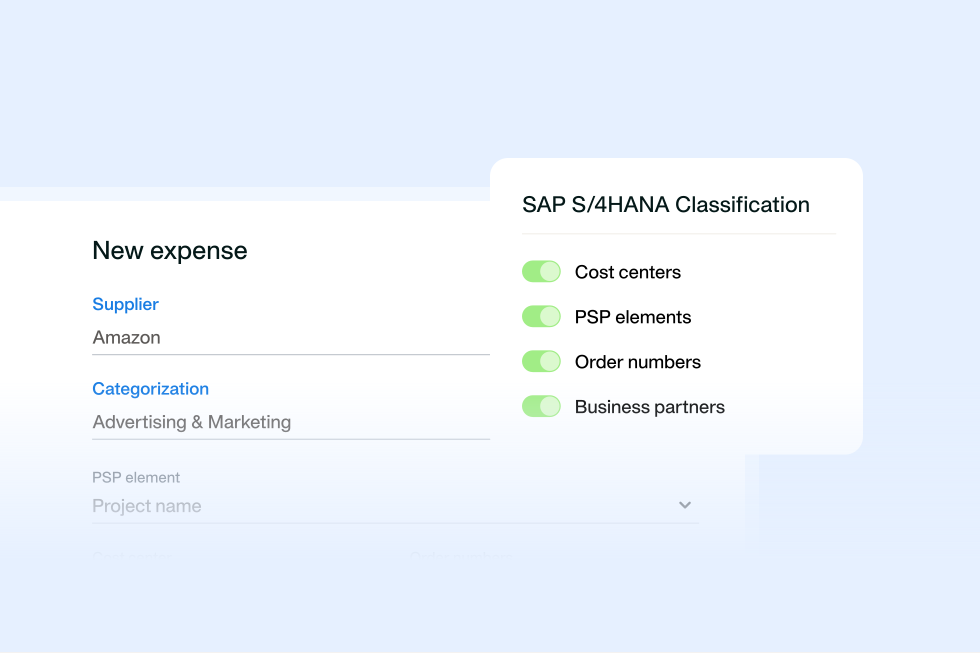
Here’s how that works in practice with Payhawk. The key idea is simple: a spend management platform sits on top of your ERP, not inside it. Cards, expenses, supplier invoices and reimbursements are managed in Payhawk. During the migration, the only thing that changes is where the data is exported.
Moving to a new ERP? Optimise your accounting processes with Payhawk’s native ERP integrations.
In Payhawk, each expense category is linked to a general ledger account in your ERP, along with its tax code and dimensions such as cost centre, department or project. When you change ERP, you change that link. Employees keep seeing the same categories in the app, so nothing changes for them.
For example, if you move from A3 to Business Central, your employees keep the same three Payhawk categories, and each one simply points to a new account:
That's why it pays to design your categories alongside the new ERP. If the chart of accounts stays the same, the switch is simple. If it changes, you update the mapping per category, not expense by expense.
Changing ERP doesn’t mean rebuilding your spend setup. Your workflows, approval setups and configurations in Payhawk carry over as they are. What changes is where your expenses go and the data that comes from the ERP.
After cutover, expenses are exported to the new ERP, which automatically syncs its own fields and values into Payhawk. Values from your previous ERP are archived and replaced by their new equivalents, so cost centre fields from DATEV, for example, are replaced by the ones in NetSuite.
An ERP migration absorbs your finance team for months. Meanwhile, expenses don't wait. Here's how the most time-consuming manual tasks change:
The result: your team spends its time on what only it can do during the ERP migration, such as validating balances, reviewing the account structure, testing processes and training users.
Switching ERP? Keep your chart of accounts, VAT codes and cost centres in sync with Payhawk’s integrations.
The Implementation Agent can guide your team through the setup alongside your implementation manager.
Payhawk customers have made the switch across very different ERP moves:
Do I have to wait until my ERP migration is finished?
No. You can start with your current ERP and switch the integration when the new system goes live.
What if my current ERP doesn't have a native integration?
You can use an export template in the format your ERP imports. That's common with systems such as A3 or Sage 200.
Do I need to reconfigure everything when I change ERP?
No. Workflows, approval setups and configurations carry over. What changes is the export destination and the master data: the new ERP syncs its own fields and values, and old values, such as cost centres from your previous ERP, are archived and replaced by their new equivalents.
Can I test the new ERP integration before go-live?
Yes. The standard approach is to connect a Payhawk sandbox to your new ERP's sandbox and test the full flow before cutover.
Can Payhawk connect to my old and new ERP at the same time?
Not from the same entity: each Payhawk entity connects to one ERP at a time. If different entities move at different times, each can connect to its own ERP in parallel.
Payhawk has native integrations with Microsoft Dynamics 365 Business Central and Finance, Oracle NetSuite, SAP S/4HANA Cloud, Sage Intacct, DATEV, Xero, Exact Online and QuickBooks. For other systems, configurable export templates and the Payhawk API cover the rest. See all integrations.
Further reading in the Payhawk Help Center
An ERP migration succeeds or fails at the first close, and the first close depends on everything that feeds the ledger. Bringing spend management into the project means you design your finance structure once, your new ERP gets clean data from day one, and your team isn’t keying in receipts while it validates balances.
Planning an ERP migration? Book a demo and we'll show you how Payhawk fits your migration timeline, with your current ERP and your new one.
An integral part of Payhawk’s journey from the very beginning, Raquel has seamlessly transitioned across key roles—starting in sales, building the customer success team from the ground up, and later moving into content and product marketing. Today, she thrives as a Senior Product Marketing Manager and also leads the company’s ESG efforts. Outside of work, Raquel is passionate about the outdoors and enjoys swimming, hiking, and baking for her two children.